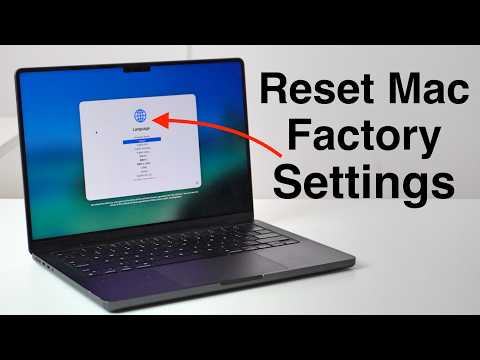
Resetting your Mac to factory settings is a critical process when preparing to sell, give away, or refresh your device. This procedure ensures that all personal data is erased, your Apple account is disconnected, and the Mac is restored to its original state. While the process is straightforward, careful preparation is essential to avoid losing important files or encountering issues. The video below from Daniel About Tech gives us a detailed guide to help you reset your Mac efficiently and securely.
Step 1: Back Up Your Data
Before initiating the reset process, it is vital to back up all important data. Resetting your Mac will permanently delete everything stored on the device, so safeguarding your files is a necessary precaution. Consider the following backup options:
- Time Machine: Use Apple’s built-in backup tool to create a complete system backup on an external drive. This is the most comprehensive option for preserving your data.
- Cloud Storage: Services like iCloud, Google Drive, or Dropbox allow you to store files securely online, providing easy access from any device.
- External Drives: Manually transfer essential files to a USB drive or external hard drive for quick and reliable access.
Additionally, ensure your Mac is connected to a power source or has at least 50% battery life to prevent interruptions during the reset process. Taking these precautions will help you avoid data loss and ensure a smooth reset.
Step 2: Begin the Reset Process
Once your data is securely backed up, you can proceed with resetting your Mac. Follow these steps to erase all content and settings:
- Click the Apple logo in the top-left corner of your screen and select System Settings.
- Navigate to General and choose Transfer or Reset.
- Select Erase All Content and Settings. You will be prompted to enter your Mac’s administrator password to confirm the action.
- Sign out of your Apple account. This step is crucial to unlink your Apple ID from the device, especially if you plan to sell or give it away. Failing to do so may cause issues for the next user.
This process ensures that all personal data is removed and the Mac is ready for its next use.
Step 3: Complete the Reset
After confirming your decision to erase all content, the Mac will initiate the reset process. This may involve several restarts as the system deletes all data and restores factory settings. The duration of this process can vary depending on the Mac model and the amount of data being erased.
Once the reset is complete, connect your Mac to a Wi-Fi or Ethernet network. This step is necessary to activate the device and prepare it for setup. At this stage, the Mac will be restored to its original state, ready for the next steps.
Step 4: Post-Reset Options
After the reset process is finished, your Mac will display the setup screen, appearing as it did when it was first unboxed. At this point, you have two primary options depending on your intended use:
- Selling or Giving Away: If you are transferring ownership, no further action is required. The new owner can proceed with the setup process and personalize the device to their preferences.
- Personal Use: If you plan to continue using the Mac, follow the on-screen instructions to set it up again. During this process, you can restore your data from the backup you created earlier, ensuring a seamless transition back to normal use.
These options allow you to tailor the post-reset process to your specific needs, whether transferring ownership or starting fresh.
Key Considerations
Resetting your Mac is a permanent action, so it is essential to double-check that all necessary data is backed up before proceeding. Additionally, ensure that you have signed out of your Apple account to avoid complications for the next user. If you encounter any issues, such as an outdated macOS version or difficulty signing out of your Apple ID, consult Apple’s official support resources for assistance.
By carefully following these steps, you can reset your Mac confidently and securely. Whether you are preparing the device for a new owner or refreshing it for personal use, this process ensures that your Mac is ready for its next chapter.
Here is a selection of other guides from our extensive library of content you may find of interest on Factory Reset Mac.
- How to factory reset MacBook Air & MacBook Pro
- How to Reset Your Mac Password Without Losing Data
- How to factory reset any iPad
- How to Hard Reset Your Samsung Galaxy in Minutes
- How to Reset Your Mac Login Password With Apple ID
Source: Daniel About Tech
Disclosure: Some of our articles include affiliate links. If you buy something through one of these links, Geeky Gadgets may earn an affiliate commission. Learn about our Disclosure Policy.
