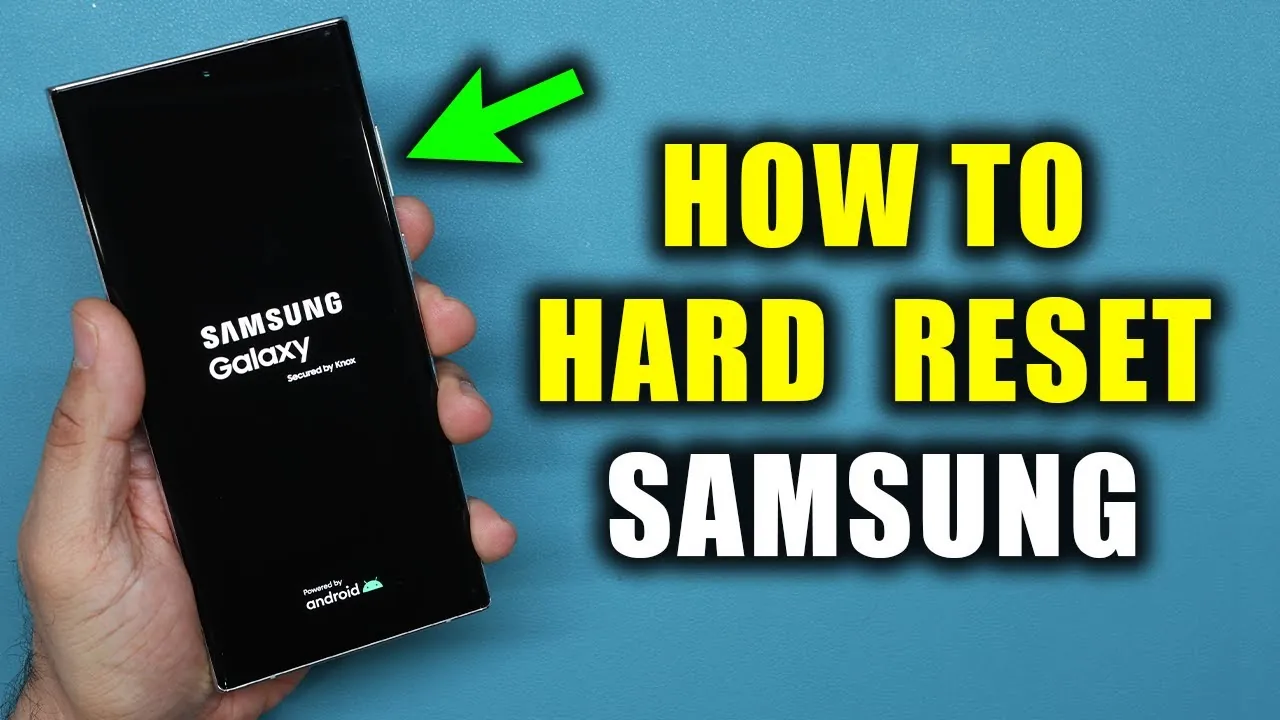
Resetting your Samsung Galaxy smartphone is a practical solution for addressing performance issues, resolving software glitches, or preparing the device for a new user. This guide provides detailed instructions for two essential reset methods: a forced restart and a factory data reset. Each method is designed to address specific scenarios, making sure you can troubleshoot effectively while maintaining control over your data and device. The video below from Sakitech gives us more details.

Forced Restart: A Quick Fix Without Data Loss
A forced restart is a straightforward method to resolve minor software issues, such as unresponsiveness or freezing, without affecting your personal data. This approach is ideal for addressing temporary glitches and restoring functionality quickly.
To perform a forced restart:
- Press and hold the power button and volume down button simultaneously.
- Continue holding the buttons for 5-10 seconds until the Samsung logo appears on the screen.
- Release the buttons, and your phone will automatically restart.
This process is non-destructive, meaning your apps, files, and settings remain intact. It’s a reliable first step for troubleshooting minor issues without the need for more invasive measures.
Factory Data Reset: Restoring Your Device to Factory Settings
A factory data reset is a more comprehensive solution that erases all data and restores your phone to its original factory settings. This method is particularly useful when preparing your device for resale, addressing persistent software problems, or starting fresh with a clean slate.
To perform a factory data reset:
- Power off your phone using the power-off menu.
- Press and hold the power button and volume up button simultaneously until the Samsung logo appears.
- Release the buttons to access the recovery menu.
- Use the volume rocker to navigate to “Wipe Data/Factory Reset” and select it with the power button.
- Confirm the reset when prompted. This will erase all data, including apps, photos, and personal settings.
- Once the process is complete, your phone will restart at the welcome screen.
After completing the reset, you’ll need to go through the initial setup process. This includes signing in to your Google account, restoring backups (if available), and reconfiguring your preferences. A factory reset is a powerful tool for resolving deeper issues but requires careful preparation to avoid losing important data.
Key Preparations Before Resetting
Before performing a factory data reset, it’s essential to take certain precautions to ensure a smooth and secure process. These steps will help you safeguard your data and avoid unnecessary complications:
- Back up your data: Use Samsung Cloud, Google Drive, or an external storage device to save your files, contacts, and app data. This ensures you can restore important information after the reset.
- Account credentials: A factory reset removes all accounts linked to the device. Be prepared to re-enter your login details, such as your Google account, during the setup process.
- Battery charge: Ensure your phone has at least 50% battery life to complete the reset process without interruptions. A low battery could cause the reset to fail, potentially leading to additional issues.
By following these precautions, you can minimize the risk of data loss and ensure a seamless reset experience.
Choosing the Right Reset Method
Selecting the appropriate reset method depends on the specific issue you’re facing. Understanding the purpose and impact of each method will help you make an informed decision:
- Forced Restart: Use this method for temporary software glitches, unresponsiveness, or minor performance issues. It’s a quick and non-invasive solution that doesn’t affect your data.
- Factory Data Reset: Opt for this method when dealing with persistent errors, malware infections, or when preparing the phone for a new user. Keep in mind that this process erases all data and restores the device to its original settings.
By identifying the root cause of the problem, you can choose the most effective reset method to address your needs while minimizing disruptions to your device’s functionality.
Maintaining Your Samsung Galaxy Smartphone
Resetting your Samsung Galaxy smartphone is a valuable tool for troubleshooting and maintaining optimal performance. A forced restart provides a quick and non-invasive fix for minor issues, while a factory data reset offers a more thorough solution for persistent problems or when preparing the device for a new user. By following the steps outlined in this guide and taking the necessary precautions, you can ensure a smooth reset process and keep your device running efficiently. Always remember to back up your data before performing a factory reset to protect your important information.
Uncover more insights about Samsung Galaxy reset methods in previous articles we have written.
- How to factory reset iPads
- How to Factory Reset iPhone without Passcode by ReiBoot iOS
- How to Reset Your Mac Login Password With Apple ID
- How to Reset Your iPad Without a Computer
- How to Reset Your iPhone Screen Time Passcode
Source & Image Credit: sakitech
Disclosure: Some of our articles include affiliate links. If you buy something through one of these links, Geeky Gadgets may earn an affiliate commission. Learn about our Disclosure Policy.
