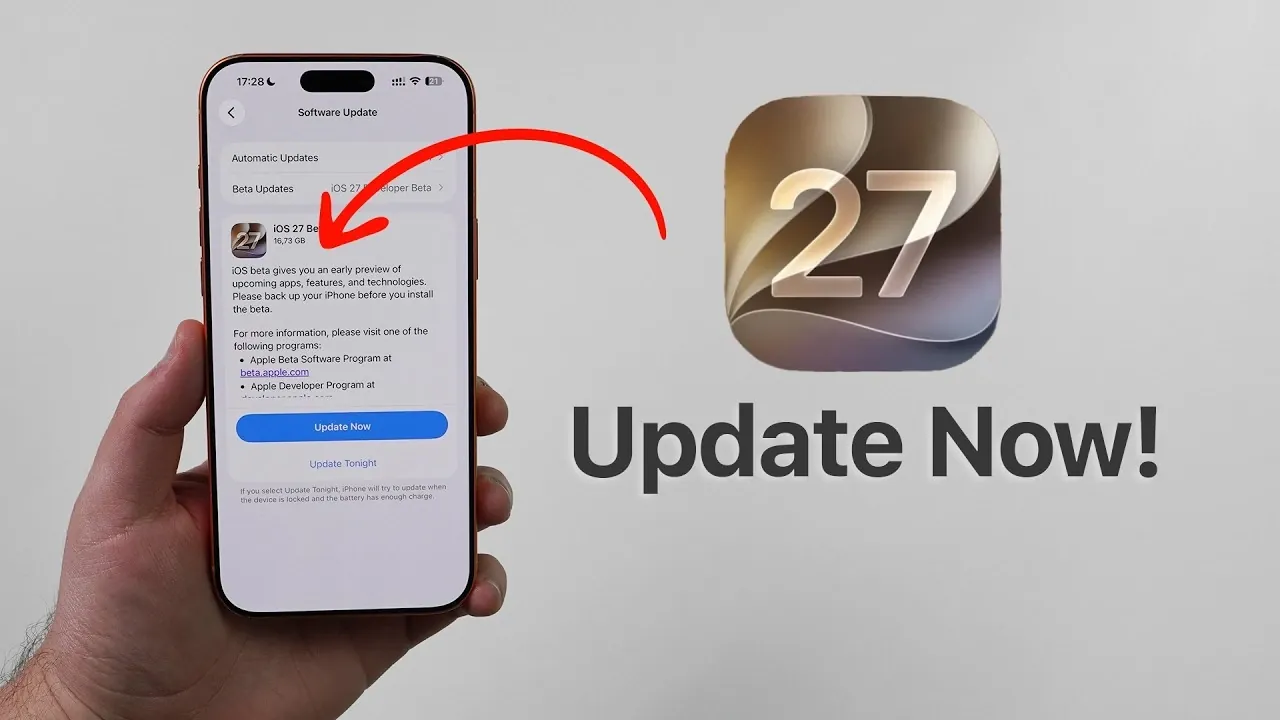
Apple has officially released the iOS 27 developer beta, offering users an early glimpse into the latest features and enhancements. If you’re eager to explore what’s new, Apple provides a secure and straightforward way to install the beta version. This guide will walk you through the process step by step, making sure you can update your device safely and efficiently. Before proceeding, it’s crucial to back up your iPhone to safeguard your data in case of unexpected issues. The video below from Daniel About Tech gives us more details on how to get the iOS 27 beta on your device.

Allowing Beta Updates Through iPhone Settings
The most convenient way to access the iOS 27 developer beta is directly through your iPhone’s settings. This method eliminates the need for additional downloads or external tools. Follow these steps to enable beta updates:
- Open the Settings app on your iPhone.
- Navigate to General and select Software Update.
- If the iOS 27 developer beta is available, you’ll see an option to enable beta updates. Toggle this setting to activate it.
This process is simple and efficient, but keep in mind that the beta update option will only appear if your Apple ID is registered with the Apple Developer Program. If you’re not already a member, you’ll need to sign up on Apple’s official developer website.
Using the Apple Developer Website to Access Beta Updates
If the beta update option doesn’t appear in your iPhone’s settings, you can enable it through the Apple Developer website. This alternative method ensures you can still access the beta version. Here’s how to proceed:
- Launch Safari on your iPhone and visit developer.apple.com.
- Log in using the Apple ID associated with your iPhone.
- Review and agree to the terms outlined in the Apple Developer Agreement.
- Restart your iPhone to apply the necessary changes.
After restarting, return to the Software Update section in your settings. The iOS 27 developer beta should now be visible and ready for installation. This method is particularly useful for users who encounter issues accessing the beta directly through their device settings.
The Importance of Backing Up Your iPhone
Before installing the iOS 27 developer beta, creating a backup of your iPhone is a critical step. This precaution ensures your data is protected in case you encounter any bugs or decide to revert to a previous iOS version. There are two primary methods to back up your device:
- iCloud Backup: Open Settings, tap your name at the top, then go to iCloud > iCloud Backup. Toggle the backup option and select Back Up Now to create a current backup.
- Computer Backup: Connect your iPhone to a computer and use Finder (on macOS) or iTunes (on Windows) to create a local backup. Ensure the backup is encrypted if you want to save sensitive data like passwords and health information.
Having a backup not only protects your data but also provides a safety net if you need to downgrade to a stable iOS version later.
Installing the iOS 27 Developer Beta
Once you’ve enabled beta updates and backed up your device, you’re ready to install iOS 27. Follow these steps to complete the installation process:
- Go to Settings > General > Software Update.
- Locate the iOS 27 developer beta and tap Download and Install.
- Enter your device passcode to confirm the installation.
- Your iPhone will restart automatically to finalize the update.
The installation process may take some time, depending on your internet speed and device performance. Ensure your iPhone is connected to a stable Wi-Fi network and has sufficient battery life or is plugged into a power source to avoid interruptions.
Steps to Downgrade if Necessary
If you encounter significant issues with the beta version or decide it’s not suitable for your needs, Apple allows you to downgrade to a stable iOS version. However, this is only possible if you’ve created a backup before installing the beta. To downgrade:
- Connect your iPhone to a computer using a Lightning cable.
- Put your device into recovery mode. The steps to enter recovery mode vary depending on your iPhone model, so refer to Apple’s official support page if needed.
- Once in recovery mode, use Finder (macOS) or iTunes (Windows) to restore your iPhone. Select the backup you created earlier to revert to the previous iOS version.
This process will erase any changes made by the beta and restore your device to its earlier state. It’s a reliable way to resolve issues or return to a more stable iOS version.
Essential Considerations for Updating to iOS 27
Updating to iOS 27 through the developer beta program is an exciting opportunity to explore Apple’s latest features before the official release. However, it’s essential to approach the process with caution. Here are some key points to keep in mind:
- Ensure your Apple ID is registered with the Apple Developer Program to access beta updates.
- Always back up your iPhone before installing the beta to protect your data and enable downgrades if necessary.
- Use a stable Wi-Fi connection and ensure your device has sufficient battery life during the installation process.
- Be prepared for potential bugs or performance issues, as beta versions are not final and may contain unresolved glitches.
By following these guidelines, you can enjoy the benefits of iOS 27 while minimizing risks. Whether you’re a developer testing app compatibility or a user curious about new features, the beta program offers a valuable preview of Apple’s latest innovations.
Below are more guides on iOS 27 from our extensive range of articles.
- iOS 27 Leaks Reveal the End of an Era: Apple’s New Priorities Confirmed
- iOS 27 Could Be Apple’s ‘Snow Leopard’ Moment—Focusing on One Huge Change
- The iOS 27 Compatibility Shock: Every iPhone That Will (and Won’t) Get the 2026 Update
- Apple Just Gave Us Our First Look at iOS 27—and It Changes Siri Forever
- First Look at the iOS 27 Siri Redesign Before WWDC 2026
- Apple Just Changed Everything: iOS 27 Rewrites the Rules for AirPods and AirPlay
Source & Image Credit: Daniel About Tech
Disclosure: Some of our articles include affiliate links. If you buy something through one of these links, Geeky Gadgets may earn an affiliate commission. Learn about our Disclosure Policy.
