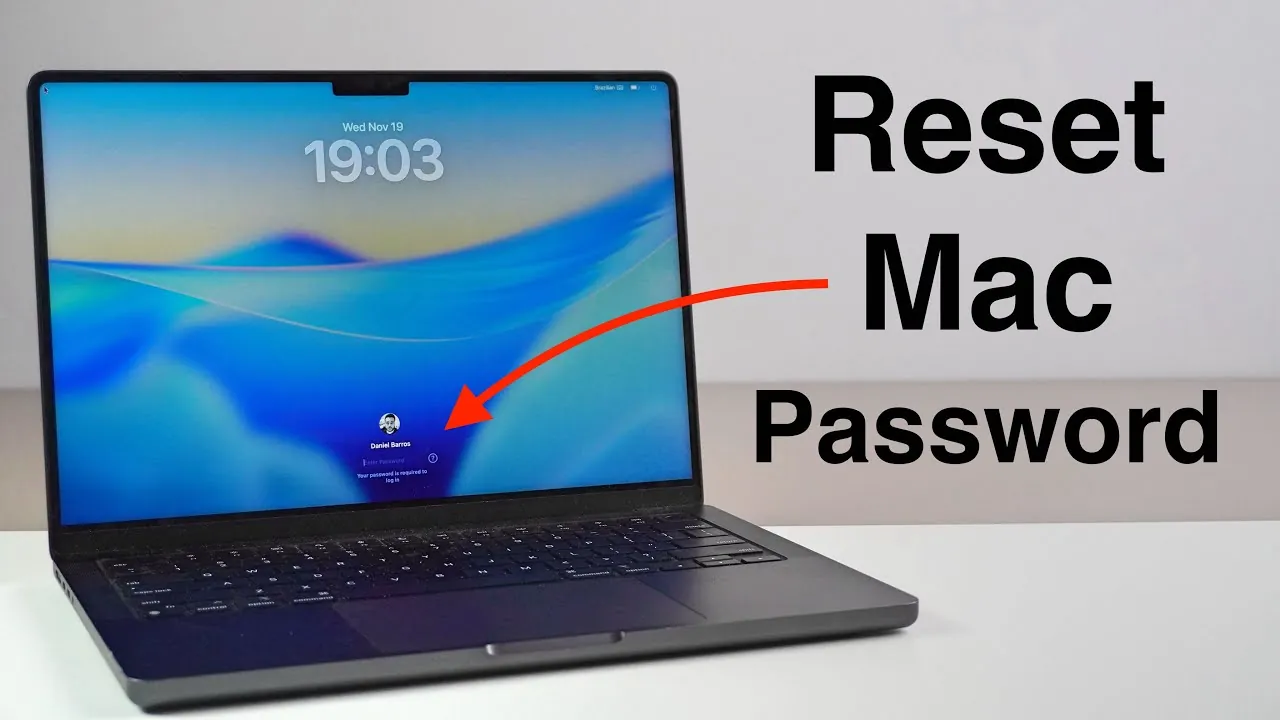
Forgetting your Mac password can be a stressful experience, but it doesn’t have to result in data loss or frustration. By following a structured and secure process, you can reset your password and regain access to your Mac without compromising your files, applications, or settings. The video below from Daniel About Tech provides a step-by-step approach to help you navigate the situation effectively and ensure your data remains intact.

How to Reset Your Mac Password
Resetting your Mac password is a straightforward process, provided you have access to your Apple ID and a stable internet connection. These elements are essential for verifying your identity and completing the reset securely. Follow these steps to regain access to your Mac:
- Restart your Mac: Begin by restarting your device. At the login screen, click the question mark icon next to the password field or select the “Forgot Password” option. This will initiate the password recovery process.
- Authenticate with your Apple ID: Enter your Apple ID and password when prompted. Ensure your Mac is connected to the internet via Wi-Fi or Ethernet to allow Apple’s servers to verify your credentials.
- Create a new password: Once your identity is confirmed, you’ll be prompted to set a new password. Choose a strong and unique password that balances security with memorability.
- Set a password hint: Optionally, add a password hint to assist you in recalling your new password in the future. This hint will appear on the login screen if you forget your password again.
By carefully following these steps, you can reset your password and regain access to your Mac without compromising your data.
What to Do If You Forget Your Apple ID Password
If you’ve also forgotten your Apple ID password, recovering it is a necessary step before resetting your Mac password. Apple provides a secure recovery process to help you regain access to your Apple ID. Here’s how to proceed:
- Visit Apple’s account recovery page. This official site is designed to guide you through the recovery process.
- Follow the on-screen instructions to reset your Apple ID password. Depending on your account settings, this may involve answering security questions, verifying your email address, or using two-factor authentication.
- Once you’ve successfully reset your Apple ID password, return to your Mac and continue with the password reset process as outlined earlier.
Recovering your Apple ID password ensures you can complete the Mac password reset securely and without complications.
How to Avoid Data Loss During the Reset
One of the key benefits of resetting your Mac password using your Apple ID is that it preserves all your data. Unlike methods that involve erasing your disk, this approach ensures your files, applications, and settings remain untouched. To further minimize risks and ensure a smooth process, consider the following tips:
- Maintain a stable internet connection: Ensure your Mac remains connected to the internet throughout the reset process to avoid interruptions or errors.
- Follow instructions carefully: Adhere to the prompts and guidelines provided during the reset process to avoid accidental missteps.
By taking these precautions, you can reset your password with confidence, knowing your data is secure.
After the Reset: Securing Your Mac
Once you’ve successfully reset your password, it’s important to take steps to enhance your Mac’s security and prevent future issues. After logging in with your new credentials, verify that all your files, applications, and settings are intact. Then, consider allowing the following features to strengthen your Mac’s protection:
- FileVault encryption: Enable FileVault to encrypt your Mac’s data, making sure it remains inaccessible to unauthorized users. This feature adds a robust layer of security to your device.
- Two-factor authentication: Activate two-factor authentication for your Apple ID. This requires a verification code in addition to your password, significantly reducing the risk of unauthorized access.
- Regular backups: Use Time Machine or another backup solution to create regular backups of your data. This ensures you can recover your files in case of unexpected issues.
Implementing these measures not only secures your Mac but also prepares you to handle similar situations more effectively in the future. By prioritizing security, you can reduce the likelihood of encountering password-related challenges again.
Find more information on Mac password reset by browsing our extensive range of articles, guides and tutorials.
- How to Reset Your Mac Login Password With Apple ID
- Reset your Apple ID password
- How to Factory Reset Apple Devices: iPhone, iPad, Mac, Apple Watch
- How to Reset a Forgotten Apple Notes App Password on iPhone 16
- How to erase and reset your Mac to factory settings
Source & Image Credit: Daniel About Tech
Disclosure: Some of our articles include affiliate links. If you buy something through one of these links, Geeky Gadgets may earn an affiliate commission. Learn about our Disclosure Policy.
