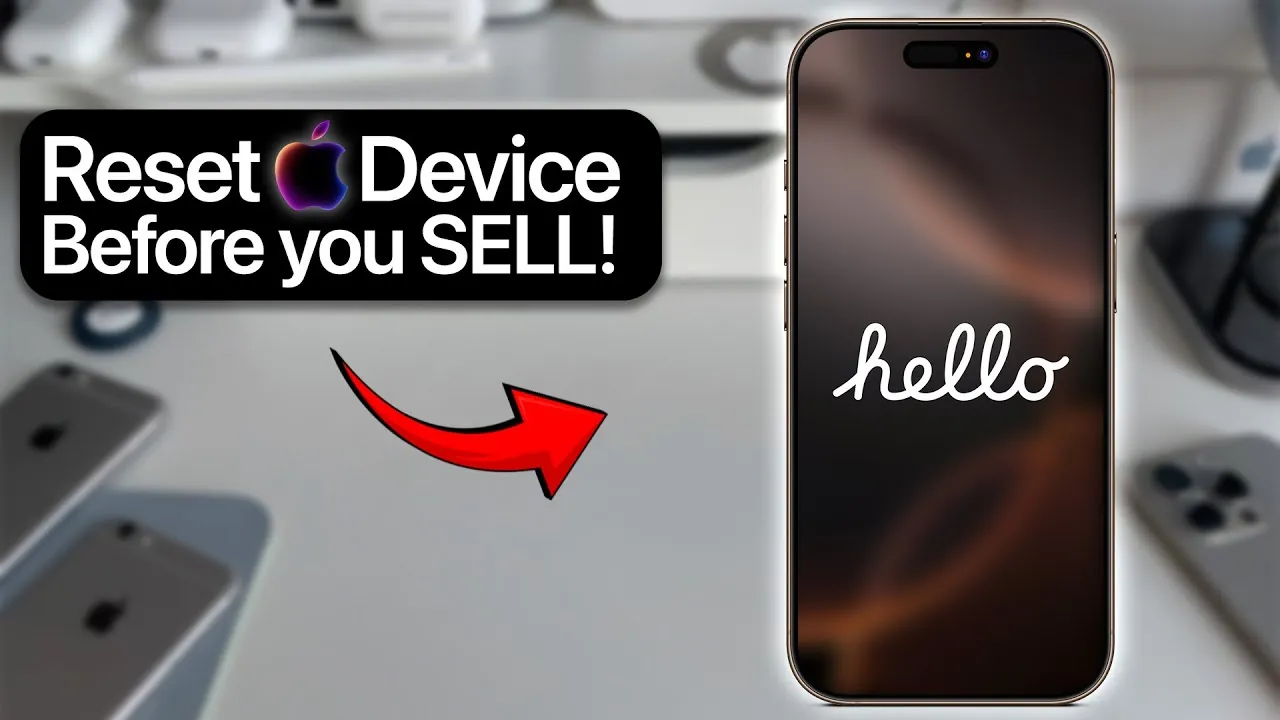
When selling, gifting, or recycling your Apple devices, securely erasing all data is a critical step to protect your personal information. This process involves backing up your data, resetting the device, and managing associated accounts like Apple ID and iCloud. Following the correct steps ensures your personal information remains safe while preparing the device for its next user. The video below from AppleDsign gives us more details on how to erase your data on a r range of Apple devices.

Why Backing Up Your Data Is Crucial
Before erasing your device, creating a backup is an essential precaution. Backing up ensures you retain access to important files, photos, and settings, even after resetting the device. Apple provides two primary backup options:
- iCloud Backup: This option automatically saves your data to the cloud, allowing for easy restoration on a new or existing device. It’s a convenient choice for users who prefer wireless backups.
- Local Backup: For those who prefer offline storage, you can use Finder (on macOS Catalina and later) or iTunes (on Windows or older macOS versions) to create a backup directly on your computer.
Without a backup, all data on the device will be permanently lost after the reset. Making sure your data is safely stored before proceeding is a vital step in the process.
Steps to Erase Data on iPhone and iPad
The process for securely erasing data on an iPhone or iPad is straightforward and similar for both devices. Follow these steps to reset your device to factory settings:
- Navigate to Settings > General > Transfer or Reset [Device] > Erase All Content and Settings.
- Enter your device passcode and Apple ID password when prompted to confirm the action.
- Once the process is complete, the device will restart and display the “Hello” or “Welcome” screen, indicating it is ready for setup.
It’s important to note that this process removes all local data but does not delete information stored in iCloud. To ensure a complete reset, verify that your iCloud account is properly managed before proceeding.
How to Erase Data on Mac
Erasing data on a Mac involves a slightly different approach, depending on the macOS version installed. For devices running macOS Monterey or later, Apple has streamlined the process:
- Ensure your Mac supports the reset feature available in newer macOS versions.
- Go to System Settings > Transfer or Reset > Erase All Content and Settings.
- Enter your Mac password and Apple ID credentials to confirm the reset.
- After the process completes, the Mac will restart, prompting you to pair Bluetooth devices and set it up as new.
This method removes all personal data while keeping the operating system intact, making it ready for a new user without compromising security.
How to Erase Data on Apple Watch
Erasing an Apple Watch can be done directly on the device or through the paired iPhone, depending on your intentions:
- Direct Reset: On the watch, navigate to Settings > General > Reset > Erase All Content and Settings. This method retains the activation lock, making sure the watch remains paired to your iPhone.
- Unpairing for Resale: Use the Watch app on your iPhone. Go to My Watch > All Watches > Unpair Apple Watch. Enter your Apple ID password to unpair and erase the device completely.
Unpairing the Apple Watch removes the activation lock, making it ready for a new user while making sure your personal data is fully erased.
Managing Apple ID and iCloud
When resetting any Apple device, your Apple ID password is required to confirm the action. This security measure prevents unauthorized access and ensures your data remains protected. It’s important to understand that erasing a device does not delete data stored in iCloud. To manage or delete iCloud data, log in to your account via a browser or another device. Additionally, unlinking the device from your Apple ID is a crucial step to ensure the new owner can set it up without issues.
Preparing Devices for Resale, Gifting, or Recycling
After securely erasing your device, there are a few additional steps to prepare it for its next owner:
- Remove from Apple ID: Use the Find My app or iCloud.com to unlink the device from your account. This step ensures the new user can activate the device without encountering activation lock issues.
- Include Accessories: If possible, provide necessary items like chargers, cables, or original packaging. This enhances the value and usability of the device for the recipient.
- Clean the Device: Wipe down the device to remove fingerprints, dust, or smudges. A clean device improves its presentation and makes a positive impression on the new user.
Taking these steps ensures a smooth transition for the next owner while safeguarding your personal information.
By following these guidelines, you can securely erase all data from your Apple devices, protect your personal information, and prepare the device for its next user. Whether you’re selling, gifting, or recycling, these steps ensure a seamless and secure process for everyone involved.
Explore further guides and articles from our vast library that you may find relevant to your interests in Erase Data on iPhone.
- Erase Your iPhone in 5 Minutes! (Secret Settings Revealed)
- Boost Your iPhone Security: Must-Change Settings
- How to factory reset your iPhone or iPad
- Switch to New iPhone Without Hassle: Transfer All Data
- Forgot iPhone Passcode? Learn to Unlock Without a Computer
Source & Image Credit: AppleDsign
Disclosure: Some of our articles include affiliate links. If you buy something through one of these links, Geeky Gadgets may earn an affiliate commission. Learn about our Disclosure Policy.
