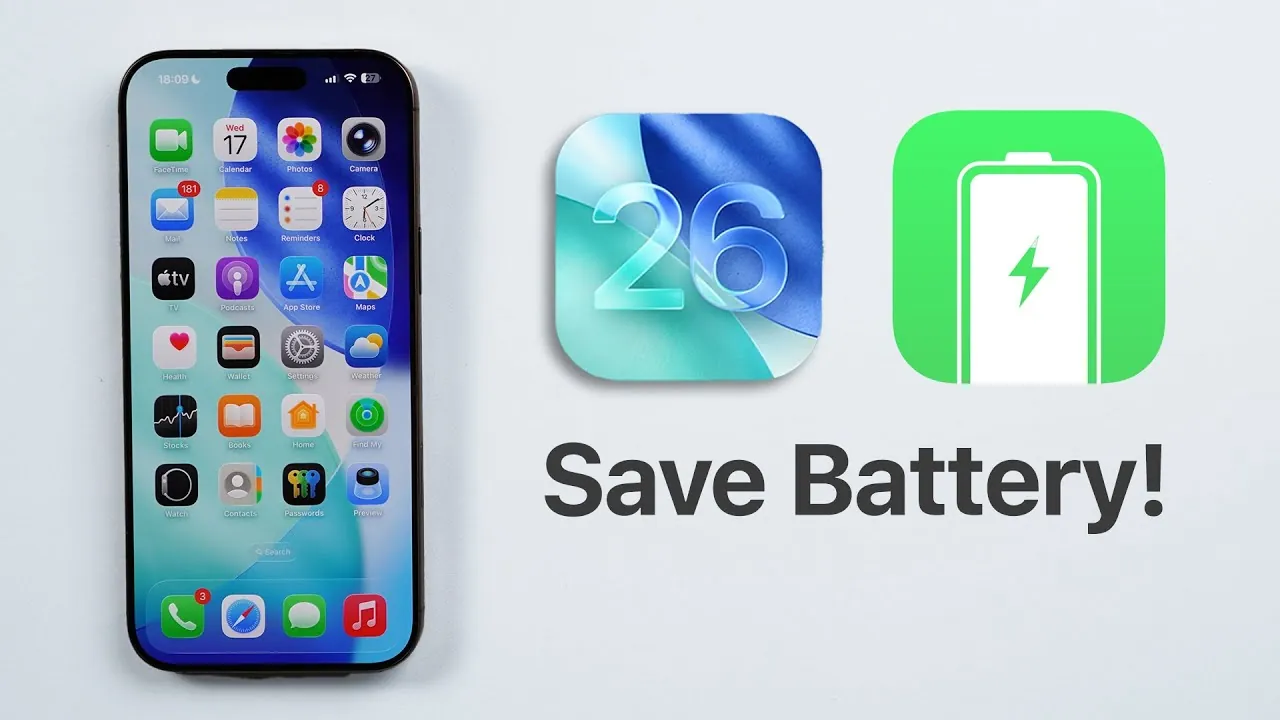
Effectively managing your iPhone’s battery life is essential for maintaining both daily performance and the long-term health of your device. With the advanced features introduced in iOS 26, battery optimization has become even more critical. By making strategic adjustments to your settings and usage habits, you can significantly reduce battery drain while preserving functionality. The video below from Daniel About Tech provides actionable steps to help you get the most out of your iPhone’s battery.
Update Your Apps Regularly
Keeping your apps updated is a simple yet impactful way to prevent unnecessary battery drain. Outdated apps may not be optimized for iOS 26, leading to compatibility issues and inefficient energy use. To ensure your apps are running efficiently:
- Visit the App Store frequently to check for updates.
- Enable automatic updates to keep your apps current without manual effort.
By maintaining updated apps, you can take full advantage of iOS 26’s performance improvements and reduce background energy consumption.
Reduce Lock Screen Effects
The visually stunning “Spatial Scene” 3D lock screen effect introduced in iOS 26 can be a significant battery drain. This feature relies heavily on your iPhone’s processor and gyroscope, consuming more power than static options. To conserve energy:
- Switch to static wallpapers or simpler backgrounds that require less processing power.
- Avoid dynamic effects or animations that continuously engage your device’s hardware.
These adjustments can help extend your battery life without compromising the overall user experience.
Use Adaptive Power Mode
For users with an iPhone 15 Pro or newer, Adaptive Power Mode is a valuable tool for balancing performance and energy efficiency. This feature intelligently adjusts your device’s performance based on usage patterns to conserve battery life. To activate it:
- Navigate to your battery settings and enable Adaptive Power Mode.
- Let the system dynamically manage performance without noticeable changes to usability.
This hands-free approach ensures optimal energy use while maintaining a seamless experience.
Optimize Charging Habits
iOS 26 introduces advanced charging features designed to protect your battery’s health over time. Proper charging habits can significantly extend the lifespan of your device’s battery. Consider these options:
- Enable “Optimized Battery Charging” to slow the charging process after reaching 80%, reducing wear on the battery.
- For iPhone 15 models, use the “Charge Limit” feature to cap charging at 80%, especially during overnight charging sessions.
These features help prevent overcharging and minimize long-term battery degradation.
Manage Apple Intelligence Features
Apple Intelligence tools, such as advanced writing suggestions and image processing, are powerful but can consume substantial battery power. If you don’t use these features regularly:
- Disable them in your settings to conserve energy.
- Turn off unnecessary background processes that may drain your battery and storage.
By tailoring these settings to your needs, you can reduce energy consumption without sacrificing essential functionality.
Enable “Reduce Motion”
Animations and transitions in iOS enhance the visual experience but can also contribute to battery drain. To minimize their impact:
- Go to Accessibility settings and enable “Reduce Motion.”
- Understand that this may slightly alter the visual experience but will significantly improve battery efficiency.
This adjustment is particularly useful for users who prioritize battery life over aesthetic effects.
Optimize 5G and Cellular Settings
While 5G connectivity offers faster speeds, it is also a known battery drainer. Managing your cellular settings can help mitigate its impact:
- Set your device to “5G Auto” to switch between 5G and LTE based on network conditions, reducing unnecessary power usage.
- Disable iCloud services like “iCloud Backup” and “iCloud Drive” over cellular to prevent excessive energy consumption.
These changes allow you to enjoy the benefits of 5G without compromising battery life.
Stay Current with Software Updates
Apple regularly releases software updates to address performance issues and improve battery efficiency. To ensure your device benefits from these enhancements:
- Check for updates in the Settings app frequently.
- Install updates promptly to take advantage of bug fixes and new features.
Staying up-to-date ensures your iPhone operates at peak efficiency.
Adjust Display and Brightness Settings
The display is one of the most power-hungry components of your iPhone. To reduce its impact on battery life:
- Enable “Dark Mode” on OLED devices (iPhone 12 and newer) to save energy by turning off pixels in darker areas.
- Disable “True Tone” and reduce the “Auto-Lock” time to minimize screen usage.
- For devices with “Always-On Display,” consider turning it off or limiting its features.
These adjustments can significantly extend your battery life without affecting usability.
Refine Location Services
Location services are convenient but can drain your battery if not managed properly. To optimize their usage:
- Set app access to “While Using” or “Never” unless absolutely necessary.
- Disable system services like “Apple Pay Merchant Identification” and “Home Accessories” if they are not essential.
- Turn off “Significant Locations” unless you rely on it for specific features like “Optimized Battery Charging.”
Customizing these settings ensures that location services only consume power when truly needed.
Control Background App Refresh
Background App Refresh allows apps to update content in the background, which can drain your battery. To minimize its impact:
- Set it to “Wi-Fi Only” to prevent updates over cellular data.
- Disable it entirely for apps that don’t require frequent updates.
This simple adjustment can lead to noticeable improvements in battery life.
Adjust Mail Fetch Settings
Email retrieval settings can significantly affect battery consumption. To optimize these settings:
- Switch from “Push” to “Fetch” to reduce constant server communication.
- Set the fetch interval to 15 or 30 minutes for a balance between updates and energy savings.
These changes help reduce unnecessary background activity while keeping you informed.
Use Low Power Mode
Low Power Mode is a quick and effective way to conserve battery life. It reduces background activity, lowers screen brightness, and disables non-essential features. To make the most of this feature:
- Add Low Power Mode to your Control Center for easy access.
- Activate it during periods of heavy usage or when your battery is running low.
This feature is a reliable solution for extending battery life in critical situations.
By implementing these strategies, you can effectively manage battery consumption on iOS 26. From adjusting display settings to optimizing charging habits, these practical changes will help you maintain daily efficiency and protect your iPhone’s battery health over time. With a few thoughtful tweaks, you can enjoy the full potential of your device without worrying about running out of power.
Here are more guides from our previous articles and guides related to iOS 26 Battery Optimization that you may find helpful.
- iOS 26 Settings You Should Change for Maximum Performance
- Why iOS 26 Causes Battery Drain and How to Fix It
- Save iPhone Battery with Adaptive Power (iOS 26 Public Beta)
- iOS 26 Battery Intelligence: Features, Benefits, and Compatibility
- Maximize iOS 26 Features: Pre-Update Settings You Need to Know
Source & Image Credit: Daniel About Tech
Disclosure: Some of our articles include affiliate links. If you buy something through one of these links, Geeky Gadgets may earn an affiliate commission. Learn about our Disclosure Policy.
