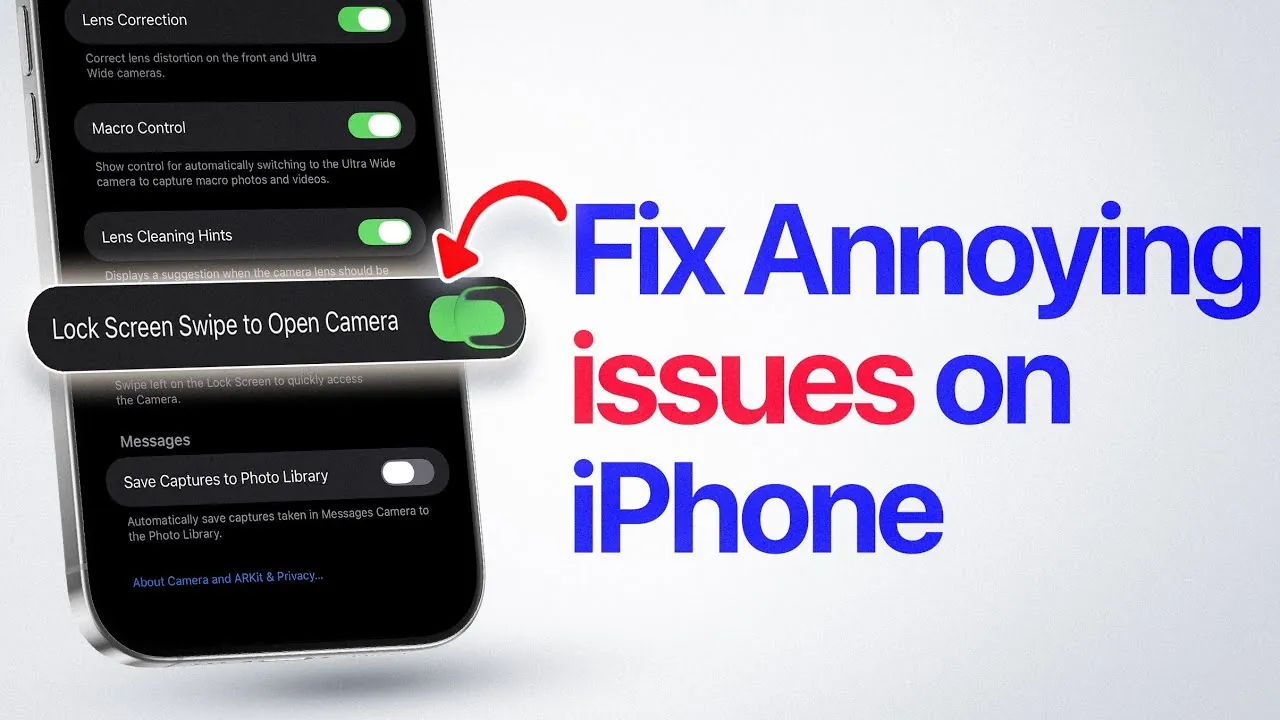
iOS 26 introduces a range of features designed to enhance your iPhone experience, but certain default settings may cause inconvenience. By making a few adjustments, you can address these common annoyances and optimize your device for better usability. The video below from iDeviceHelps outlines practical solutions to help you customize your iPhone, ensuring a smoother and more efficient experience.

Optimize the User Interface for Seamless Navigation
Navigating your iPhone can sometimes feel less intuitive, especially if certain elements are difficult to distinguish. iOS 26 includes tools to make the interface more user-friendly. For instance, allowing the “Show Borders” option under Settings > Accessibility > Display & Text Size adds clear outlines around buttons and menus. This adjustment enhances visibility, reduces navigation errors, and improves overall clarity.
Additionally, you can adjust text size and contrast to suit your preferences. Under Settings > Accessibility > Display & Text Size, you’ll find options like “Bold Text” and “Increase Contrast” to make text easier to read. These features are particularly helpful for users who prefer a more visually distinct interface.
Prevent Unintentional Camera Activations
Accidentally launching the camera is a common issue that can drain your battery and interrupt your workflow. iOS 26 offers several ways to prevent this:
- Enable a double-click requirement for the camera button. Navigate to Settings > Camera > Camera Controls and activate this option.
- Disable the swipe-to-open camera feature on the lock screen. This setting is available under Settings > Camera.
These adjustments ensure the camera only opens when you intend to use it, conserving battery life and minimizing interruptions.
Enhance Accessibility for a Comfortable Experience
iOS 26 introduces advanced accessibility features to make your iPhone more inclusive and user-friendly. One notable addition is the ability to reduce the impact of flashing visuals, which can cause discomfort or eye strain. To enable this feature, go to Settings > Accessibility > Motion and turn on “Dim Flashing Lights”. This is particularly beneficial for users sensitive to rapid visual changes, creating a more comfortable viewing experience.
Another useful feature is “Voice Control”, which allows you to navigate your device hands-free. Activate this by going to Settings > Accessibility > Voice Control. Once enabled, you can use voice commands to open apps, adjust settings, and perform various tasks, making your iPhone more accessible and convenient.
Stay Alert with Customizable Flash Notifications
Missing important notifications can be frustrating, but iOS 26 offers a customizable flash alert system to ensure you stay informed. In addition to the LED flash, you can use your iPhone’s display as a visual alert. To activate this feature:
- Go to Settings > Accessibility > Audio/Visual > Flash for Alerts.
- Select whether to use the LED flash, the display flash, or both for incoming notifications.
This feature is especially useful in noisy environments or situations where sound and vibration may not be sufficient to grab your attention.
Minimize Motion Effects for Better Comfort and Efficiency
Motion effects, such as the parallax effect, can be visually distracting or even cause discomfort for some users. iOS 26 allows you to reduce these animations through the “Reduce Motion” setting. Navigate to Settings > Accessibility > Motion and enable this option.
Reducing motion effects not only improves comfort but also enhances battery efficiency by lowering the processing power required for animations. This is a practical adjustment for users who prioritize both usability and battery life.
Streamline Screenshot Management for Improved Workflow
Taking screenshots is a convenient way to save information, but the full-screen preview that appears afterward can disrupt your workflow. iOS 26 provides an option to disable this preview, allowing for a smoother experience. To make this change, go to Settings > General > Screen Capture and turn off the full-screen preview option.
With this setting enabled, screenshots are saved instantly without unnecessary interruptions, making it easier to focus on your tasks without delays.
Personalize Your iPhone for an Enhanced Experience
iOS 26 offers a variety of tools to address common frustrations and improve your overall iPhone experience. By customizing the user interface, preventing accidental camera launches, enhancing accessibility, and minimizing motion effects, you can tailor your device to better suit your needs. Additionally, features like flash notifications and streamlined screenshot management provide practical solutions to everyday challenges. These adjustments empower you to create a more personalized, efficient, and enjoyable iPhone experience.
Unlock more potential in iOS 26 User Interface Customization by reading previous articles we have written.
- iOS 26: Top Features That Will Change How You Use Your iPhone
- iOS 26 Liquid Glass vs Android 16 Material 3 Expressive
- What’s New in iOS 26? A Complete Guide
- How iOS 26 Enhances Your iPhone with AI and Customization
- Apple CarPlay Updates in iOS 26 Beta 4: What You Need to Know
Source & Image Credit: iDeviceHelp
Disclosure: Some of our articles include affiliate links. If you buy something through one of these links, Geeky Gadgets may earn an affiliate commission. Learn about our Disclosure Policy.
