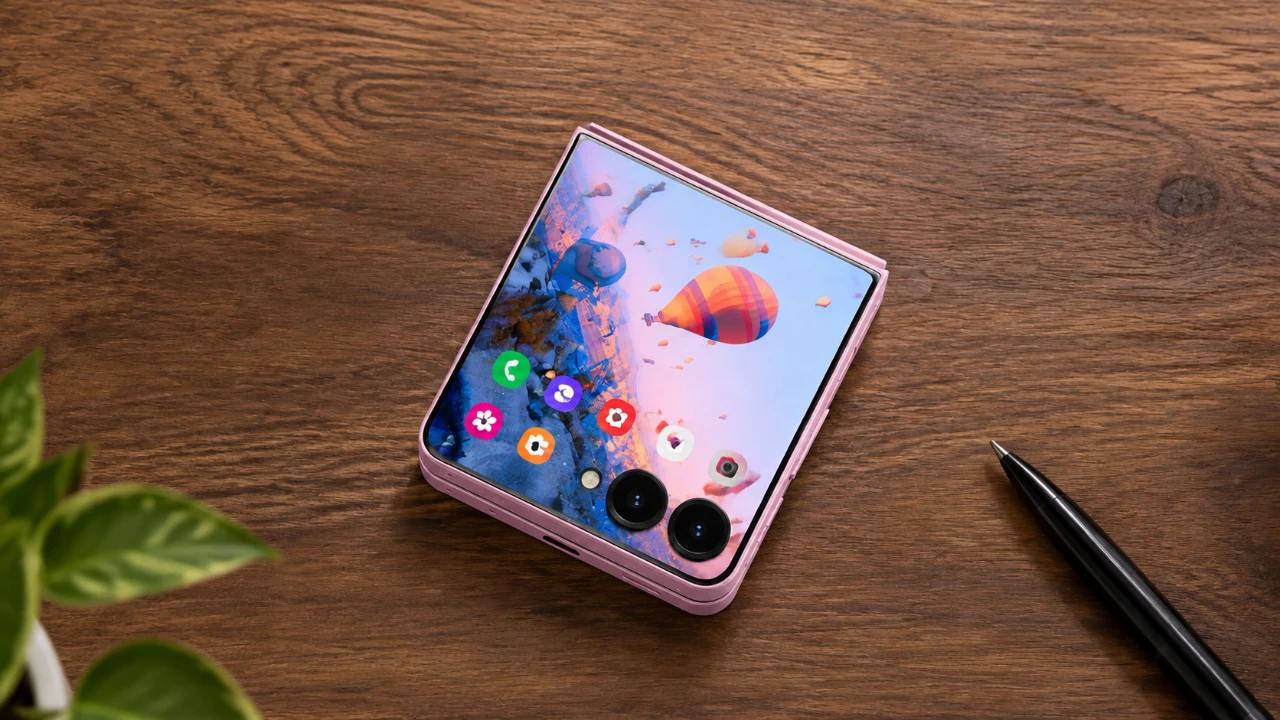
The Galaxy Z Flip 8 is a feature-packed smartphone designed to elevate your mobile experience. Whether you’re a tech-savvy user or someone exploring foldable devices for the first time, taking the right steps early on can help you maximize its potential. From customizing its unique external display to optimizing performance, this guide outlines 20 essential actions to personalize and enhance your device. Let’s explore how to make the most of your Galaxy Z Flip 8. The video below from GregglesTV gives us more details.

1. Customize the External Display
The external display is one of the most distinctive features of the Galaxy Z Flip 8. Using the Good Lock Labs Multistar module, you can add up to 50 apps to this display, allowing you to access your favorite apps without unfolding the phone. Organize these apps alphabetically for faster navigation and a more efficient user experience. This customization ensures that your most-used tools are always within reach.
2. Optimize Camera Settings
The Galaxy Z Flip 8 features a powerful and versatile camera system. To make the most of it, start by adjusting the video resolution to UHD (4K) at 60fps for smoother, high-quality recordings. If you frequently share photos on social media, disabling HDR can provide more natural color tones.
Additional camera tips include:
- Enable location tags to keep track of where your photos and videos were taken.
- Activate voice commands and palm gestures for hands-free photography.
- Explore Camera Assistant features like quick shutter and 24MP resolution for greater control.
- Turn off the shutter sound for discreet photo-taking.
3. Set Up Call Management Features
Stay connected while minimizing interruptions by enabling advanced call management features. Activate call screening and spam blocking to filter out unwanted calls. Turn on call captions for real-time transcription, which is particularly useful in noisy environments. Additionally, customize answering gestures and enable the speakerphone option for hands-free convenience.
4. Fine-Tune Wi-Fi and AI Features
Improve your connectivity and overall experience by adjusting Wi-Fi and AI settings. Disable Wi-Fi network notifications to reduce distractions. Activate Galaxy AI features to optimize app performance and receive intelligent recommendations based on your usage patterns. These adjustments ensure a smoother and more efficient interaction with your device.
5. Enhance Audio and Display Settings
For an immersive audio experience, enable Dolby Atmos, which enhances sound quality for music, movies and calls. Personalize your display settings to suit your preferences and improve usability:
- Schedule light and dark modes for optimal viewing at different times of the day.
- Adjust screen timeout settings to conserve battery life.
- Enable vivid screen mode for more vibrant colors.
- Increase touch sensitivity if you’re using a screen protector.
6. Strengthen Security and Privacy
Protect your Galaxy Z Flip 8 with robust security features. Set up biometric authentication, such as face recognition and fingerprint unlock, for quick and secure access. Customize your lock screen and always-on display to show essential information like notifications, time and battery percentage. These steps ensure both convenience and enhanced privacy.
7. Enable Advanced Multitasking
Use the Galaxy Z Flip 8’s multitasking capabilities to boost productivity. Enable multi-window mode to run two apps simultaneously, making it easier to multitask. Activate gestures for split-screen functionality and customize the side button to quickly access the camera or power menu based on your preferences. These features make multitasking seamless and efficient.
8. Personalize Your Keyboard and Cover Screen
Enhance your typing experience by installing and configuring Gboard. This keyboard supports gesture typing, multiple languages and advanced customization options. Additionally, personalize the cover screen with images, videos and styles that reflect your personality. These changes make your device feel uniquely yours.
9. Optimize Performance
Improve the responsiveness of your Galaxy Z Flip 8 by reducing animation scales in the developer options. This simple adjustment speeds up transitions and enhances overall navigation. Regularly check for software updates in the Galaxy Store and Google Play Store to ensure your apps and system are running the latest versions. Keeping your device updated is key to maintaining optimal performance.
10. Explore Themes and UI Customization
Samsung’s theme store offers a wide range of wallpapers, icons and UI styles to personalize your device. Experiment with these options to give your Galaxy Z Flip 8 a fresh and unique look. Adjust the home screen grid to organize your apps more efficiently and customize the media page and search bar for a streamlined interface. These tweaks allow you to tailor the device to your preferences.
11. Configure Battery Optimization Settings
Maximize battery life by allowing power-saving modes and managing background app activity. Use the device care feature to monitor battery health and optimize performance. Adjust app permissions to prevent unnecessary power consumption, making sure your Galaxy Z Flip 8 lasts throughout the day.
12. Set Up Samsung Pay
Take advantage of Samsung Pay for secure and convenient transactions. Add your credit or debit cards to the app and enable biometric authentication for quick payments. This feature eliminates the need to carry physical cards, making your wallet lighter and your transactions faster.
13. Explore Foldable-Specific Features
The Galaxy Z Flip 8’s foldable design offers unique functionality. Use Flex Mode to split the screen for hands-free video calls or multitasking. Experiment with app continuity, which allows seamless transitions between the external and internal displays. These features highlight the innovative design of the device.
14. Back Up Your Data
Ensure your data is safe by setting up automatic backups. Use Samsung Cloud or Google Drive to store important files, photos and settings. Regular backups protect your information in case of device loss or damage, giving you peace of mind.
15. Enable Notifications Management
Streamline your notifications by customizing settings for individual apps. Use the notification panel to prioritize alerts and minimize distractions. Group similar notifications together for a cleaner and more organized interface.
16. Explore Accessibility Features
The Galaxy Z Flip 8 includes a variety of accessibility features to enhance usability. Enable options like high-contrast text, screen magnification and voice assistant for a more inclusive experience. These tools ensure the device is user-friendly for everyone.
17. Install Essential Apps
Download apps that align with your lifestyle and needs. Whether it’s productivity tools, entertainment platforms, or fitness trackers, the Galaxy Z Flip 8’s powerful hardware ensures smooth performance across a wide range of applications.
18. Use Samsung DeX
Transform your Galaxy Z Flip 8 into a desktop-like experience with Samsung DeX. Connect your device to a monitor, keyboard and mouse for enhanced productivity. This feature is ideal for multitasking and working on larger screens.
19. Explore Digital Wellbeing Tools
Monitor and manage your screen time with Samsung’s Digital Wellbeing tools. Set app usage limits, enable focus mode and review your daily activity to maintain a healthy balance between device usage and personal time.
20. Join the Samsung Ecosystem
Integrate your Galaxy Z Flip 8 with other Samsung devices for a seamless ecosystem experience. Pair it with Galaxy Buds, a Galaxy Watch, or a Samsung Smart TV to unlock additional features and connectivity options. This integration enhances convenience and functionality.
By following these steps, you can fully customize and optimize your Galaxy Z Flip 8. Each adjustment is designed to improve usability, enhance performance and tailor the device to your unique preferences. With these changes, your Galaxy Z Flip 8 will deliver a personalized and enjoyable experience, making it a powerful tool for both work and play.
Explore further guides and articles from our vast library that you may find relevant to your interests in Galaxy Z Flip 8.
- Your First Look at the Samsung Galaxy Z Flip 8 Design
- Why Samsung Fans Aren’t Ready for the Galaxy Z Flip 8 Upgrades
- Samsung Galaxy Z Flip 8 Preview: Every Major Leak, Spec, and Feature Revealed So Far
- When Will the Galaxy Z Fold 8 Ultra Finally Launch?
- The Shocking Galaxy Z Flip 8 Rumor That Changes Everything for Samsung Fans
- Don’t Upgrade Yet: Massive Galaxy Z Fold 8 Ultra and Z Flip 8 Specs Just Leaked
Source: GregglesTV
Disclosure: Some of our articles include affiliate links. If you buy something through one of these links, Geeky Gadgets may earn an affiliate commission. Learn about our Disclosure Policy.
