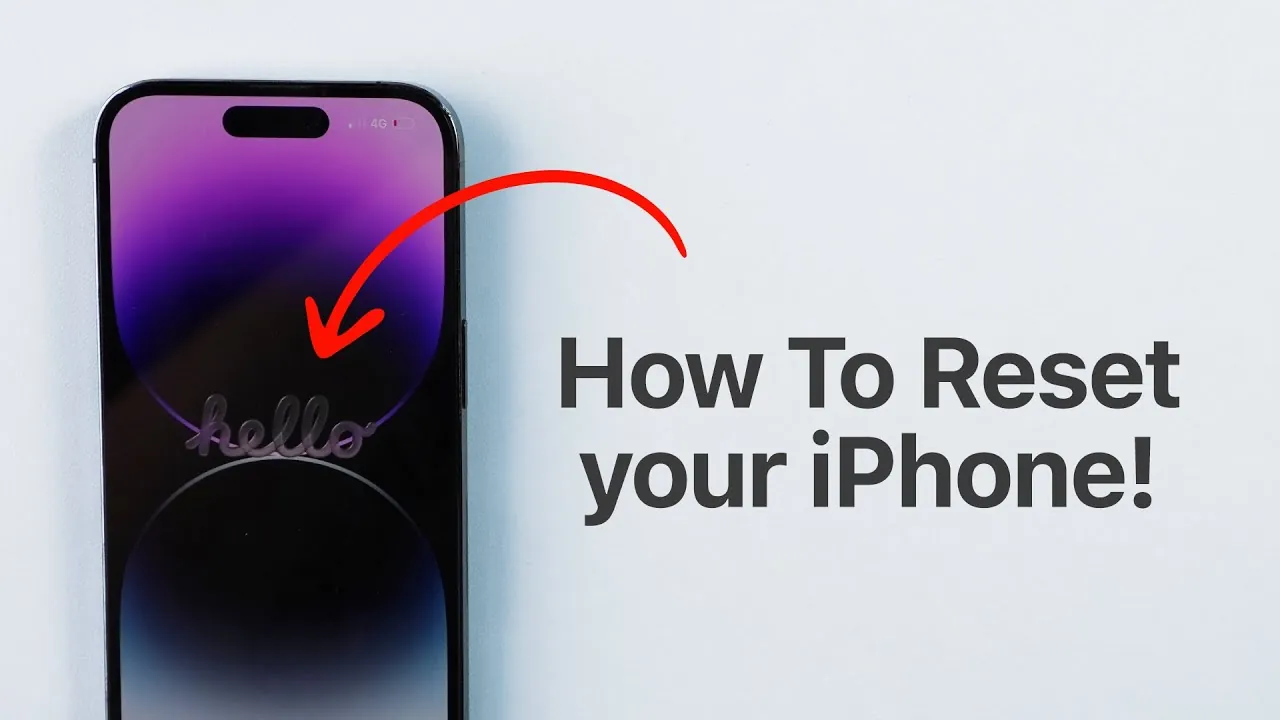
Resetting your iPhone to factory settings is an essential process for various situations, such as troubleshooting persistent issues, preparing the device for resale, or passing it on to someone else. This guide provides a comprehensive walkthrough to help you erase all content, disable security features, and restore your iPhone to its original state. By carefully following these steps in the video below from Daniel About Tech, you can ensure your personal data is protected and the reset process is completed smoothly.

Why Backing Up Your Data Is Crucial
Before initiating a factory reset, it is critical to back up your data. A factory reset will erase all content on your iPhone, including photos, contacts, apps, and settings. Without a backup, this information will be permanently lost. Fortunately, Apple provides two reliable methods for safeguarding your data:
- iCloud Backup: Apple’s cloud-based service allows you to securely store your data online. To back up your iPhone, open Settings, tap your name, select iCloud, and enable iCloud Backup. Ensure the backup process is completed before proceeding with the reset.
- Computer Backup: For those who prefer offline storage, connect your iPhone to a computer. Use Finder on macOS or iTunes on Windows to create a local backup. This method is particularly useful if you want to store your data without relying on cloud services.
Skipping this step could result in the permanent loss of important files, as the reset process is irreversible.
Step-by-Step Guide to Resetting Your iPhone
Once your data is securely backed up, you can proceed with resetting your iPhone. Follow these steps to erase all content and settings:
- Open the Settings app and navigate to General.
- Scroll down and select Transfer or Reset iPhone.
- Tap Erase All Content and Settings. If you are transferring ownership, make sure to delete the eSIM during this step to prevent unauthorized access to your cellular plan.
- Enter your lock screen passcode when prompted. You will also need to enter your Apple ID password to disable Find My iPhone and remove the activation lock.
After confirming your decision, the reset process will begin. Your iPhone may restart multiple times during this process, which is completely normal. Allow the process to complete without interruption.
Disabling Security Features
Apple’s security features, such as Find My iPhone and the activation lock, are designed to protect your device from unauthorized access. However, these features must be disabled before resetting your iPhone. If they remain active, the device will remain linked to your Apple ID, preventing the next user from setting it up.
To disable Find My iPhone, follow these steps:
- Open Settings and tap your name at the top of the screen.
- Select Find My and toggle off Find My iPhone.
- Enter your Apple ID password to confirm the change.
If you have forgotten your Apple ID password, resolve this issue before attempting the reset. Delays in disabling these features can complicate the process and may prevent the new owner from using the device.
What to Expect After the Reset
Once the reset is complete, your iPhone will display the “Hello” screen, indicating that it has been restored to its original factory settings. At this stage, the device is ready for setup or transfer to a new owner. Depending on your intentions, you can take the following actions:
- If you plan to keep the device: Follow the on-screen instructions to restore your data from an iCloud or computer backup. This will allow you to resume using your iPhone with all your previous settings and files intact.
- If you are selling or giving the device away: Ensure that the new owner can access the setup process without encountering activation lock issues. Confirm that all security features have been disabled and that the device is no longer linked to your Apple ID.
Key Considerations for a Successful Reset
To ensure a smooth and successful reset process, keep the following points in mind:
- Back up your data: A factory reset is permanent, so double-check that all necessary backups are complete before proceeding.
- Remove the eSIM: If you are transferring ownership, deleting the eSIM will prevent the new user from accessing your cellular plan.
- Disable security features: Features like Find My iPhone must be turned off to avoid complications during the setup process.
By following these steps and recommendations, you can reset your iPhone with confidence. Whether you are troubleshooting, upgrading, or passing the device on to someone else, this guide ensures that your data is secure and the device is ready for its next purpose.
Explore further guides and articles from our vast library that you may find relevant to your interests in iPhone Factory Reset.
- How to factory reset your iPhone or iPad
- Erase and Restore: How to Factory Reset Your iPhone
- How to Factory Reset iPhone without Passcode by ReiBoot iOS
- How to Factory Reset Your iPhone or iPad
- How to Factory Reset Apple Devices: iPhone, iPad, Mac, Apple Watch
Source & Image Credit: Daniel About Tech
Disclosure: Some of our articles include affiliate links. If you buy something through one of these links, Geeky Gadgets may earn an affiliate commission. Learn about our Disclosure Policy.
