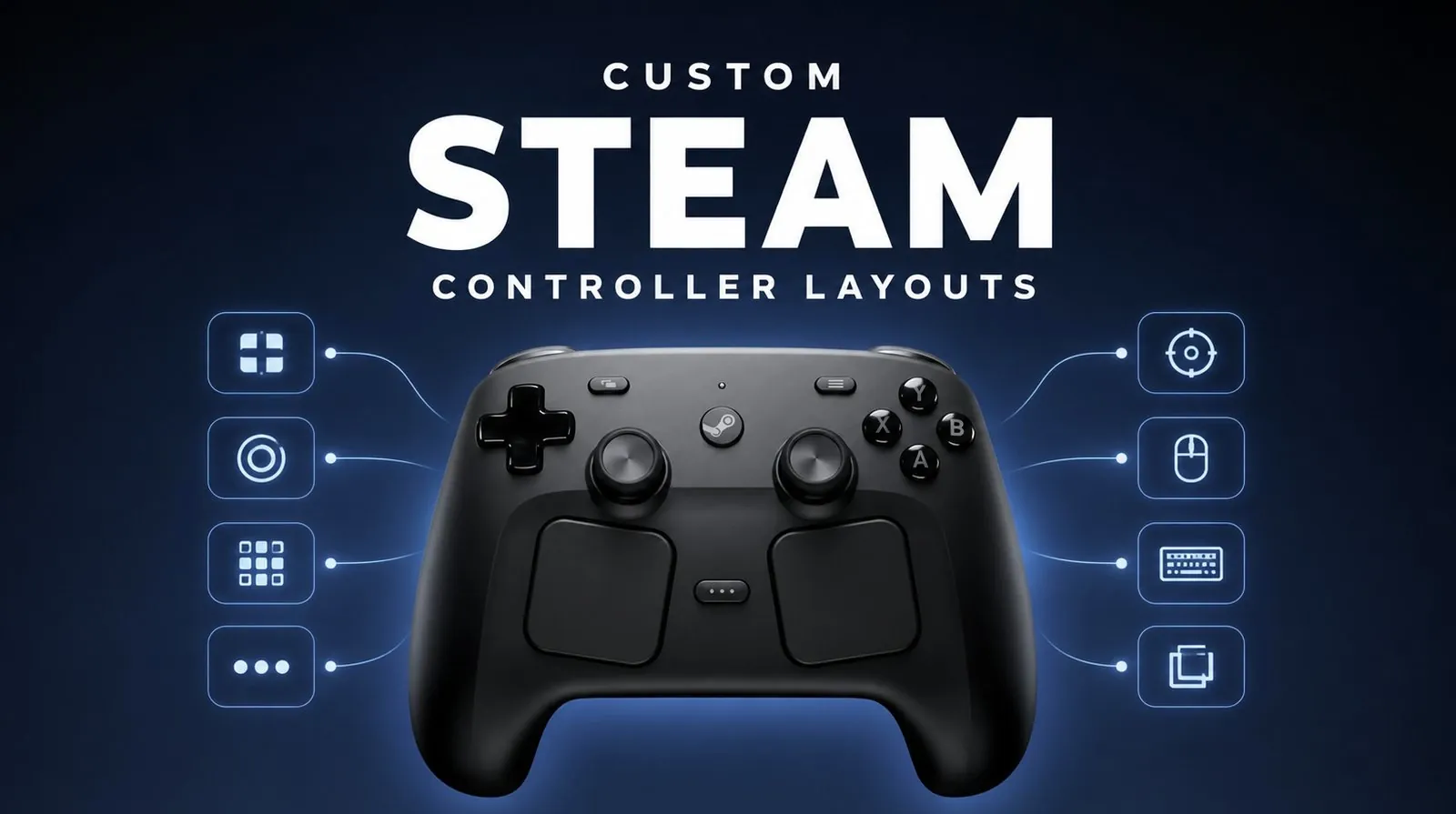
Steam Input’s community layouts for the Steam Controller provide pre-made configurations, but they often lack the precision and customization needed for a truly personalized gaming experience. According to Joshua Keith, designing your own layout allows you to fine-tune every aspect of the controller, from trackpad sensitivity to gyro settings, to better suit your playstyle. For instance, assigning key actions like reloading or weapon switching to the back paddles can improve reaction time and reduce hand strain during extended sessions. This hands-on approach ensures that the controller adapts to you, rather than the other way around.
Discover how to create layouts that address specific gameplay needs and improve overall control. Learn to implement action layers for multi-function inputs, adjust dead zones for smoother joystick movement and configure trackpads for precise aiming in games like Hades. Gain insight into using advanced features like keyboard emulation to expand compatibility with games that lack native controller support. This explainer provides actionable steps to help you unlock the full potential of the Steam Controller.
Why Customization Matters
TL;DR Key Takeaways :
- Creating custom Steam Controller layouts enhances gameplay by improving comfort, control and muscle memory, offering a more intuitive and personalized experience compared to community templates.
- Keyboard and mouse emulation on the Steam Controller provides consistent controls and allows mapping complex shortcuts, making it ideal for games with limited controller support.
- Advanced configuration tools like trackpad mapping, action layers and macros enable tailored setups for specific gameplay needs, improving functionality and convenience.
- Game-specific customization allows players to optimize settings for individual titles, addressing unique challenges and enhancing accessibility for controller-unfriendly games.
- Custom layouts promote muscle memory, consistency and efficiency, making sure smoother gameplay transitions and a more immersive gaming experience across various genres.
Customizing your Steam Controller layout ensures that every button, trackpad and gyro setting aligns with your unique playstyle. While community layouts are readily available, they often lack the precision and intuitiveness required for seamless gameplay. By designing your own configurations, you can:
- Enhance comfort and control: Tailor inputs to match your preferences, reducing strain and improving responsiveness.
- Build muscle memory: Create layouts that feel natural, allowing you to perform actions instinctively across different games.
- Maintain consistency: Standardize controls across games, minimizing the learning curve and improving efficiency.
This personalized approach not only enhances gameplay but also fosters a smoother, more immersive experience. Customization enables you to take full advantage of the Steam Controller’s capabilities, making sure that it adapts to your needs rather than forcing you to adapt to pre-made templates.
Unlocking Keyboard and Mouse Emulation
One of the standout features of the Steam Controller is its ability to emulate keyboard and mouse inputs. This functionality is particularly valuable for PC games that lack robust controller support. By using this feature, you can:
- Ensure consistent controls: Keyboard and mouse emulation behaves predictably, providing a reliable experience across games.
- Map complex shortcuts: Assign intricate keyboard commands to your controller, streamlining gameplay transitions and reducing reliance on a traditional keyboard setup.
Steam OS’s reliable emulation tools bridge the gap between traditional PC controls and the Steam Controller, offering greater flexibility in how you interact with your games. This feature is especially useful for genres like strategy or simulation games, where precise inputs are critical.

Here is a selection of other guides from our extensive library of content you may find of interest on Steam Controller.
- Steam Controller Gains HID Drivers for Non-Steam Games
- What Two Weeks with the Steam Controller Reveals About Its Hybrid Design
- Hidden Steam Controller Settings Most Gamers Miss
- How Valve’s Steam Controller Bridges PC and Console Gaming
- 13 Hidden Steam Controller Features You Probably Missed
- Valve’s Steam Controller : Bold Hybrid with a Steep Learning Curve
- $60 Steam Controller 2 is Packing Features PC Gamers Have Been Waiting For
- Valve’s Potential Half-Life 3 Pairing Could Skyrocket Steam Machine Demand
- Steam Controller’s Capacitive Grips Will Change How You Play
- SteamOS Beta Update Fixes CPU Degradation and Wi-Fi Bugs
Advanced Configuration Techniques
Steam Input provides a suite of advanced tools that allow you to unlock the full potential of your Steam Controller. These techniques enable you to create highly functional and efficient layouts tailored to specific gameplay needs:
- Trackpad Mapping: Assigning the number row or other keyboard functions to the trackpad can provide quick access to inventory slots or shortcuts in games like Core Keeper.
- Action Layers: Dynamically switch between control schemes, such as toggling between weapon sets, abilities, or movement modes.
- Macros: Execute multi-step actions with a single button press, ideal for repetitive tasks like crafting, item management, or executing combos.
These tools allow you to adapt your controller to the specific demands of each game, enhancing both functionality and convenience. For example, action layers can simplify complex control schemes in RPGs, while macros can save time in resource-heavy survival games.
Game-Specific Customization
Every game has unique control requirements and Steam Input excels at providing game-specific adjustments. By tailoring your controller settings to individual games, you can overcome challenges and improve your overall experience. For instance:
- In Valheim: Fine-tune gyro sensitivity for precise aiming during combat or resource gathering.
- In Core Keeper: Optimize trackpad sensitivity to ensure smooth and efficient menu navigation.
- Mouse Regions: Use this feature for pinpoint accuracy in games that rely heavily on cursor movement, such as strategy or simulation titles.
These tailored adjustments make controller-unfriendly games more accessible and enjoyable. By customizing layouts for each title, you can address specific gameplay challenges and gain a competitive edge.
Building Muscle Memory and Consistency
Custom layouts play a crucial role in developing muscle memory, which is essential for fluid and intuitive gameplay. By assigning commonly used actions, such as sprinting or crouching, to easily accessible buttons like the back paddles, you ensure that these actions become second nature. Additionally, maintaining consistent button mappings across games reduces the need to relearn controls, allowing you to focus on gameplay rather than input mechanics.
This consistency is particularly beneficial for players who frequently switch between genres or titles. A well-thought-out custom layout ensures that your controller feels familiar, no matter the game, fostering a more immersive and enjoyable experience.
The Practical Benefits of Custom Layouts
Investing time in creating personalized layouts offers several practical advantages that go beyond mere convenience:
- Enhanced Efficiency: Perform actions more quickly and accurately, giving you a competitive edge in fast-paced or competitive games.
- Improved Accessibility: Play comfortably from a couch or other non-traditional setups, reducing reliance on a keyboard and mouse.
- Greater Control: Navigate complex games like Valheim or Core Keeper with ease, even in scenarios where traditional controllers might struggle.
A custom layout ensures that your controller works for you, not against you. By tailoring your inputs to your preferences, you can transform your gaming sessions into a more efficient, comfortable and enjoyable experience.
Media Credit: Joshua Keith
Disclosure: Some of our articles include affiliate links. If you buy something through one of these links, Geeky Gadgets may earn an affiliate commission. Learn about our Disclosure Policy.
