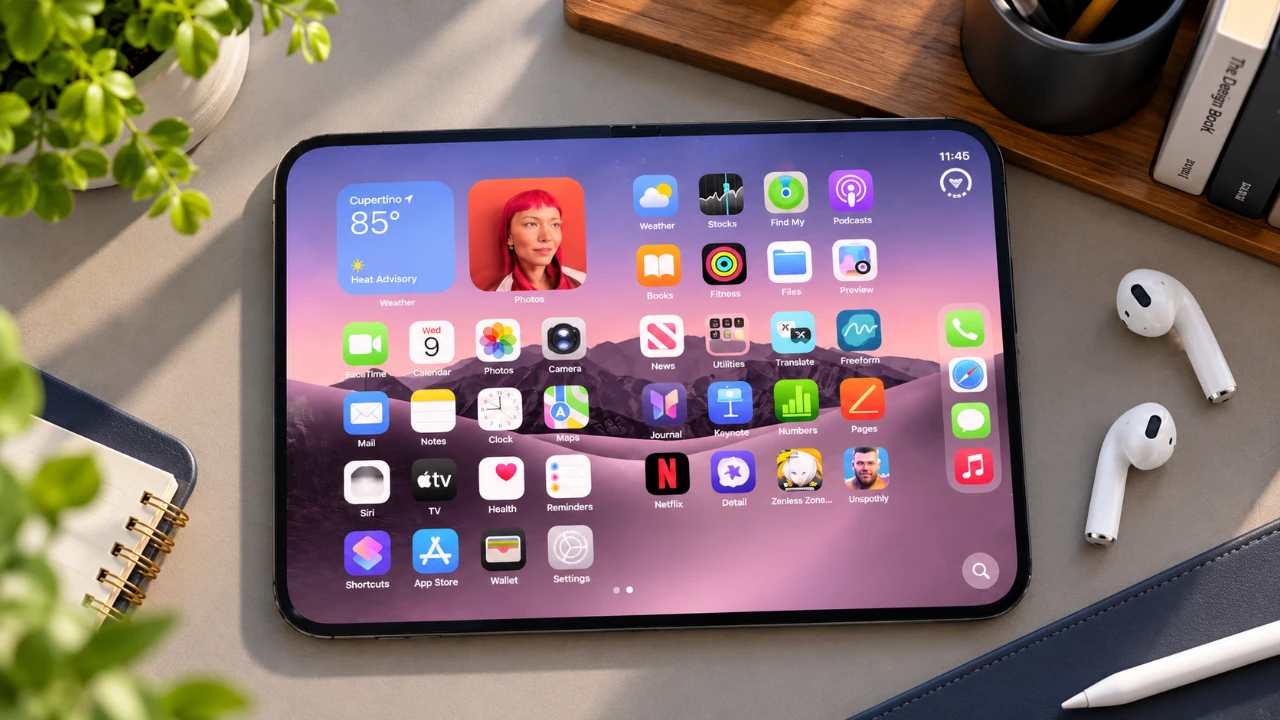
Apple’s iPhone Duo blurs the line between a pocketable iPhone and a compact iPad mini, pairing a 5.4-inch outer display with an expansive 7.6-inch folding inner canvas. Yet out of the box, many owners treat it like a standard iPhone with a bigger screen—missing the split-screen gestures, rear-camera selfie modes, adaptable keyboard layouts, and Touch ID shortcuts that make its folding form factor genuinely practical. The video below from Nikias Molina walks through the settings and everyday workflows that turn the iPhone Duo into a real productivity tool.
TL;DR Key Takeaways :
- True Dual-Screen Multitasking: Run two apps side by side in Split View, save recurring app pairs, drag and drop text or images across panes, and float video calls with Picture-in-Picture.
- Main Cameras for Selfies: Use Dual Preview mode with the device unfolded so you can frame higher-resolution selfies and video with the rear 48MP cameras instead of the inner punch-hole lens.
- Two Distinct Keyboard Modes: Switch between Split Keyboard for comfortable two-thumb typing when unfolded and half-folded Mini MacBook mode for desk typing.
- Faster Unlocking & Hinge Care: Enroll multiple fingers in the Touch ID power button, enable Unlock with Apple Watch, and protect the soft inner display from fingernails or debris.
Multitasking With Split View and Picture-in-Picture
The 7.6-inch inner display is where the iPhone Duo separates itself from every slab iPhone. Using iOS 27’s multitasking controls, you can run two apps side by side in Split View—such as referencing a PDF or webpage on the left while drafting notes or messages on the right—and even open two separate windows of the same app (like Safari or Notes) to compare documents.
For faster daily workflows, combine Split View with three core habits:
- Save App Pairs & Drag-and-Drop: Group apps you always use together so they launch side by side with one tap, and drag images, links, or highlighted text directly across the center divider.
- Layer Picture-in-Picture (PiP): Minimize a FaceTime call or video stream into a floating corner window so both halves of your screen remain free for active work.
- Check Unoptimized Apps: While Apple’s built-in apps and major streaming platforms scale cleanly across the 1.414:1 inner aspect ratio, older third-party apps that still display pillarboxed borders can often be adjusted in display zoom or window settings.
Personalizing the Dock, Wallpapers, and Widgets
Because the iPhone Duo transitions between a narrow outer screen and a tablet-like inner display, taking ten minutes to organize your home screen pays off immediately:
- Load Your Dock With Core Tools: Pin your most-used multitasking apps and app folders to the dock so you can drag them directly into Split View from any screen.
- Use Wallpaper Extend: Enable Apple’s Wallpaper Extend tool so lock-screen and home-screen backgrounds scale cleanly across the inner display’s wider proportions without awkward cropping.
- Add Extra-Large Widgets: Take advantage of the wider inner grid by placing extra-large calendar, weather, reminders, or battery widgets where you can scan your schedule at a glance.
| Workflow Area | Key iPhone Duo Feature | Practical Everyday Benefit |
|---|---|---|
| Multitasking | Split View, Dual App Windows & Picture-in-Picture | Run two apps side by side, drag-and-drop content, and keep video floating |
| Camera & Selfies | Dual Preview, Smart Take & Focus Tracking | Use the rear 48MP cameras for sharper selfies and hands-free group shots |
| Typing | Split Keyboard vs. Half-Folded Mini MacBook Mode | Comfortable two-thumb handheld typing or desk typing in tent/laptop posture |
| Unlocking | Side Touch ID + Unlock with Apple Watch | Reliable unlocking whether the phone is folded, unfolded, or resting flat |
Accessibility, Touch ID, and One-Handed Reachability
With its wide unfolded footprint and lack of Face ID hardware, dialing in unlocking and one-handed ergonomics makes everyday handling much smoother:
- Reachability Mode: Enable Reachability in Accessibility settings so a quick downward swipe pulls top-of-screen buttons within easy thumb reach on both the outer and inner displays.
- Multi-Finger Touch ID Enrollment: Register both thumbs and index fingers in the side-mounted Touch ID button so unlocking feels natural whether you are holding the Duo closed in one hand, open in two hands, or resting it flat on a desk.
- Unlock With Apple Watch: Turn on Apple Watch unlock in Touch ID & Passcode settings to bypass repeated fingerprint taps when wearing gloves or moving between meetings.
Elevating Photography With Dual Preview and Smart Take
One of the biggest practical advantages of a folding phone is using the main rear camera system for selfies and vlogging. By turning on Dual Preview while the iPhone Duo is unfolded, the outer 5.4-inch display acts as a live viewfinder—letting you shoot sharp, high-dynamic-range selfies with the 48MP primary and ultrawide lenses instead of relying on the lower-resolution inner punch-hole camera.

Pair Dual Preview with Smart Take—which detects pose changes and triggers the shutter automatically during hands-free group shots—and Focus Tracking to keep moving subjects sharp without constantly tapping the screen.
Optimizing Typing: Split Keyboard vs. Mini MacBook Mode
Typing on a 7.6-inch screen feels awkward if the keys stretch straight across the middle. The iPhone Duo solves this with two purpose-built layouts:
- Split Keyboard Mode: Separates the keys toward the left and right edges of the unfolded display so your thumbs can reach every letter comfortably while holding the device in landscape.
- Mini MacBook / Full Keyboard Mode: When resting the device half-folded on a table, the lower half acts as a compact full-width keyboard while your document or chat stays upright on the top half.
Shortcuts, Voice Memos, and Showcase Foldable Apps
To round out daily efficiency, customize your Lock Screen controls for one-tap access to the camera, Do Not Disturb, or voice recording, and build simple Shortcuts automations—such as automatically adjusting orientation lock, brightness, or Focus modes when specific work apps open. For hands-free capture during meetings or walks, Apple’s built-in Voice Memos transcription turns spoken notes into searchable text without typing a word.
If you want apps that showcase the folding canvas during downtime, titles like Satisfy (tactile ASMR interactions), Tiny Computers, and Unfold Your City make clever use of the wider interactive layout.
Protecting the Inner Display and Hinge
Because the inner 7.6-inch folding OLED screen uses a flexible protective layer rather than rigid front glass, basic care goes a long way toward keeping it crease-free and scratch-free:
- Avoid Sharp Pressure & Unapproved Protectors: Keep fingernails, keys, and pens away from the inner screen, and never apply a third-party screen protector over Apple’s factory inner film or peel that protective layer off.
- Close Deliberately: Press gently along the bezel—not the center of the display—when folding the device shut, and check that no sand or pocket grit is trapped inside before closing.
Discover other guides from our vast content that could be of interest on iPhone Duo multitasking features.
- Essential Things to Do Immediately on the iPhone Duo
- The 9 Settings to Change First on Your New iPhone Duo
- iPhone Duo: 5 Features That Make It Worth the Price
- Hidden iPhone DUO Tricks You Won’t Find in Apple’s Guides
Source: Nikias Molina
Disclosure: Some of our articles include affiliate links. If you buy something through one of these links, Geeky Gadgets may earn an affiliate commission. Learn about our Disclosure Policy.
