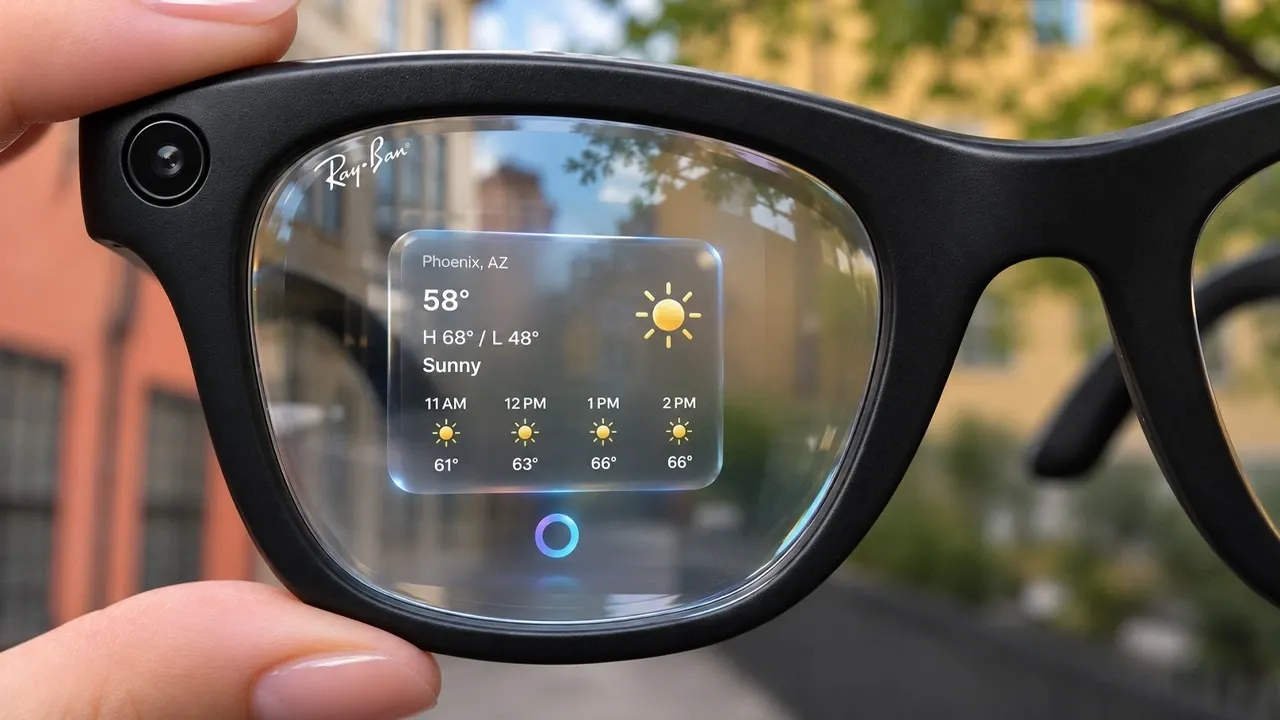
Ray-Ban Meta glasses can capture what you see without holding a phone, but they have no viewfinder to help you frame a shot. Nathie explains that they can also translate conversations without an internet connection once you download the languages. The camera-equipped frames have speakers and voice controls, with settings for privacy, recording and audio that vary by model or software version. Read on to see how to adjust those settings, share your view on a video call and get more from the battery.
Ray-Ban Meta Glasses: Settings and Features to Try
TL;DR Key Takeaways :
- Autolock Contacts requires a phone unlock and locks the glasses when removed, while privacy settings control cloud uploads and storage of visual AI data.
- Gen 3 records 3K video at 30 frames per second, and clips can run up to five minutes at 1080p on certain software versions.
- The glasses stream your view on WhatsApp or Messenger video calls, but not FaceTime.
- Downloaded languages enable offline conversation translation in English, Spanish, French, Italian, German and Portuguese.
- Battery Saver can extend battery life by up to 47%, but limits features and reduces video quality to 1080p.
Ray-Ban Meta glasses combine a camera, speakers and voice controls in frames developed by Meta and EssilorLuxottica. You can adjust recording, privacy, audio and connected services in the glasses app. These tips cover Gen 2 and Gen 3, though some features depend on the model or software version.
Protect Contacts and Control Stored Data
Autolock Contacts prevents someone else from using your glasses to make calls, send messages, share content or listen to incoming messages. In the app, open Privacy and Security, then Device Lock, and turn it on. You must first unlock your phone to access the glasses, and the frames lock again when you take them off.
Under Glasses Privacy, you can turn off Cloud Media and Sharing Additional Data if you do not want content uploaded to Meta’s servers. Under Experiences, then Meta, you can also disable storage of visual data from AI interactions. The assistant can still answer questions about what you are looking at, although features such as visual reminders may stop working.
In our view, the privacy settings deserve a look before any of the fun features, because they decide where your photos go and what your glasses remember about the things they see.
Choose a Resolution and Frame Your Shot
The glasses record at 1080p by default, but you can change the resolution under Experiences, Media, then Video Settings. Gen 2 introduced 3K capture, while Gen 3 offers these video settings and modes:
- 3K Ultra HD at 30 frames per second.
- 1080p+ at 30 or 60 frames per second.
- 720p+ at 120 frames per second.
- Hyperlapse and slow motion capture modes.
Gen 3 also has a 12-megapixel ultrawide camera that takes 3024 x 4032-pixel photos, and a capture LED that signals when a photo or video is being recorded. There is no viewfinder, so framing takes some judgment. You can close your right eye and line up a shot with your left, which is closer to the camera, though it is not an exact preview.
For moving subjects, Dynamic Photos captures shots in quick succession so you can select a frame afterward. The feature was introduced on Gen 3 and appears in the Media section of the Experiences tab.

Become an expert in Ray-Ban Meta glasses with the help of our in-depth articles and helpful guides.
- Skip the $449 Ray-Ban Meta Gen 3 If You Own the Gen 2 Glasses
- Ray-Ban Meta Gen 3 Holds 1,000 High-Res Photos with 32GB of Storage
- Ray-Ban Meta Gen 3 Upgrades Camera to 3K Resolution Video
- Two Months with $299 Meta Smart Glasses Reveals Key Issues
- Meta Drops Celebrity Voice Options on the Ray-Ban Meta Gen 3
Record Longer Clips and Correct Crooked Footage
Clips can run for up to three minutes, while certain software versions offer up to five minutes at 1080p rather than 3K. Change the maximum duration and resolution under Experiences, Media and Video Settings.
Horizon Correction straightens tilted footage, while Smart Crop removes blocked parts of an image. Both are under Capture Enhancement in Media, and both crop into the original footage, so you can lose part of the frame.
A landscape recording option in Media captures a wider horizontal image instead of the usual vertical format. It is still rolling out and might not be available on your pair. Check the Early Access tab for updates.
Share Your View and Connect Apps
To share what you see on a video call, start a call in WhatsApp or Facebook Messenger and turn on the camera. The glasses can stream your view without you holding up the phone, but FaceTime is not an option.
Send a photo to a contact through WhatsApp or Messenger by saying “Hey, Meta, send a photo to” followed by their name. You can also send photos directly to Instagram or Facebook stories without a manual transfer.
Under Connected Apps, Strava can add distance, speed and heart rate to photos and videos. Linking an Outlook calendar lets you check your schedule, get reminders and create events by voice, while connecting Shazam lets the assistant identify a song and artist.
The side touchpad can start music or call a contact. Change its action under Customization, Customize Controls, then Tap Touchpad.
Translate Offline and Adjust Audio
Download languages ahead of time and the glasses can translate conversations without an internet connection. Select Translate on the app’s main page to find English, Spanish, French, Italian, German and Portuguese.
Adaptive Volume, in the audio settings, raises volume in noisier surroundings and lowers it when things get quieter. Nathie recommends against using it on a moving vehicle because wind can make it overly sensitive.
For a conversation in a noisy place, say “Hey, Meta, start conversation focus.” Conversation Focus uses the microphones and speakers to amplify the voice of someone directly in front of you without drowning out everything else.
Meta AI’s language and voice preferences let you choose the assistant’s voice and speaking speed, and the assistant generally gives short answers by default. For more context about a scene, turn on Detailed Responses in the app’s accessibility setup. The assistant can then include object positions and details such as colors, which can be useful for people with low vision, though anyone can use it.
You can also scan a code by looking at it and saying “Hey, Meta, scan this QR code.” The assistant sends the link to your phone, including links from codes on posters and signs.
Save Battery and Charge the Frames
Battery Saver can extend battery life by up to 47%, but it limits voice activation, automatic volume and media transfers, and reduces video quality to 1080p. Under System, then Battery, you can set it to turn on automatically below 20%.
Meta rates Gen 2 for up to eight hours per charge and Gen 3 for up to nine hours, with their charging cases providing up to 48 and 50 additional hours, respectively. Meta also sells a charging stand that can bring the glasses to 50% in around 20 minutes.
Find and Maintain Your Glasses
Find Device, under Privacy and Security, shows the glasses’ last known location on a map: where they last connected to your phone. The frames have no built-in GPS, so the map cannot track them in real time.
If the glasses freeze, stop responding or refuse to connect, a force restart may help without deleting photos or videos. Turn them off, hold the capture button while switching them back on, and release it when the notification light turns red.
Hinges can loosen over time, and the Sunglass Hut care kit includes a small screwdriver, a microfiber cloth and cleaning spray for loose frames. Select Meta stores also offer free engraving on the charging case. Designs and customization options vary by location.
Offline translation can make your glasses useful for conversations while travelling beyond mobile coverage. For anyone who wants to capture and share moments without reaching for a phone, Ray-Ban Meta glasses have features worth exploring in more detail.
Media Credit: Nathie
Disclosure: Some of our articles include affiliate links. If you buy something through one of these links, Geeky Gadgets may earn an affiliate commission. Learn about our Disclosure Policy.
