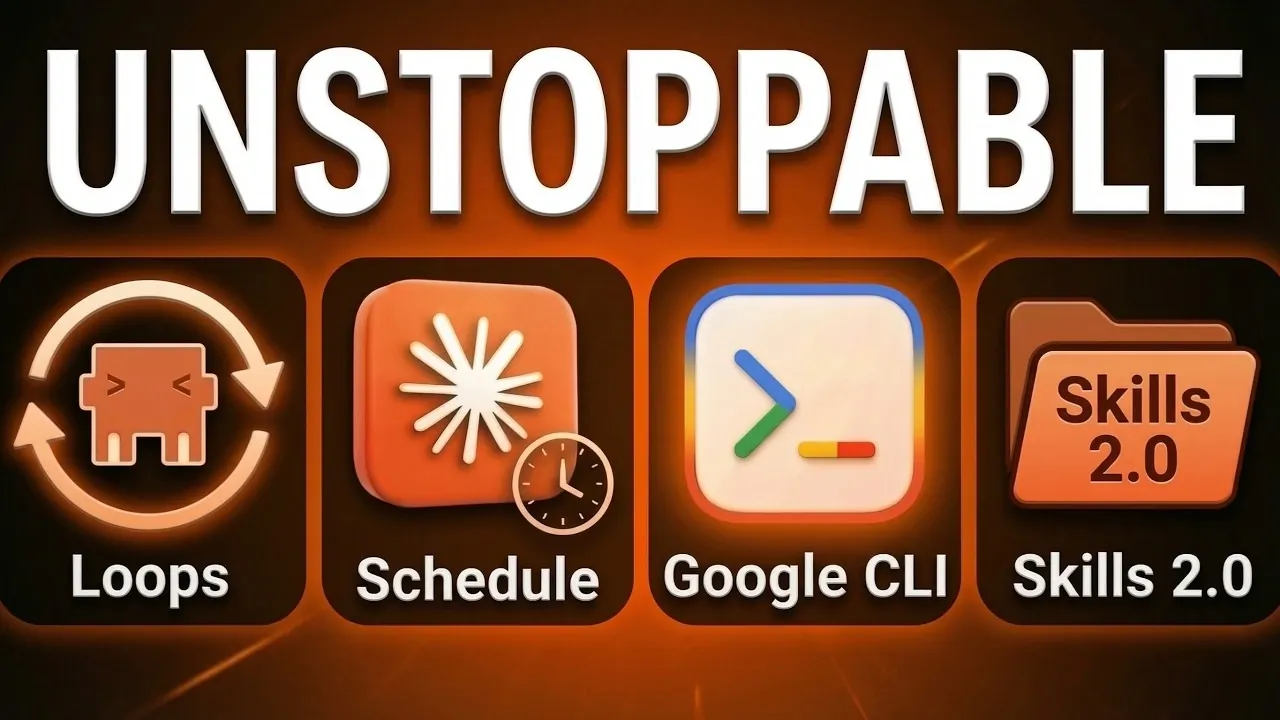
Claude Code 2 introduces several updates aimed at enhancing automation and workflow management. One notable feature is the /loop command, which allows users to automate repetitive tasks within an active session. For instance, you can configure a loop to process data or check for file updates at regular intervals, such as every 30 minutes. According to Simon Scrapes, these loops are designed with safeguards like a three-day expiration limit and session dependency to ensure controlled usage and avoid excessive resource consumption.
You’ll learn how to use loops for short-term task automation, configure scheduled tasks for recurring workflows and integrate the platform with Google Workspace. Additionally, this guide will cover the Skills 2.0 update, which provides advanced testing options to fine-tune custom workflows. Each section focuses on practical steps to help you apply these features effectively.
Claude Code 2 Overview
TL;DR Key Takeaways :
- Claude Code 2 introduces powerful features like loops for short-term automation and scheduled tasks for long-term automation, enhancing workflow efficiency and productivity.
- Loops automate repetitive tasks within active sessions, expiring after three days to prevent resource overuse, while scheduled tasks operate independently but require the desktop app to remain open.
- Enhanced Google Workspace integration via a command-line interface (CLI) simplifies interactions with tools like Google Drive, Docs and Sheets, though the CLI is currently in beta and may have stability issues.
- The Skills 2.0 update provides advanced tools for testing and optimizing custom skills, including A/B testing and detailed performance reports for iterative improvements.
- Key limitations include session dependency for loops, desktop app requirements for scheduled tasks and potential instability in the beta Google Workspace CLI, requiring users to plan workflows accordingly.
Short-Term Automation with Loops
One of the standout features in Claude Code 2 is the introduction of loops for short-term automation. By using the `/loop` command, users can automate repetitive tasks within an active session, making it easier to manage processes that require regular execution without constant manual input. For example, you can configure a loop to monitor file updates or process data every 30 minutes, making sure tasks are completed on schedule.
To maintain efficiency and prevent excessive resource usage, loops come with specific safeguards:
- Loops automatically expire after three days, avoiding indefinite resource consumption.
- They are session-dependent, meaning tasks will not resume if the session is closed.
These constraints ensure that automation remains under your control while minimizing unnecessary system strain. Loops are particularly useful for short-term projects or tasks that require frequent updates within a limited timeframe.
Long-Term Automation with Scheduled Tasks
For users requiring persistent automation, Claude Code 2 introduces scheduled tasks. This feature allows you to set up daily, weekly, or custom recurring tasks that operate independently of active sessions. Unlike loops, scheduled tasks run in fresh instances, making sure reliable execution even if previous sessions have ended. Additionally, they can recover from missed runs, making them ideal for tasks that demand consistent performance over time.
However, there are important considerations to keep in mind:
- Scheduled tasks are currently available only on the desktop app.
- The application must remain open for tasks to execute successfully.
These limitations ensure that tasks are executed in a controlled environment, reducing the risk of errors or disruptions. Scheduled tasks are particularly beneficial for long-term projects, such as generating recurring reports or maintaining system updates.

Discover other guides from our vast content that could be of interest on Claude Code.
- Anthropic Claude Code Review Preview: Multi-Agent Pull Request Reviews
- Claude Code Skills 2.0 : Workflow Skills vs Capability Uplift Skills
- Nested Claude Code System for Parallel Work in Tmux on macOS
- Claude Code 2.1 Custom Output Modes for Beginners & Pros
- Claude Code Update: LSP Support, Sub-Agents and Ultrathink
- Agent Browser Lets Claude Code Control Chromium for Automations
- Guide to Installing Claude Code on Windsurf and Cursor
- Claude Code Workflow : Creator’s 8-step Path to Faster Builds
- The Story Behind Claude Code’s Recent Performance Issues
- Claude Code MCP Upgrade 2026 : Cut Tokens by 95% with Smart Loading
Enhanced Google Workspace Integration
Claude Code 2 significantly improves integration with Google Workspace by introducing a command-line interface (CLI). This feature enables seamless interaction with tools like Google Drive, Docs and Sheets, eliminating the need for complex API configurations. For instance, you can automate the creation of Google Docs or update Sheets directly through the CLI, simplifying workflows and reducing manual effort.
Key advantages of this integration include:
- Access to over 100 pre-built workflows for common tasks, such as organizing files or generating reports.
- Efficient management of documents and data within Google Workspace, saving time and effort.
It is important to note that the CLI is currently in beta and not officially supported by Google. While it offers robust functionality, users should be prepared for potential stability issues during this testing phase. Despite this, the CLI provides a valuable tool for users looking to optimize their Google Workspace interactions.
Skills 2.0: Advanced Testing and Feedback
The Skills 2.0 update introduces advanced tools for testing and optimizing custom skills. With built-in evaluation features, users can measure the performance of their skills against specific criteria, receiving actionable feedback and detailed scoring to guide improvements. These tools are designed to help users refine their skills for better results and more efficient workflows.
For example, A/B testing allows you to compare different versions of a skill to determine which performs better under specific conditions. Additionally, structured reports provide insights into performance metrics, allowing iterative improvements over time. These features are particularly useful for users developing complex workflows or seeking to optimize existing processes.
Key Limitations to Keep in Mind
While Claude Code 2 introduces a range of valuable features, it is essential to understand its limitations to make the most of its capabilities:
- Loops are session-dependent and expire after three days, requiring manual reactivation for continued use.
- Scheduled tasks are limited to the desktop app and require the computer to remain active for execution.
- The Google Workspace CLI is in beta, which may result in limited support or occasional instability.
By being aware of these constraints, users can better plan their workflows and set realistic expectations for the platform’s performance. These limitations, while notable, do not detract from the overall utility of the new features.
Empowering Productivity with Claude Code 2
Claude Code 2 represents a significant step forward in automation, task scheduling and workflow optimization. With features like loops for short-term automation, scheduled tasks for long-term needs, enhanced Google Workspace integration and advanced tools for skill evaluation, the platform equips users with the tools they need to build efficient workflows and achieve their goals. While some limitations remain, these updates provide a robust foundation for tackling complex tasks and refining processes. Whether you are an experienced user or new to the platform, Claude Code 2 offers practical solutions to enhance productivity and streamline operations.
Media Credit: Simon Scrapes
Disclosure: Some of our articles include affiliate links. If you buy something through one of these links, Geeky Gadgets may earn an affiliate commission. Learn about our Disclosure Policy.
