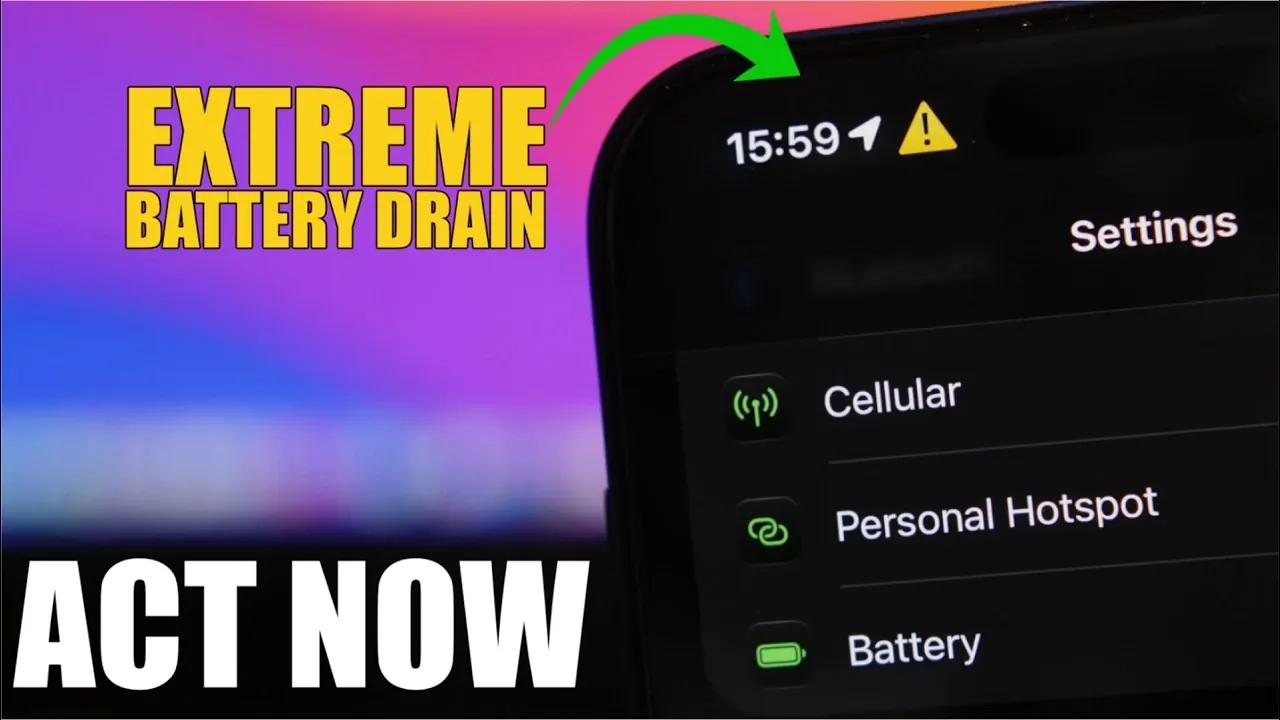
Your iPhone is engineered to deliver a seamless blend of performance and efficiency, but certain default settings can quietly drain your battery without your awareness. By making a few strategic adjustments, you can significantly enhance your device’s battery life without sacrificing essential functionality. Below, we explore five key settings that may be consuming more power than necessary and provide actionable steps to optimize them for better energy efficiency. The video below from iReviews gives us more details.

1. Location Services: Minimize Unnecessary Tracking
Location Services play a vital role in navigation and app functionality, but they can also be a major source of battery drain when running in the background. Many apps and system services access your location even when you’re not actively using them, leading to unnecessary power consumption. To address this:
- Open Settings > Privacy & Security > Location Services and review app permissions. Disable location access for apps that don’t require it to function properly.
- Scroll down to System Services and turn off Significant Locations. This feature tracks your frequent locations to provide personalized suggestions but consumes battery by constantly monitoring your movements.
By limiting location tracking to essential apps and disabling unnecessary features, you can reduce background activity and extend your battery life.
2. Siri Settings: Adjust Background Listening
Siri’s voice recognition capabilities are undeniably convenient, but the “Always Listen for Hey Siri” feature keeps your microphone active at all times, which can drain your battery. To conserve energy while retaining Siri’s functionality:
- Go to Settings > Accessibility > Siri.
- Disable the Always Listen for Hey Siri option.
With this adjustment, Siri will only activate when you press the side button, reducing battery usage while still allowing you to use voice commands when needed.
3. Accessibility Features: Turn Off Constant Monitoring
Accessibility features like Sound Recognition and Name Recognition are designed to enhance usability by monitoring your environment for specific sounds or names. However, this constant monitoring can significantly impact your battery life. If you don’t rely on these features:
- Navigate to Settings > Accessibility > Sound Recognition and toggle it off.
- Under the same menu, disable Name Recognition if it’s not essential for your daily use.
Disabling these features reduces background activity, allowing your iPhone to conserve energy more effectively.
4. Wi-Fi Assist: Manage Data and Battery Usage
Wi-Fi Assist is a feature that ensures uninterrupted connectivity by automatically switching to cellular data when your Wi-Fi signal is weak. While useful, this feature can quickly drain your battery and consume data. To take control of this setting:
- Open Settings > Cellular > Wi-Fi Assist.
- Toggle the feature off to prioritize Wi-Fi connections over cellular data.
This adjustment prevents your iPhone from unnecessarily switching to cellular data, saving both battery life and data usage.
5. Always-On Display: Optimize Screen Activity
The Always-On Display, available on newer iPhone models, keeps parts of your screen active to display the clock, notifications and wallpaper. While this feature is convenient, it consumes power by keeping the display illuminated. To minimize its impact on your battery:
- Go to Settings > Display & Brightness > Always-On Display.
- Customize the settings to disable the wallpaper display while retaining essential information like the clock and notifications.
This small yet effective change can lead to noticeable improvements in your battery performance, especially if you frequently rely on the Always-On Display.
Maximizing Your iPhone’s Battery Life
Optimizing your iPhone’s settings is a straightforward yet impactful way to extend its battery life. By limiting location tracking, adjusting Siri’s background listening, disabling non-essential accessibility features, managing Wi-Fi Assist and fine-tuning the Always-On Display, you can ensure your device operates more efficiently. These adjustments not only conserve energy but also give you greater control over how your iPhone utilizes its resources. Take a few moments to review and implement these changes, you’ll likely notice a significant improvement in your device’s battery performance.
Check out more relevant guides from our extensive collection on iPhone Battery that you might find useful.
- iPhone Ultra Fold vs. Galaxy Z Fold 8: Which Foldable Packs the Bigger Battery?
- Boost Your iPhone Battery Health: The Secret Revealed
- iPhone 17 Battery Life Test: The Results Will Shock You
- Quick Guide: Why is my iPhone battery icon yellow
- Surprising Twist for the Rumored $2,000 iPhone Fold Ultra
- What Apple’s Huge iOS 27 AI Leak Means for WWDC 2026
Source & Image Credit: iReviews
Disclosure: Some of our articles include affiliate links. If you buy something through one of these links, Geeky Gadgets may earn an affiliate commission. Learn about our Disclosure Policy.
