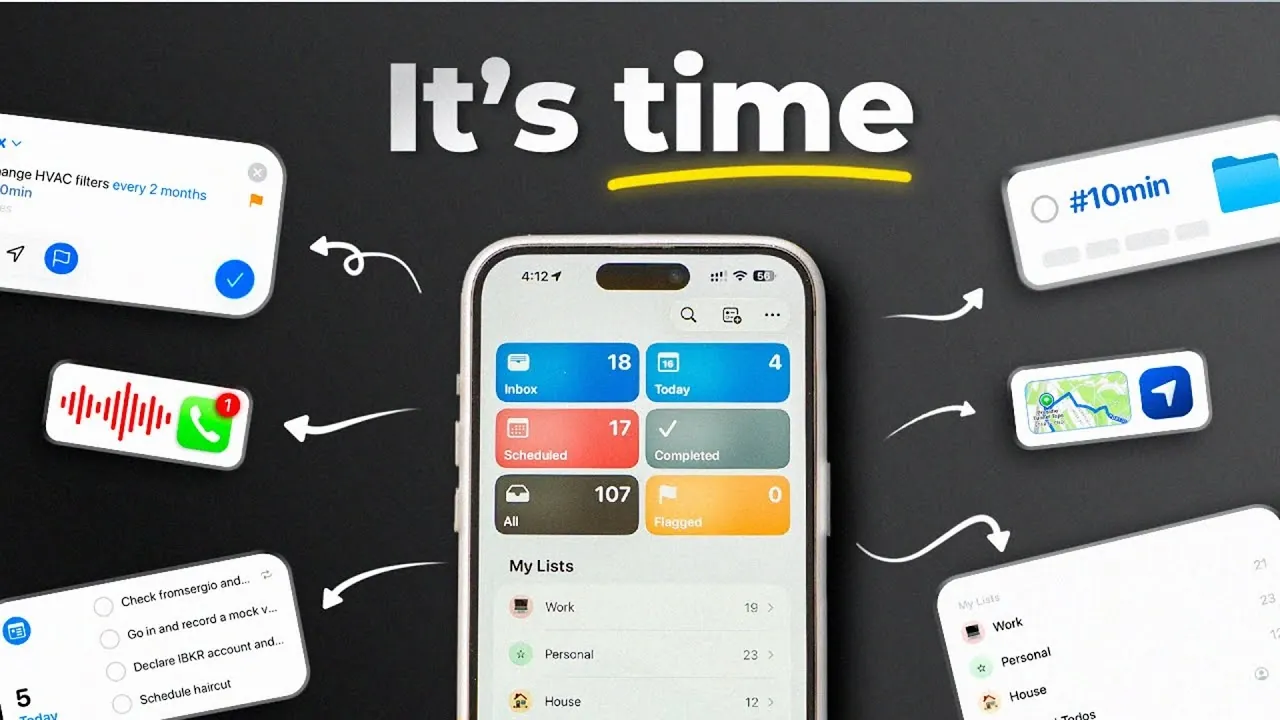
Apple Reminders has grown into a comprehensive app for managing tasks and responsibilities, offering features that go beyond basic list-making. FromSergio explains how creating a default “Inbox” list can simplify task capture by centralizing everything in one place, whether added manually, through Siri, or via Spotlight. For example, saying, “Remind me to call the plumber tomorrow at 10 AM,” ensures the task is logged with all the necessary details, ready for further organization.
Discover how to organize tasks into custom lists for specific areas of your life, such as work, personal goals, or recurring commitments. Learn about advanced features like Smart Lists, which sort tasks automatically based on tags or deadlines and location-based reminders that activate when you reach a certain place. Gain insight into how Apple Reminders integrates with the broader Apple ecosystem, keeping your tasks synced across devices for consistent access.
Start with a Default Inbox
TL;DR Key Takeaways :
- Apple Reminders has evolved into a powerful task management tool with advanced features, seamless integration across Apple devices and extensive customization options.
- Setting up a default “Inbox” list ensures all new tasks are captured efficiently, serving as a central hub for organization.
- Advanced features like tags, prioritization, templates and Smart Lists enable precise task organization and prioritization for improved productivity.
- Deep integration with the Apple ecosystem allows for effortless task management across devices, including syncing with Calendar, Siri and widgets.
- Unique functionalities such as location-based reminders, urgent alarms and grocery list categorization enhance usability and simplify task management.
A key step in mastering Apple Reminders is setting up a default “Inbox” list. This serves as a central hub for capturing tasks quickly and efficiently. By configuring this list as the default across all your Apple devices, any new task, whether added via Siri, Spotlight, or manual entry, automatically lands in the Inbox. This approach ensures that no task is forgotten, providing a reliable starting point for organizing your responsibilities.
To further enhance efficiency, you can use Siri voice commands to add tasks on the go. For example, saying, “Remind me to call the doctor tomorrow at 10 AM,” instantly creates a task in your Inbox with the specified details. This hands-free functionality is particularly useful when multitasking or during busy moments.
Organize Tasks for Better Clarity
Effective task management begins with categorization. Apple Reminders allows you to create separate lists tailored to different areas of your life, helping you maintain clarity and focus. Examples of such lists include:
- Work: Track deadlines, meetings and project milestones.
- Personal: Manage errands, hobbies and fitness goals.
- Recurring Tasks: Keep track of regular activities like bill payments or weekly chores.
- Waiting: Monitor tasks that depend on others, such as awaiting feedback or deliveries.
Shared lists are another powerful feature, allowing collaboration with colleagues, family, or friends. For instance, a shared grocery list can be updated in real-time, making sure everyone involved stays informed and aligned. Additionally, color-coding lists can help you visually distinguish between different categories, making your task management system even more intuitive.

Learn more about Apple Reminders with other articles and guides we have written below.
- How iOS 27 Will Massively Improve Your Apple Reminders Productivity
- Combine Apple Reminders with Calendar to Easily Organize Tasks, Projects & Daily Life
- Apple Reminders App is the Secret Weapon for GTD Productivity Success
- 5 Essential Apple Reminders Hacks to Simplify Your Life Instantly
- Apple’s iOS 27 Beta 3 Is Just Days Away: Here’s When It Drops
- iPhone Ultra Leak: Apple Finally Solved the Foldable Crease Problem
- iOS 27 Leaks Reveal the End of an Era: Apple’s New Priorities Confirmed
- Apple’s Confusing New iPhone 18 Release Strategy Explained
- Apple Releases iOS 26.5: Here Are the Hidden Features
- Every Major Apple Announcement Leaked Ahead of WWDC 2026
Unlock Advanced Features
Apple Reminders offers a suite of advanced tools designed to help you organize and prioritize tasks with greater precision. These features include:
- Tags: Add tags such as “urgent,” “5 minutes,” or “phone call” to group tasks by context. Tags allow you to filter and locate tasks quickly, especially in larger lists.
- Prioritization: Assign priority levels (high, medium, low) to focus on the most critical tasks first.
- Templates: Create reusable checklists for recurring activities, such as packing for trips or managing project workflows.
- Smart Lists: Automate task grouping with Smart Lists, which dynamically organize tasks based on criteria like tags, due dates, or priority levels.
These tools not only simplify task management but also enable you to focus on what matters most, making sure that your time and energy are spent efficiently.
Seamless Integration with the Apple Ecosystem
One of the standout features of Apple Reminders is its deep integration with the Apple ecosystem. This connectivity allows you to manage tasks effortlessly across all your Apple devices. Key integration benefits include:
- Dragging emails from the Mail app into Reminders to create linked tasks for follow-ups.
- Syncing reminders with the Calendar app for better scheduling and time management.
- Using widgets for quick access to task lists directly from your home screen.
- Using Siri or the iPhone action button for hands-free task creation while on the move.
This seamless integration ensures that your tasks are always accessible, whether you’re using an iPhone, iPad, Mac, or Apple Watch. It also eliminates the need for manual syncing, providing a consistent and reliable experience.
Unique Features for Enhanced Productivity
Apple Reminders includes several unique functionalities that distinguish it from other task management tools. These features are designed to enhance productivity and simplify task management:
- Urgent Reminders: Set critical tasks to trigger alarms, making sure they grab your attention at the right moment.
- Location-Based Reminders: Create tasks that activate when you arrive at or leave specific locations, such as “Pick up groceries” when near the store.
- When Messaging: Attach reminders to specific contacts, prompting you to bring up tasks during conversations.
- Grocery Lists: Automatically categorize items into sections like “Produce” or “Dairy” for efficient shopping trips.
These features make Apple Reminders a versatile tool capable of managing both simple and complex tasks, adapting to your unique needs and preferences.
Customization and Shortcuts
Apple Reminders offers extensive customization options, allowing you to tailor the app to your workflow. Some of the most useful customization features include:
- Hiding unused default lists, such as “All” or “Flagged,” to declutter your interface and focus on what matters most.
- Using keyboard shortcuts on macOS to quickly create, edit, or organize tasks, saving time and effort.
- Integrating Reminders with Spotlight or third-party tools like Raycast for faster task entry and retrieval.
These options provide a high level of flexibility, allowing you to create a task management system that aligns with your specific needs and preferences.
Reliability and Syncing Across Devices
As a native Apple app, Reminders offers unmatched reliability and seamless syncing across all Apple devices. Whether you’re using an iPhone, iPad, Mac, or Apple Watch, your tasks are always up-to-date and accessible. This deep integration ensures a consistent and smooth experience, allowing you to manage tasks effortlessly, no matter where you are.
By taking advantage of its robust syncing capabilities, you can confidently rely on Apple Reminders to keep your tasks organized and accessible, making sure that you never miss an important deadline or responsibility.
Media Credit: FromSergio
Disclosure: Some of our articles include affiliate links. If you buy something through one of these links, Geeky Gadgets may earn an affiliate commission. Learn about our Disclosure Policy.
