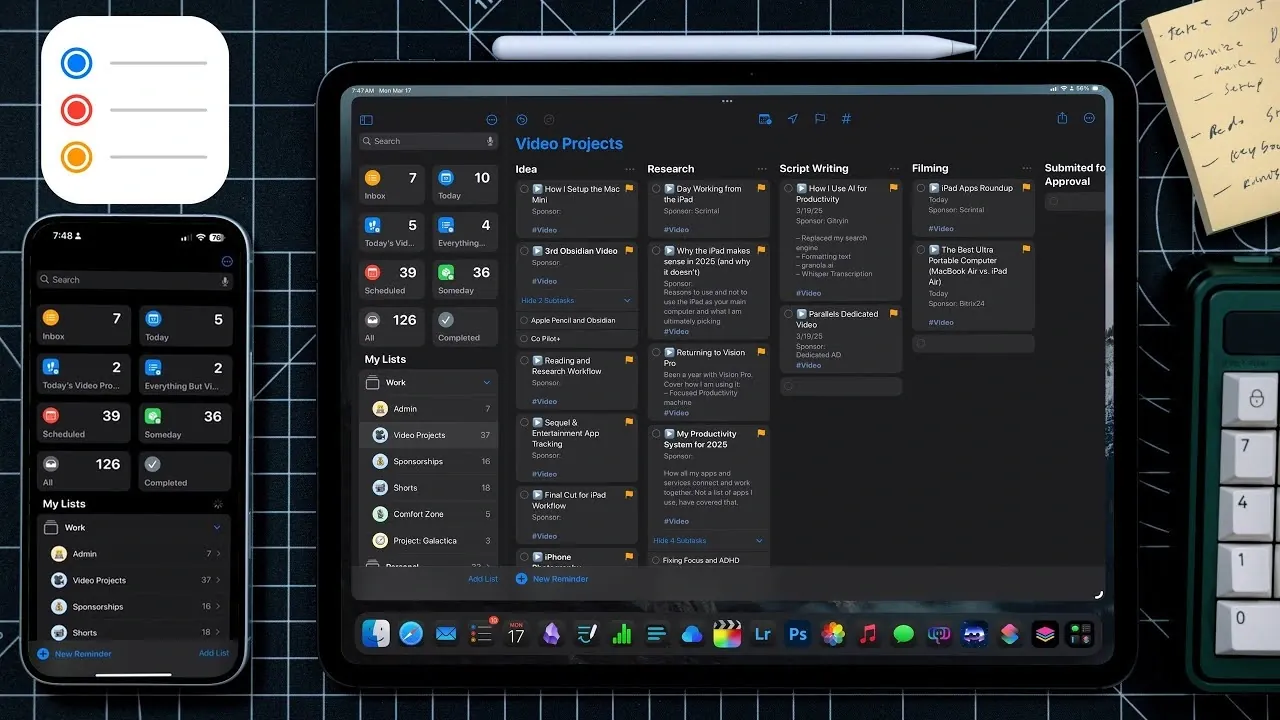
Have you ever felt like your to-do list is running your life instead of the other way around? Between juggling work deadlines, personal errands, and long-term goals, staying organized can feel like an uphill battle. But what if the solution was already in your pocket? Apple Reminders, often overlooked as just another default app, is actually a powerhouse of productivity when used to its full potential. With features like smart lists, Kanban-style organization, and seamless integration with the Calendar app, it’s more than just a digital sticky note, it’s a tool that can transform the way you manage your day. Whether you’re a meticulous planner or someone who struggles to keep track of tasks, Apple Reminders offers a flexible system to help you regain control.
In this guide, Christopher Lawley shares how to turned Apple Reminders into your personal productivity hub, breaking down its most effective features and how they can work for you. From creating customized task lists to automating recurring reminders, you’ll discover practical strategies to streamline your workflow and reduce mental clutter. But this isn’t just about ticking boxes, it’s about designing a system that aligns with your priorities and helps you focus on what truly matters. By the end, you might just find yourself wondering how you ever managed without it.
Apple Reminders Productivity Guide
TL;DR Key Takeaways :
- Apple Reminders is a versatile tool for managing tasks and projects, offering features like smart lists, Kanban-style organization, and third-party integrations to streamline workflows.
- Customizable lists and smart lists help organize tasks by themes, priorities, or due dates, while shared lists enable seamless collaboration for team projects or family activities.
- Kanban-style columns provide a visual approach to task management, allowing users to track progress and manage detailed projects effectively.
- Integration with the Calendar app offers a unified view of tasks and events, promoting better scheduling and work-life balance through features like calendar sets and focus modes.
- Additional features such as widgets, notifications, multi-window support, and grocery list auto-sorting enhance usability, though limitations like lack of start dates and advanced smart list filters remain.
Streamlining Task and Project Management
Apple Reminders is designed to accommodate a wide range of organizational needs, from simple tasks to detailed, multi-step projects. For instance, you can quickly set a reminder to pick up groceries or create a structured plan for a work presentation. By consolidating all your tasks and projects into one app, you gain a unified view of your responsibilities, reducing the need to juggle multiple tools. This centralization not only minimizes mental clutter but also helps you maintain focus on what matters most.
The app’s ability to handle recurring tasks is another key feature. You can set reminders for daily, weekly, or monthly activities, making sure that routine responsibilities are never overlooked. This functionality is particularly useful for managing ongoing commitments, such as bill payments or regular meetings.
Organizing Lists for Better Clarity
Effective organization is essential for staying productive, and Apple Reminders excels in this area by offering customizable lists. You can categorize your tasks into lists based on themes such as work, personal life, or specific projects. For example, you might create separate lists for household chores, professional goals, and long-term plans. This categorization ensures that your tasks are organized in a way that aligns with your priorities.
Smart lists take organization a step further by automatically grouping tasks based on criteria like due dates, tags, or priority levels. For instance, you can create a smart list that displays all high-priority tasks due within the next week, allowing you to focus on urgent responsibilities. Shared lists are another valuable feature, allowing seamless collaboration with others. Whether you’re managing a team project or coordinating family activities, shared lists ensure that everyone stays on the same page.
Apple Reminders Kanban Setup Guide 2026

Stay informed about the latest in Apple Reminders by exploring our other resources and articles.
- Apple Reminders Inbox System : Tags, Flags & Priorities Guide iOS
- Is Apple Reminders Enough for Power Users? One Month Verdict
- Apple Reminders Tips & Tricks for Smarter Task Management
- How to Use Apple Reminders for Improved Productivity with GTD
- iOS 26 What’s New in Apple Reminders
- How to Use Apple Notes, Reminders, and Calendars Together
- Apple Reminders Tips & Tricks for Better Task Management in 2025
- 10 Apple Reminders Features You Need to Know for Productivity
- Organize Your Life with Apple Reminders: A Complete 2025 Guide
- Apple Notes & Reminders : Improve Your Time Management
Visualizing Progress with Kanban-Style Columns
For users who prefer a visual approach to task management, Apple Reminders supports Kanban-style organization. This method involves dividing your tasks into columns such as “To Do,” “In Progress,” and “Completed.” By visually tracking the status of each task, you can gain a clearer understanding of your progress and identify any bottlenecks in your workflow.
Kanban-style organization is particularly beneficial for managing detailed projects. For example, if you’re planning an event, you can create sections for tasks like venue booking, guest invitations, and catering arrangements. As each task progresses, you can move it to the appropriate column, making sure that nothing falls through the cracks. The flexibility to customize these sections allows you to adapt the system to your unique needs, making it a versatile tool for a variety of projects.
Customizing and Automating Your Workflow
Apple Reminders offers extensive customization options to help you create a productivity system that works for you. You can color-code your lists for quick identification, making it easier to differentiate between work and personal tasks. Tags provide another layer of organization, allowing you to group related tasks across different lists. For instance, you can use a “Priority” tag to highlight urgent tasks, regardless of their category.
Automation is another powerful feature of Apple Reminders. By using the Shortcuts app, you can automate repetitive actions, such as setting reminders for recurring tasks or applying specific tags to new entries. This not only saves time but also ensures consistency in your task management. Additionally, third-party apps like “Remind Me Faster” enable quick task creation using natural language, further streamlining your workflow.
Seamless Integration with the Calendar App
The integration between Apple Reminders and the Calendar app provides a holistic view of your schedule. Tasks with deadlines are displayed alongside events, giving you a clear timeline of your commitments. This integration is particularly useful for managing busy schedules, as it allows you to see how your tasks align with your appointments and meetings.
Features like calendar sets and focus modes enhance this integration by allowing you to separate work and personal schedules. For example, you can create a calendar set that displays only work-related events during office hours, helping you maintain focus. Similarly, focus modes can be used to minimize distractions by silencing notifications for non-essential tasks. These tools work together to promote a better work-life balance and ensure that you stay on track.
Staying on Track with Widgets and Notifications
Widgets and notifications are essential features that help you stay organized throughout the day. Widgets bring your tasks and schedule directly to your home screen, providing a quick overview of your responsibilities. This allows you to check your agenda at a glance, without needing to open the app.
Notifications serve as timely reminders for upcoming tasks, making sure that you never miss a deadline. You can customize notification settings to suit your preferences, such as receiving alerts for high-priority tasks or reminders at specific times. Together, widgets and notifications create a system that keeps you informed and focused, making it easier to manage your day effectively.
Additional Features for Everyday Efficiency
Apple Reminders includes several features that enhance its usability and efficiency. For iPad users, multi-window support allows you to view your tasks and calendar side by side, making it easier to plan your day. Drag-and-drop functionality simplifies task creation by allowing you to add items directly from emails, notes, or other apps. This feature is particularly useful for capturing tasks on the go, making sure that nothing is forgotten.
The app also includes a grocery list auto-sorting feature, which organizes items by category. This makes shopping trips more efficient, as you can quickly locate items in the store. These additional features demonstrate Apple Reminders’ versatility, making it a valuable tool for both personal and professional use.
Addressing Limitations
While Apple Reminders offers a wide range of features, it does have some limitations. For example, the smart list filters could be more advanced, allowing users to combine multiple criteria for more precise task grouping. The app also lacks support for start dates and file attachments, such as PDFs, which would make it more suitable for managing complex projects. Addressing these gaps could significantly enhance its functionality and appeal to a broader audience.
Despite these limitations, Apple Reminders remains a powerful tool for task and project management. By exploring its features and adapting them to your workflow, you can create a tailored productivity system that helps you stay organized, meet deadlines, and achieve your goals with greater efficiency.
Media Credit: Christopher Lawley
Disclosure: Some of our articles include affiliate links. If you buy something through one of these links, Geeky Gadgets may earn an affiliate commission. Learn about our Disclosure Policy.
