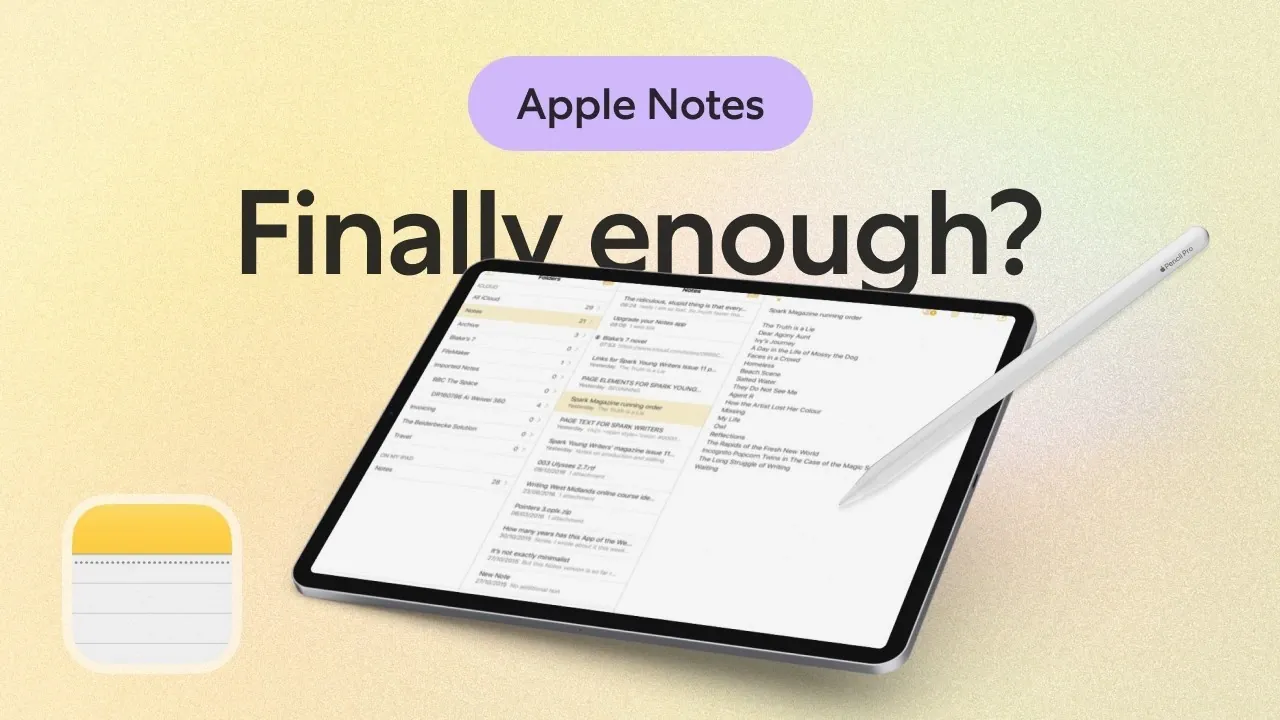
Apple Notes is a versatile application for organizing ideas, managing tasks and storing information, offering a balance of simplicity and functionality. According to Paperlike, features like smart folders allow users to automatically sort notes using hashtags and filters, while nested folders, supporting up to five levels, enable detailed organization for complex projects. Additional options, such as sorting notes by specific timeframes like “Today” or “Past 7 Days”, provide practical ways to keep track of content efficiently.
Explore this how-to guide to learn how to use optical character recognition (OCR) for searching handwritten notes and attachments, take advantage of Quick Notes for capturing ideas instantly and embed media like photos and PDFs directly into your notes. Gain insight into strategies for streamlining your workflow and enhancing collaboration through iCloud syncing and shared folders.
Key Apple Notes Features for Organization
TL;DR Key Takeaways :
- Apple Notes offers robust organization tools, including folder-based systems, smart folders and nested folders up to five levels deep, making it easy to manage and categorize notes.
- The app features powerful search capabilities with optical character recognition (OCR), allowing users to find text within handwritten notes, images and attachments.
- It supports a variety of writing and sketching tools, including advanced options for Apple Pencil users, such as tilt shading, pressure sensitivity and a built-in ruler for precision.
- Apple Notes excels in collaboration and integration, allowing note sharing with permissions, syncing via iCloud and seamless interaction with other Apple apps like Calendar and Reminders.
- While it offers strong security features and customization options, limitations such as single-note exporting and lack of advanced features may not meet the needs of professional users requiring more flexibility.
Apple Notes excels in organization with its folder-based system, which includes both standard and smart folders. Smart folders automatically categorize notes using hashtags and filters, streamlining the process of managing large volumes of information. For more complex projects, you can create nested folders up to five levels deep, offering a structured way to organize content.
The app includes default folders like “Quick Notes” for capturing ideas on the fly and “Recently Deleted” for recovering accidentally removed notes. Sorting options allow you to arrange notes by criteria such as the last edited date or specific timeframes like “Today” or “Past 7 Days”, making sure quick and efficient navigation.
Robust Search Capabilities
Apple Notes features a powerful search function that simplifies finding specific information. Using optical character recognition (OCR), the app can identify text within handwritten notes, images and attachments. This capability ensures that even non-text elements are searchable, making it easier to locate important details.
Hashtags and pinned notes further enhance navigation by allowing you to group related content or keep frequently accessed notes at the top of your list. Whether you’re searching for a specific keyword or browsing by topic, Apple Notes ensures that your data is always within reach.
Writing and Sketching Tools
Apple Notes supports a variety of tools for both text-based and creative tasks. You can choose from multiple pen styles, including pencil, marker and crayon, with adjustable color and thickness settings. For users seeking more intricate designs, advanced tools like monoline, fountain pen and watercolor brushes are available.
For those using the Apple Pencil, features like tilt shading and pressure sensitivity provide enhanced precision, making it ideal for detailed sketches or handwritten notes. Additional tools, such as erasers, highlighters and a lasso tool for selecting and moving content, offer greater control. A built-in ruler ensures accuracy when creating diagrams or structured drawings.
Text and Handwriting Features
Apple Notes offers essential text formatting options, including headings, bullet points and tables, to keep your notes well-organized. The Scribble feature converts handwriting into text, allowing you to digitize ideas seamlessly. This is particularly useful for users who prefer writing by hand but need the flexibility of digital text.
Typed and handwritten content can be arranged into distinct blocks, making sure clarity and structure. This separation makes it easier to organize your notes, whether you’re working on a detailed project or jotting down quick ideas.
Become an expert in Apple Notes with the help of our in-depth articles and helpful guides.
- How to Make Apple Notes Templates You Can Reuse in iOS 18
- How to Use Apple Notes as a Vertical Kanban Board for Tasks
- Apple Notes: The Best Tool for Digital Knowledge Management
- Use the Zettelkasten Method in Apple Notes for Better Organization
- How to Use Apple Notes for Drawing and Sketching Like a Pro
- Apple Notes vs Goodnotes 6: Which Note-Taking App is Best for You?
- Apple Notes 2026 Features for Faster Note Taking & Planning
- Apple Notes Guide 2026 : Easily Organize Your Tasks & Projects
- Apple Notes Quick Capture Setup for Mac, iPhone & Apple Watch
- How to Use Apple Notes Like a Pro
Media & Attachment Support
Apple Notes allows you to attach various types of media, such as photos, PDFs and other documents, by simply dragging and dropping them into your notes. You can also use your device’s camera to scan documents or text directly into the app. The markup tool enables you to annotate PDFs, making it a versatile option for managing multimedia content alongside written notes.
These features make Apple Notes particularly useful for users who need to combine text, images and other files in a single, organized space.
Collaboration & Integration
Collaboration is a key strength of Apple Notes. You can share individual notes or entire folders with others, granting specific permissions to control who can view or edit the content. This makes it an excellent tool for group projects or shared task management.
The app syncs across devices via iCloud, making sure that your notes are always up-to-date and accessible, whether you’re using an iPhone, iPad, or Mac. However, this functionality depends on your iCloud storage plan, which may require an upgrade for users with extensive note libraries.
Apple Notes also integrates seamlessly with other Apple apps like Calendar and Reminders, recognizing dates, addresses and contacts to enhance productivity. This interconnectedness within the Apple ecosystem is one of its standout features.
Customization & Quick Notes
Apple Notes offers several customization options to tailor the app to your preferences. You can personalize the toolbar and choose background styles, such as lines or grids, to suit your writing or drawing needs. These small adjustments can make a significant difference in usability.
The Quick Notes feature allows you to create notes instantly, even linking them to specific websites or apps for easy reference. This functionality is particularly useful for capturing ideas or information on the go, making sure that no important detail is overlooked.
Exporting & Limitations
While Apple Notes supports exporting notes as PDFs, it only allows one note to be exported at a time. This limitation can be inconvenient for users who need to share or archive multiple notes simultaneously. Additionally, handwriting is saved as raster ink, which may appear blurry when zoomed in and the infinite page format can lead to awkward page breaks in exported PDFs.
These limitations may pose challenges for professional users who require more robust exporting options or higher-quality document formatting.
Security Features
Apple Notes prioritizes security, offering the ability to lock individual notes with a password, Face ID, or Touch ID. This ensures that sensitive information, such as personal details or confidential work notes, remains protected. The app’s focus on privacy makes it a reliable choice for users who value data security.
Strengths & Weaknesses
Apple Notes stands out for its simplicity, intuitive design and seamless integration within the Apple ecosystem. It is free to use and provides essential tools for note-taking, organization and collaboration. These strengths make it an excellent choice for casual users and those already invested in Apple’s suite of apps.
However, the app does have its limitations. It lacks advanced features found in premium note-taking apps, such as customizable templates, flexible layouts and batch exporting. Users with more complex needs may find that dedicated note-taking apps offer greater functionality and flexibility.
Apple Notes is a practical and accessible tool for digital note-taking, offering a range of features that cater to both casual and professional users. Its integration with the Apple ecosystem, combined with its straightforward design, makes it a strong choice for many. However, if your workflow requires advanced features or greater customization, exploring alternative apps may better suit your needs.
Media Credit: Paperlike
Disclosure: Some of our articles include affiliate links. If you buy something through one of these links, Geeky Gadgets may earn an affiliate commission. Learn about our Disclosure Policy.
