
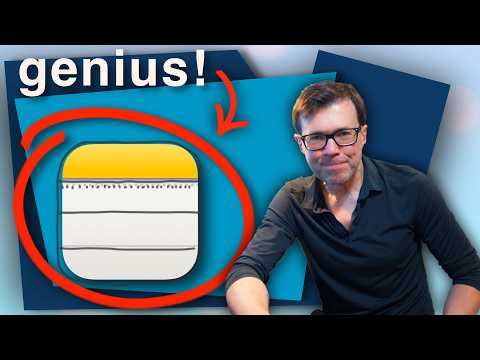
What if staying ahead wasn’t about working harder, but about working smarter, right from your fingertips? By Roman breaks down how Apple Notes, often dismissed as just a basic app, has evolved into a surprisingly effective way to organize your life. From creating dynamic workflows to syncing tasks seamlessly across devices, this deep dive uncovers how highly effective people are using its features to stay organized and productive. If scattered thoughts or disorganized systems have ever held you back, this guide shows how Apple Notes can be the upgrade you didn’t know you needed.
In this exploration, you’ll learn how to transform Apple Notes into a personalized productivity hub. Discover how to organize with folders and hashtags, capture fleeting ideas with Quick Notes, and embed actionable tasks directly into your plans. Whether it’s scanning documents in seconds or multitasking with split-screen notes on an iPad, these strategies are designed to help you stay focused and in control. With these hacks, streamlining your workflow and finding clarity can become second nature.
Apple Notes Productivity Hacks
TL;DR Key Takeaways :
- Apple Notes offers robust organizational tools, including folders, subfolders, headings, and collapsible sections, to streamline note management and improve efficiency.
- The Quick Notes feature allows users to capture ideas instantly across devices, while integration with Reminders embeds actionable tasks directly into notes.
- Advanced features like voice recording, document scanning, and Find and Replace enhance productivity by allowing efficient content capture, editing, and organization.
- Built-in checklist functionality and task integration with the Reminders app simplify task management and ensure seamless tracking of responsibilities.
- Additional productivity tools, such as hashtags for filtering, multitasking on iPads, and landscape mode on iPhones, optimize the user experience for various workflows.
Organizing Notes for Maximum Efficiency
A structured system is the cornerstone of effective note organization. Apple Notes enables you to create folders and subfolders, allowing you to categorize your notes systematically. For example, you can establish main folders such as “Work,” “Personal,” and “Projects,” then create subfolders within each category to further refine your organization. This approach reduces clutter and ensures you can locate information quickly.
Within individual notes, using headings and subheadings helps break down complex information into manageable sections. This formatting improves readability and makes navigation more intuitive. Additionally, collapsible sections within notes allow you to hide or reveal content as needed, keeping your workspace clean and focused. By combining these organizational tools, you can create a system that supports both clarity and efficiency.
Streamlining Content Capture and Management
Capturing ideas and information on the go is effortless with Apple Notes’ Quick Notes feature. Whether you’re using a Mac, iPad, or iPhone, Quick Notes allows you to jot down thoughts instantly without interrupting your workflow. For instance, on an iPad, you can swipe up from the corner of the screen to open a Quick Note while browsing the web or reviewing documents.
Another key feature is the integration between Notes and Reminders. This functionality lets you embed actionable tasks directly into your notes. For example, if you’re drafting a project outline, you can add a reminder to follow up with a colleague or complete a specific task, making sure no detail is overlooked.
Apple Notes also supports drag-and-drop functionality, making it easy to enrich your notes with files, images, emails, and URLs. This feature is particularly useful for consolidating related materials in one place. For instance, you can attach a PDF to a meeting summary or add a website link to a research note, creating a comprehensive resource for your projects.
10 Apple Notes Hacks Highly Effective People Use
Here are more guides from our previous articles and guides related to Apple Notes that you may find helpful.
- How to Sync Apple Notes to Notion : 2025 Guide
- New Apple Notes iOS 26 Features : Markdown, 3D Graphs & More
- How to Use Apple Notes for Organization, Collaboration and More
- How to Use Apple Notes as a Vertical Kanban Board for Tasks
- Apple Notes vs Goodnotes 6: Which Note-Taking App is Best for You
- Apple Notes Shortcuts, Macros, and MX Console Setup Guide
- Use the Zettelkasten Method in Apple Notes for Better Organization
- How to Use Apple Notes for Quick and Efficient Note-Taking
- Discover the New Tools in Apple Notes iOS 18.3 Update
- Apple Notes Tips: Quick Note, Drag and Drop & Smart Folders
Using Advanced Features
Apple Notes goes beyond basic text-based note-taking with advanced features like voice recording and document scanning. You can record audio directly within a note, which is particularly useful for capturing meeting discussions or brainstorming sessions. The app also supports transcription, allowing you to review and organize recorded content more efficiently.
The document scanning feature is another standout tool. Using your iPhone or iPad, you can scan physical documents and save them directly to Notes. This is ideal for digitizing receipts, contracts, or handwritten notes, making sure all your important materials are accessible and synced across your devices.
For text editing, the Find and Replace tool is invaluable. Whether you’re updating recurring terms or correcting errors in lengthy notes, this feature saves time and ensures consistency throughout your documents. By using these advanced tools, you can elevate your note-taking experience and enhance your productivity.
Checklists and Task Integration
Apple Notes simplifies task management with its built-in checklist functionality. You can create checklists within your notes to track progress on projects or daily tasks. For example, you might draft a shopping list or outline steps for a presentation, checking off items as you complete them.
To take task management a step further, you can convert checklist items into tasks in the Reminders app. This integration allows you to prioritize and monitor tasks across all your Apple devices. By syncing your notes and reminders, you can ensure that no responsibility slips through the cracks.
Bonus Tips for Enhanced Productivity
To quickly filter and organize your notes, use hashtags. By tagging notes with keywords like #Work or #Personal, you can instantly locate related content using the search function. This is especially helpful when managing a large volume of notes, as it allows you to retrieve specific information with minimal effort.
Apple Notes also supports multitasking on devices like the iPad, allowing you to open multiple notes side-by-side. This feature is ideal for comparing information or working on related projects simultaneously. For instance, you can reference a research note while drafting a overview, streamlining your workflow.
On smaller screens, such as the iPhone, you can optimize your experience by rotating your device to landscape mode. This orientation provides additional space for viewing and editing notes, making it easier to work on the go. By using these tips, you can maximize the functionality of Apple Notes and tailor it to your specific needs.
Unlocking the Full Potential of Apple Notes
Apple Notes is more than just a note-taking app, it’s a comprehensive tool for organizing, managing, and streamlining your workflow. By using features like folders, Quick Notes, voice recording, and task integration, you can transform how you capture and manage information. Whether you’re a professional juggling multiple projects or an individual striving to stay organized, these ten hacks will help you unlock the full potential of Apple Notes and achieve your productivity goals.
Media Credit: by Roman
Disclosure: Some of our articles include affiliate links. If you buy something through one of these links, Geeky Gadgets may earn an affiliate commission. Learn about our Disclosure Policy.
