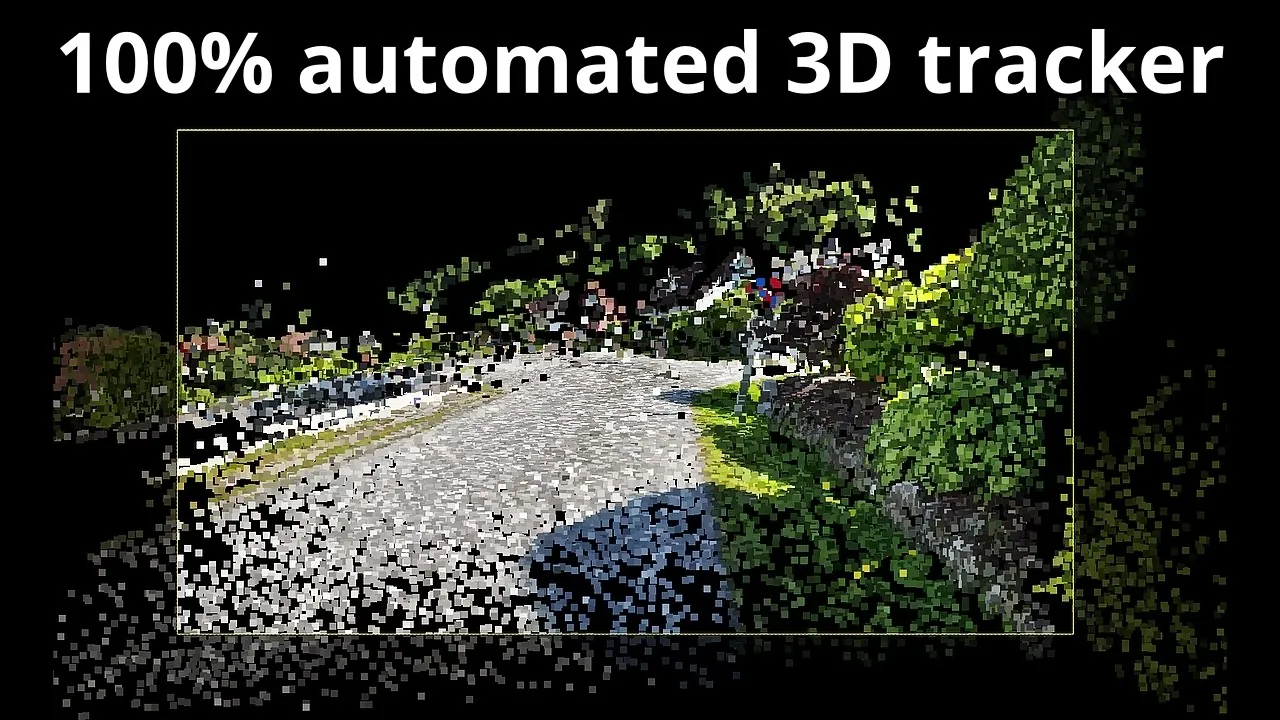
What if you could transform raw video footage into precise, professional-grade 3D camera movements without spending hours on tedious manual tracking? For filmmakers, visual effects artists, and 3D enthusiasts, this might sound like a dream—but it’s entirely achievable. With the power of open source tools like COLMAP, FFmpeg, and Blender, you can unlock an automated workflow that simplifies the complex process of 3D tracking. Whether you’re integrating virtual objects into a dynamic scene or reconstructing environments for compositing, this approach delivers both accuracy and efficiency, even with challenging footage. The best part? You don’t need expensive software or advanced technical expertise to get started.
In this guide, Polyfjord explores a step-by-step workflow that takes you from raw video to fully reconstructed 3D scenes. You’ll learn how to break down video footage into image sequences, use COLMAP’s photogrammetry capabilities to calculate camera movements, and seamlessly integrate the results into Blender for editing and compositing. Along the way, we’ll share practical tips for optimizing your workflow, from organizing files to enhancing performance with proxy files. Whether you’re a seasoned creator or new to 3D tracking, this guide will equip you with the tools and techniques to bring your projects to life. The creative potential is vast, how will you use it?
Automated 3D Tracking Guide
TL;DR Key Takeaways :
- The workflow automates the conversion of video footage into precise 3D camera movements using free, open source tools like COLMAP, FFmpeg, and Blender, eliminating the need for manual tracking.
- The process involves three main steps: video-to-image conversion with FFmpeg, 3D reconstruction using COLMAP, and integration/editing in Blender for seamless visual effects and compositing.
- Proper file organization and the use of batch scripts are essential for maintaining efficiency and reducing errors during the workflow.
- To ensure accuracy in 3D tracking, avoid stabilized footage, use high-quality video capture tools, and optimize Blender settings for smoother editing and playback.
- This method is ideal for complex scenarios like handheld or dynamic camera movements, allowing precise alignment of 3D elements with original footage for professional-grade results.
How the Automated Workflow Functions
The automated workflow simplifies the process of transforming video footage into 3D camera movements. It achieves this by breaking video files into image sequences, which are then processed through photogrammetry software to reconstruct camera positions and movements in 3D space. Unlike traditional methods, this approach eliminates the need for manual tracking or predefined camera settings, saving time while maintaining a high level of precision.
The workflow is divided into three primary steps:
- Video-to-image conversion: Use FFmpeg to extract image sequences from video files.
- 3D reconstruction: Employ COLMAP photogrammetry software to calculate camera movements and generate 3D point clouds.
- Integration and editing: Import the reconstructed data into Blender for further editing and seamless integration into your project.
This structured approach ensures a smooth and efficient process, even for users with limited experience in 3D tracking.
Key Tools and Their Roles
The success of this workflow relies on three essential open source tools, each designed to handle specific tasks:
- COLMAP: A robust photogrammetry tool that calculates camera positions and generates 3D point clouds from image sequences.
- FFmpeg: A versatile command-line utility for converting video files into image sequences, allowing compatibility with photogrammetry software.
- Blender: A powerful 3D software suite used for integrating photogrammetry data, editing, and creating professional-grade visual effects.
These tools are not only free but also widely supported, making them accessible to users of varying skill levels.
Guide to 3D Camera Tracking with Open Source Tools

Here are more guides from our previous articles and guides related to 3D Camera Tracking that you may find helpful.
- Meta And Epson Create Wearable Augmented Reality Glasses With
- How to model, rig and animate 3D animals with AI
- HTC VIVE Ultimate Tracker for XR headsets and PC VR streaming
- Awesome robotic foosball table features AI, Vision and Machine
- 15 Best CapCut Tricks to Enhance Your Video Editing Skills
- Real Life Portal Gun Antics With Friends (video)
- AI Filmmaking Tools & Trends Shaping the Future of Cinema in
- Microsoft Transparent Kinect 3D PC Concept (video)
- Sense Handheld 3D Scanner Now Available For The Mac
- Reminder: Get 77% Off The Lytro Illum Camera
Organizing Files for Efficiency
Proper file organization is critical for maintaining a smooth workflow. A well-structured folder system ensures that all files are easily accessible and reduces the risk of errors. Consider the following folder structure:
- Videos: Store all raw video footage in this folder.
- Images: Save image sequences extracted from video files here.
- COLMAP: Use this folder to store photogrammetry project files and outputs.
- Scripts: Keep batch scripts for automating repetitive tasks, such as video-to-image conversion or COLMAP processing.
Batch scripts can further enhance efficiency by automating time-consuming tasks, allowing you to focus on the creative aspects of your project.
Seamless Integration into Blender
Once the 3D reconstruction is complete in COLMAP, the next step is to import the data into Blender. Blender provides a comprehensive platform for working with point clouds, animated cameras, and reconstructed scenes. To optimize your workflow in Blender:
- Adjust navigation settings: Fine-tune Blender’s settings to improve navigation and playback, especially when working with large datasets.
- Use proxy files: Create lower-resolution proxy files to ensure smoother editing and reduce lag during complex projects.
This integration step is essential for achieving realistic visual effects and seamless compositing, making sure that 3D elements align perfectly with the original footage.
Making sure Accuracy in 3D Tracking
To achieve precise 3D tracking results, it is important to consider the following factors:
- Avoid image stabilization: Stabilized footage can introduce distortions that complicate the photogrammetry process.
- Capture high-quality footage: Use professional tools, such as the Blackmagic camera app, to maintain control over video settings and ensure optimal quality.
These precautions help preserve the integrity of your footage, resulting in more accurate 3D reconstructions.
Applications and Practical Use Cases
This workflow is particularly effective for handling complex scenarios, such as handheld or dynamic camera movements. For example, you can track a handheld camera navigating through a crowded environment and seamlessly integrate 3D elements like virtual objects or effects. The reconstructed 3D data ensures that these elements align perfectly with the original footage, creating a polished and professional final product.
Enhancing Your Workflow
To further improve your workflow and achieve better results, consider the following tips:
- Optimize Blender settings: Adjust visualization settings to enhance the display of point clouds and reconstructed scenes.
- Use proxy files: Use lower-resolution proxies to reduce lag and improve editing performance, especially when working with high-resolution footage.
These adjustments can significantly enhance usability and efficiency, making the entire process more streamlined and enjoyable.
Unlocking the Potential of Automated 3D Tracking
By combining tools like COLMAP, FFmpeg, and Blender, this automated 3D tracking workflow provides a reliable and efficient solution for creators seeking precision in their projects. Whether you’re working on visual effects, compositing, or 3D scene reconstruction, this method offers a professional-grade approach that is both accessible and effective. With proper organization, attention to detail, and the right tools, you can transform video footage into detailed 3D camera movements, opening up new possibilities for creative expression.
Media Credit: Polyfjord
Disclosure: Some of our articles include affiliate links. If you buy something through one of these links, Geeky Gadgets may earn an affiliate commission. Learn about our Disclosure Policy.
