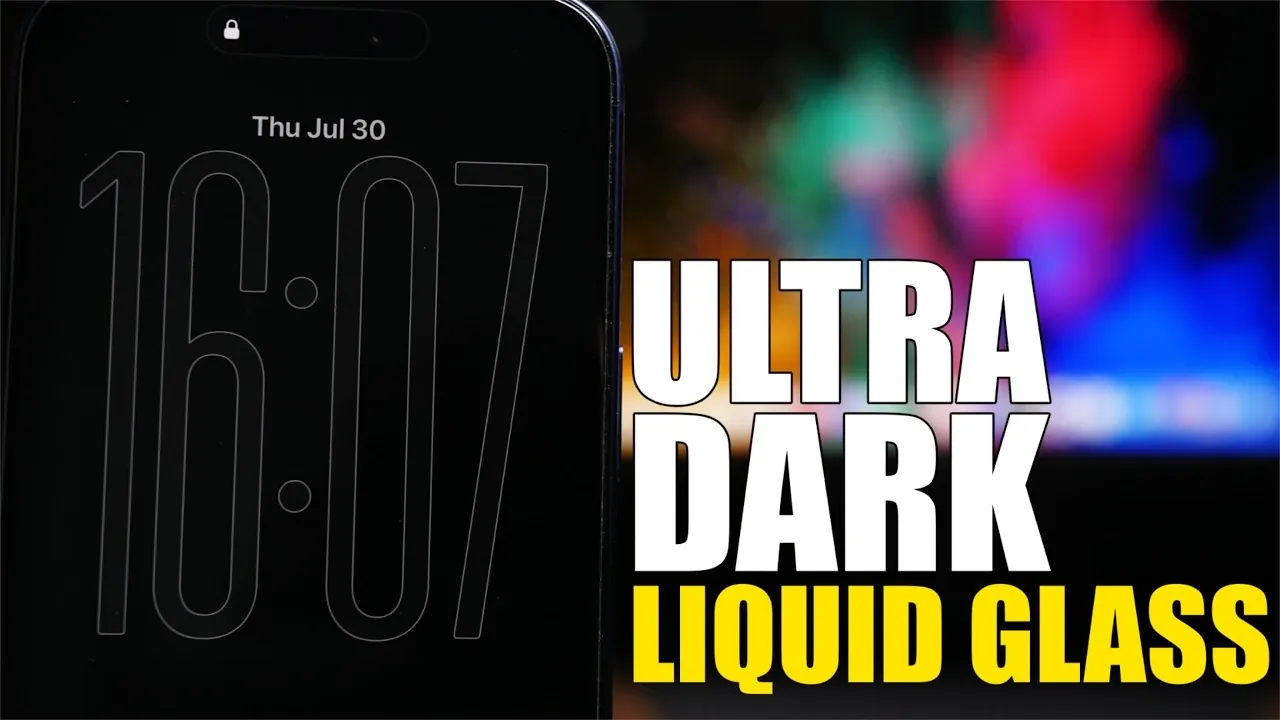
The release of liquid glass dark mode in iOS 26 and the iOS 27 beta represents a significant advancement in user interface design. This feature not only enhances the visual appeal of your device but also improves battery efficiency, particularly on OLED displays. Whether you’re using iOS 26.6, an earlier version of iOS 26, or exploring the iOS 27 beta, this guide will help you activate and customize this innovative feature. By following these steps, you can create a sleek, energy-efficient, and visually captivating interface tailored to your preferences. The video below from iReviews gives us more details.

Activating Dark Mode
Dark mode serves as the foundation for the liquid glass effect, and activating it is straightforward:
- Navigate to Settings and select Display & Brightness.
- Choose one of the following activation methods:
- Automatic Scheduling: Set dark mode to activate and deactivate at specific times.
- Sunset-to-Sunrise: Automatically adjust based on your location’s natural light cycle.
- Manual Activation: Toggle dark mode on or off at your convenience.
Once dark mode is enabled, your device is ready for further customization with liquid glass enhancements, allowing you to refine the interface to suit your style and needs.
Customizing Liquid Glass Dark Mode
Liquid glass dark mode improves the standard dark mode by introducing a more polished and immersive appearance. To personalize this feature:
- On iOS 26, select between standard liquid glass or tinted liquid glass for a richer, more dynamic dark mode experience.
- For iOS 27 beta users, use the darkness slider to adjust the intensity of the liquid glass effect, tailoring it to your preferences.
This customization not only enhances the aesthetics of your device but also reduces strain on OLED displays, contributing to improved battery performance. The result is a visually stunning interface that balances style and functionality.
Enhancing Accessibility and Usability
To ensure a comfortable and user-friendly experience, explore the Accessibility settings to fine-tune your interface:
- Enable Reduce Bright Effects to minimize glare and reflections, creating a softer visual experience.
- Activate Reduce Transparency to eliminate transparent UI elements, resulting in a cleaner and darker interface.
For optimal results, combine the tinted liquid glass option with these accessibility settings. This approach ensures a cohesive design while enhancing usability, making your device more comfortable to use in various lighting conditions.
Improving Interface Visibility
Dark mode doesn’t have to compromise visibility or functionality. To enhance the clarity of your interface:
- Enable Show Borders in the settings menu to add subtle outlines around UI elements, improving their definition.
- For iOS 27 beta users, toggle borders directly from the Control Center for quick and convenient adjustments.
These enhancements ensure that your interface remains accessible and easy to navigate, even in ultra-dark mode, providing a seamless user experience.
Customizing Your Home Screen
The home screen plays a central role in the dark mode experience. To create a cohesive and energy-efficient look:
- Choose dark wallpapers that complement the liquid glass effect for a unified appearance.
- Adjust wallpaper dimming settings to achieve an even darker and more immersive look.
- Opt for dark or tinted icons and minimalistic widgets that align with the dark mode theme.
These elements work together to create a visually appealing and functional home screen, enhancing both aesthetics and usability.
Optimizing the Lock Screen
The lock screen offers additional opportunities for customization, allowing you to enhance both its appearance and functionality:
- Use a large clock with a glass effect and black color for a modern, sleek design.
- Enable borders to define key elements, making sure they remain visible in low-light conditions.
These adjustments provide a refined and practical lock screen that complements the overall dark mode experience.
Fine-Tuning the Always-On Display
For devices equipped with an always-on display, you can achieve a minimalist and energy-efficient look by making simple adjustments:
- Disable the Show Wallpaper option to display only the clock, reducing distractions and conserving battery life.
When paired with liquid glass dark mode, this setting creates a clean and modern interface that prioritizes functionality and efficiency.
Maximizing the Potential of Liquid Glass Dark Mode
The liquid glass dark mode in iOS 26 and iOS 27 beta offers a sophisticated way to enhance your device’s appearance and performance. By activating dark mode, customizing liquid glass settings and fine-tuning accessibility and display options, you can create a personalized interface that balances aesthetics, usability and energy efficiency. Whether your focus is on reducing eye strain, improving battery life, or achieving a sleek design, these steps ensure you unlock the full potential of your iOS device.
Expand your understanding of iOS 26 Dark Mode with additional resources from our extensive library of articles.
- How to Enable Ultra Dark Mode on iOS 26: The Secret Setting for More Battery
- Hidden Setting: How to Enable the Secret “Ultra Dark Mode” in iOS 26.1
- iOS 26.2: How to Customize Liquid Glass and Enable Ultra Dark Mode
- How to Enable Actual Dark Mode On Iphone In iOS 26
- iOS 26: The HIDDEN Settings to Enable ULTRA DARK MODE
Source & Image Credit: iReviews
Disclosure: Some of our articles include affiliate links. If you buy something through one of these links, Geeky Gadgets may earn an affiliate commission. Learn about our Disclosure Policy.
