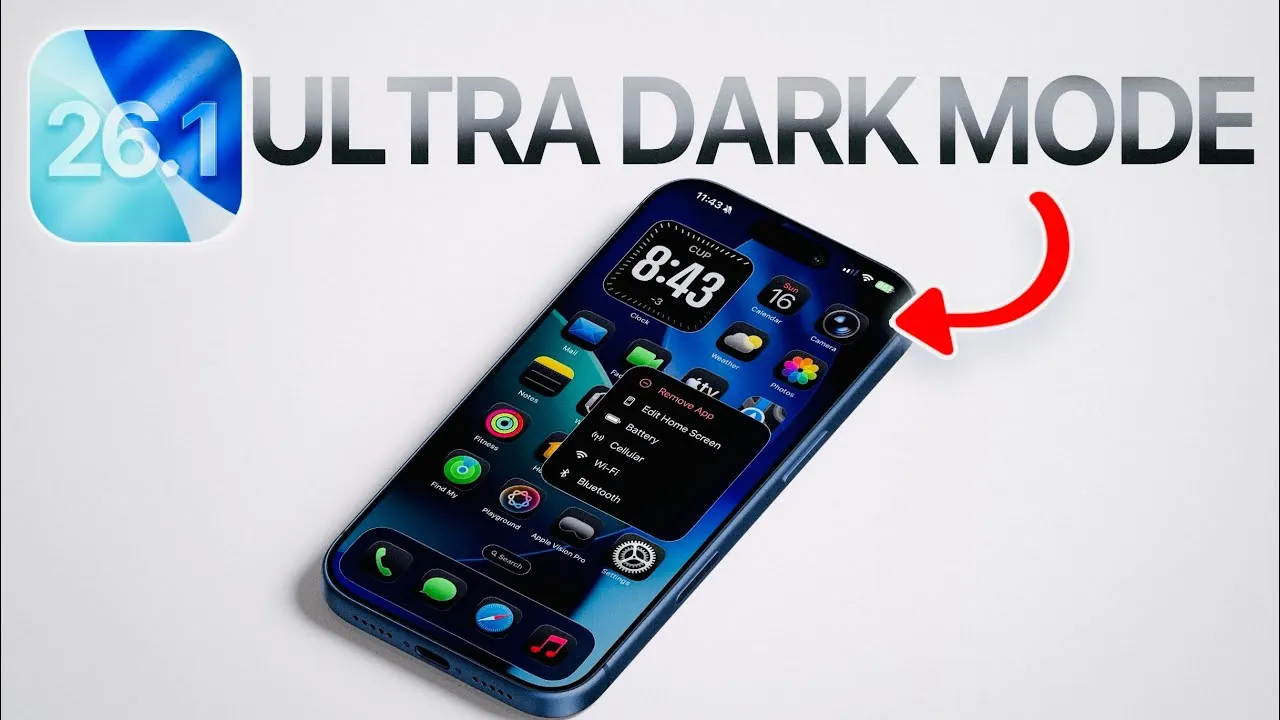
Apple’s iOS 26.1 introduces a suite of advanced features aimed at refining your dark mode experience. These updates provide greater control over your device’s display, allowing you to enhance comfort, accessibility, and aesthetics. Whether you’re looking to reduce glare, soften bright highlights, or achieve a more cohesive interface, iOS 26.1 equips you with tools to tailor your iPhone to your preferences. By using these features, you can create a display environment that is both visually appealing and functionally efficient. The video below from iDeviceHelp gives us more details.
Key Features to Enhance Dark Mode
iOS 26.1 offers several tools to fine-tune your dark mode settings. These features are designed to improve usability and provide a more immersive experience. Below is a breakdown of the most impactful options and how they can be used:
- Liquid Glass Customization: Modify the translucency of interface elements for a deeper, more polished aesthetic.
- Reduce Transparency: Minimize transparency in menus and overlays to achieve a cleaner, more uniform display.
- Reduce White Point: Soften bright highlights to reduce eye strain, especially in low-light environments.
- Lock Screen Clock Customization: Personalize the lock screen clock to seamlessly align with your dark mode theme.
Liquid Glass Customization: A Darker, Sleeker Interface
The Liquid Glass Customization feature allows you to adjust the translucency of interface elements, creating a darker and more cohesive look. This feature enhances the overall aesthetic of dark mode by reducing glare and improving readability. To enable Liquid Glass Customization:
1. Open Settings > Display & Brightness > Liquid Glass.
2. Switch the appearance from “Clear” to “Tinted.”
By selecting the “Tinted” option, translucent backgrounds in menus and controls are darkened, resulting in a more unified interface. This adjustment is particularly beneficial for users who prefer a sleek and understated design.
Reduce Transparency: A Cleaner, More Consistent Display
The “Reduce Transparency” setting enhances the visual consistency of your device by minimizing the transparency of menus, overlays, and other interface elements. This feature is especially effective in dark mode, as it creates a solid and uniform appearance. To activate this setting:
1. Navigate to Settings > Accessibility > Display & Text Size.
2. Toggle on “Reduce Transparency.”
For added convenience, you can assign this feature to the Action Button, allowing quick toggling based on your environment. This is particularly useful when transitioning between bright and dim lighting conditions, making sure optimal visibility and comfort.
Reduce White Point: Softer Highlights for Eye Comfort
Bright highlights in menus or notifications can be distracting, especially in low-light settings. The “Reduce White Point” feature addresses this issue by lowering the intensity of white tones across your display. This adjustment reduces harsh contrasts, making dark mode more comfortable for extended use. To enable this feature:
1. Go to Settings > Accessibility > Display & Text Size.
2. Turn on “Reduce White Point” and adjust the slider to your preferred level.
This setting is particularly beneficial for nighttime use or in dimly lit environments, as it softens the overall brightness of your display without compromising visibility.
Lock Screen Clock Customization: Seamless Integration
iOS 26.1 introduces the ability to customize the lock screen clock, making sure it complements your dark mode theme. This feature allows you to personalize the clock’s appearance, creating a cohesive and visually appealing interface. To customize the lock screen clock:
1. Long-press the lock screen to enter customization mode.
2. Select the clock and open the color picker.
3. Choose black or another dark color that aligns with your display.
This customization option adds a polished touch to your lock screen, enhancing the overall aesthetic of your device.
Why These Features Matter
The enhancements introduced in iOS 26.1 extend beyond mere aesthetics. By combining features like Liquid Glass Customization, transparency reduction, white point adjustment, and lock screen personalization, you can create a display that is both functional and visually harmonious. These tools not only improve usability but also reflect Apple’s commitment to accessibility, making sure that users with diverse needs can benefit from a more comfortable and customizable interface.
The ability to fine-tune your device’s display settings allows for a more personalized experience, catering to individual preferences and environmental conditions. Whether you’re optimizing your iPhone for better readability, reducing eye strain, or achieving a seamless design, these features provide the flexibility needed to adapt your device to your lifestyle.
Maximizing Your Dark Mode Experience
iOS 26.1 enables you to take full control of your dark mode settings, offering a range of tools to enhance both comfort and style. By exploring features like Liquid Glass Customization, Reduce Transparency, and Reduce White Point, you can optimize your iPhone’s display for various scenarios. Additionally, the ability to personalize your lock screen clock ensures a cohesive and polished interface.
These advancements highlight Apple’s dedication to improving usability and accessibility, providing a more inclusive experience for all users. With iOS 26.1, you can enjoy a dark mode experience that is tailored to your needs, making your iPhone not only a functional device but also a reflection of your personal preferences.
Explore further guides and articles from our vast library that you may find relevant to your interests in iOS 26.1 Features.
- iOS 26.1 RC Explained: Performance, Battery, and New Features
- Top 10 Features of iOS 26.1 That Enhance Your iPhone
- iOS 26.1 Beta 1 Released: Full Breakdown of New Features
- iOS 26.1 Features: Performance Boosts, AI Integration, and More
- Discover the Best Features of iOS 26.1 for Your iPhone
Source & Image Credit: iDeviceHelp
Disclosure: Some of our articles include affiliate links. If you buy something through one of these links, Geeky Gadgets may earn an affiliate commission. Learn about our Disclosure Policy.
