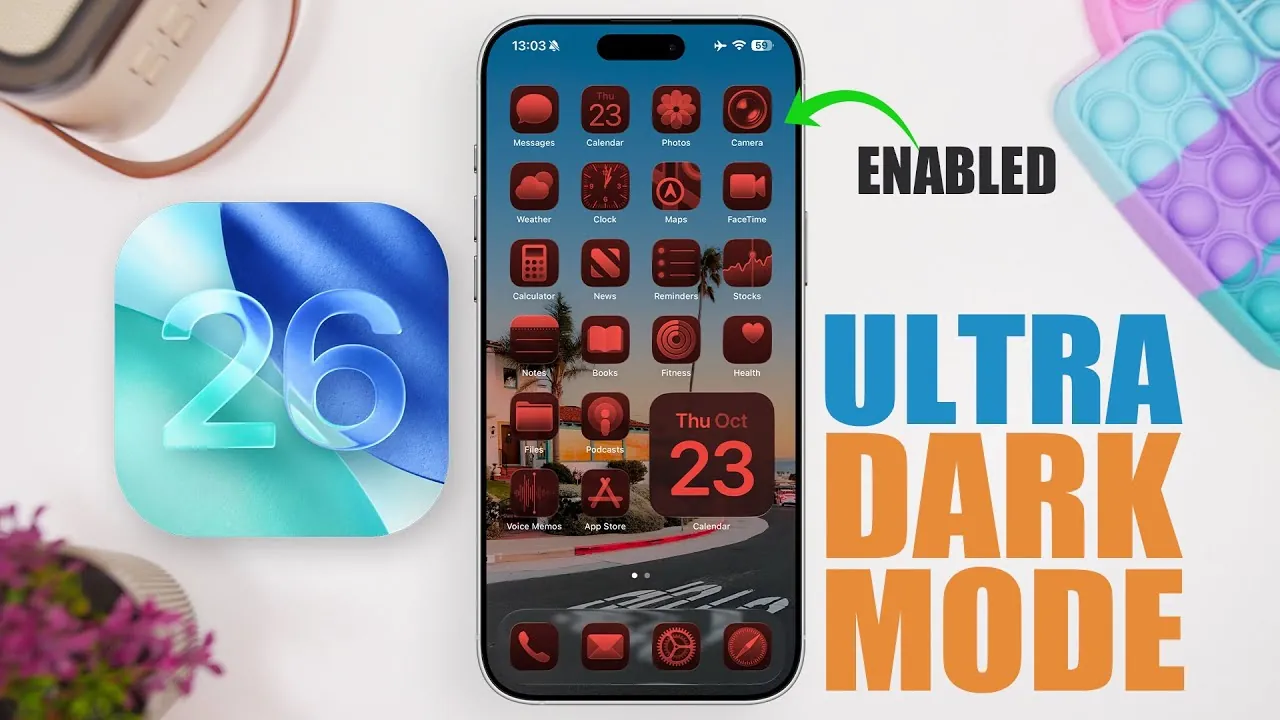
Apple’s iOS 26 introduces a range of features designed to enhance the dark mode experience, particularly for devices equipped with OLED displays. These updates focus on improving battery efficiency, reducing eye strain, and refining the overall visual appeal of your iPhone. By using these tools, you can create an ultra-dark mode that combines functionality with a sleek, modern aesthetic. The video below from iReviews shows us how this can be done.
Refining Your Lock Screen for Ultra Dark Mode
The lock screen is the first area to optimize when setting up ultra-dark mode. Begin by navigating to the Always-On Display settings and disabling the “Show Wallpaper” option. This adjustment ensures the lock screen remains dark, displaying only essential elements such as the clock, date, and widgets. For OLED displays, this approach is particularly effective, as inactive pixels remain off, conserving battery life. The result is a minimalist and energy-efficient lock screen that aligns seamlessly with the ultra-dark mode theme.
To further enhance the lock screen, consider using widgets that complement the dark aesthetic. Opt for widgets with simple designs and muted colors to maintain a cohesive look. These small changes not only improve functionality but also contribute to a visually pleasing interface.
Customizing Your Home Screen for a Unified Look
The home screen plays a significant role in achieving a consistent ultra-dark mode experience. Follow these steps to customize it effectively:
- Select a dark or tinted wallpaper by accessing the “Customize” option in wallpaper settings. This ensures the background remains subtle and energy-efficient.
- Enable tinted icons to maintain a cohesive dark theme across your apps and folders.
On OLED displays, black pixels remain off, which not only saves battery life but also creates a sleek and seamless interface. These adjustments ensure your home screen is both visually appealing and optimized for performance.
Additionally, consider organizing your apps into folders with dark-themed backgrounds. This approach reduces visual clutter and enhances the overall aesthetic of your device. By paying attention to these details, you can create a home screen that is both functional and stylish.
Maximizing Darkness with Accessibility Features
For users seeking deeper customization, the Accessibility settings under Display & Text Size offer powerful tools to enhance ultra-dark mode. One of the most effective options is the “Reduce White Point” feature, which dims the brightest parts of the screen. Adjust the intensity using the slider, with a recommended range of 65-70% for optimal results. This feature is particularly useful in low-light environments, as it reduces glare and makes the screen more comfortable to view.
Another valuable setting is “Smart Invert,” which reverses colors on the display while maintaining the integrity of images and media. This feature can further enhance the dark mode experience, especially when combined with other adjustments. By exploring these options, you can fine-tune your device to suit your preferences and needs.
Streamlining Adjustments with Control Center
To make ultra-dark mode adjustments more convenient, consider adding key features like “Reduce White Point” to your Control Center. This allows you to toggle the feature on or off quickly, adapting your screen to different lighting conditions without navigating through multiple menus. Whether you’re in a dimly lit room or outdoors at night, this shortcut ensures your device remains versatile and user-friendly.
In addition to “Reduce White Point,” you can include other dark mode-related controls, such as brightness and Night Shift, in your Control Center. This setup provides quick access to essential settings, allowing you to customize your display with ease.
The Benefits of Ultra Dark Mode
Allowing ultra-dark mode on your iPhone offers several practical advantages:
- Extended Battery Life: OLED displays consume less power when displaying darker colors, allowing your device to last longer between charges.
- Reduced Eye Strain: Dimming bright elements and lowering white point intensity make the screen more comfortable to view, particularly in low-light settings.
- Enhanced Visual Appeal: A combination of dark wallpapers, tinted icons, and minimalist lock screen designs creates a sleek, modern look that complements the overall user experience.
By taking advantage of these benefits, you can optimize your iPhone for both functionality and aesthetics. Ultra-dark mode not only improves the usability of your device but also aligns with contemporary design trends, making it a valuable feature for any user.
Creating a Personalized Ultra Dark Mode Experience
iOS 26 provides a comprehensive set of tools to help you elevate your dark mode experience. By customizing lock screen settings, home screen themes, and accessibility features, you can create an ultra-dark mode that suits your preferences and lifestyle. These adjustments not only enhance usability but also contribute to a more energy-efficient and visually appealing device.
Whether you’re prioritizing battery conservation, reducing eye strain, or simply enjoying a sleek design, ultra-dark mode offers a versatile solution. With iOS 26, you have the flexibility to tailor your iPhone to meet your specific needs, ensuring a personalized and satisfying user experience.
Check out more relevant guides from our extensive collection on iOS 26 that you might find useful.
- 10 iOS 26 Features to Turn Off for Improved Battery Life
- iOS 26 Hidden Features: Top Updates You Shouldn’t Miss
- iOS 26 Beta 5 Release Date, Features, and Updates
- Best iOS 26 Home Screen Setup Ideas
- Top Reasons to Install iOS 26.0.1 on Your iPhone Today
Source & Image Credit: iReviews
Disclosure: Some of our articles include affiliate links. If you buy something through one of these links, Geeky Gadgets may earn an affiliate commission. Learn about our Disclosure Policy.
