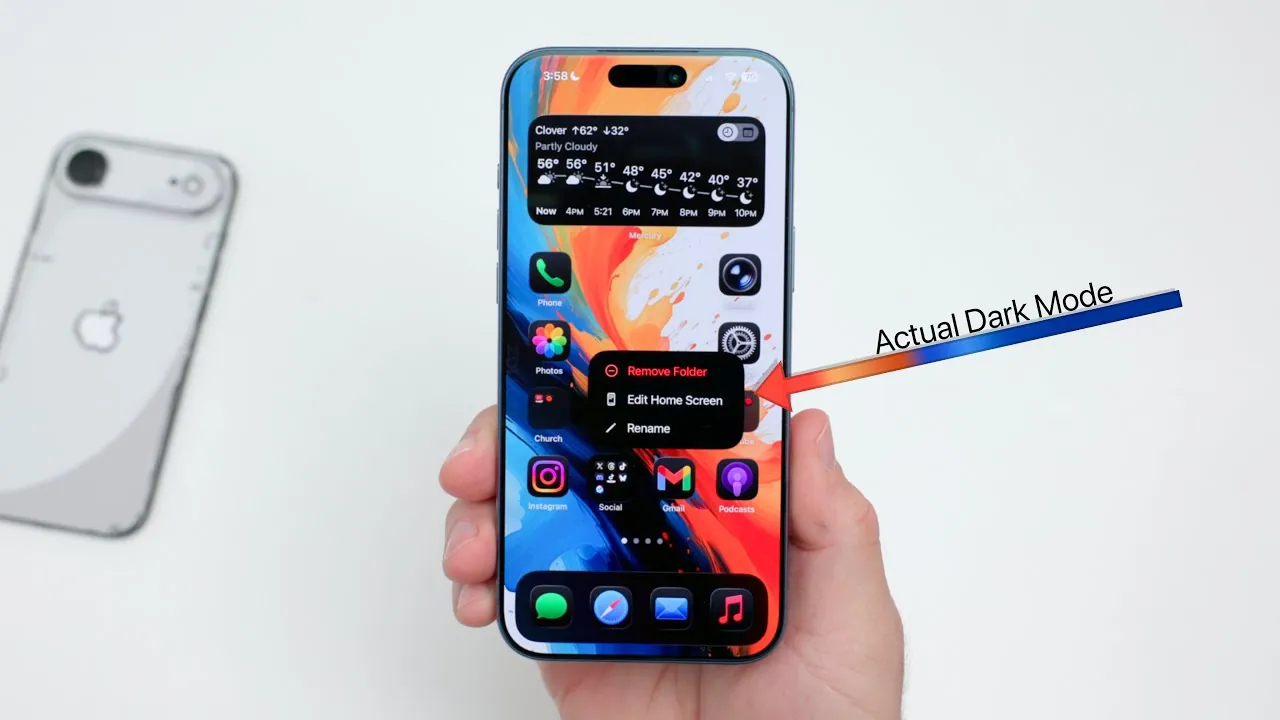
Dark mode on iPhones running iOS 26 or later offers more than just a visual transformation. It reduces eye strain, conserves battery life on OLED screens, and provides a sleek, unified interface. By exploring system settings and customizing features, you can unlock a fully optimized dark mode experience. The video below from Zollotech will walk you through the steps to enhance both the functionality and aesthetics of dark mode on your device.
Step 1: Activating Dark Mode
Dark mode is a core feature in iOS 26, designed to improve usability in low-light environments while extending battery performance. Activating it is simple:
- Swipe down from the top-right corner of your screen to open the Control Center.
- Tap the dark mode icon to enable it instantly.
For a more seamless experience, you can automate dark mode to activate based on the time of day or ambient lighting. To set this up, navigate to Settings > Display & Brightness, and toggle on “Automatic.” You can then customize the schedule to match your routine, such as allowing dark mode at sunset and switching back to light mode at sunrise.
Step 2: Refining Accessibility Settings
To maximize the benefits of dark mode, fine-tune your device’s accessibility settings for enhanced usability and visual comfort. Start by allowing Reduce Transparency, which replaces translucent menus and pop-ups with solid, dark backgrounds. This adjustment creates a cleaner and more defined interface. To enable this feature, go to Settings > Accessibility > Display & Text Size.
Additional settings to consider include:
- Increase Contrast: Enhances the visibility of text and icons against dark backgrounds, making sure better readability.
- Reduce White Point: Adjust the slider to around 70% to dim the brightest whites, creating deeper blacks and a more comfortable viewing experience in low-light conditions.
These adjustments are particularly useful at night or in dimly lit environments, where excessive brightness can be distracting or uncomfortable.
Step 3: Customizing Widgets and Wallpapers
A cohesive dark mode experience extends beyond system settings. Customizing your widgets and wallpapers can further enhance the visual appeal and functionality of your device.
- Widgets: Many iOS widgets, such as Weather, Calendar, and Clock, allow you to adjust their appearance. Opt for darker tones or themes to align with your dark mode setup.
- Wallpapers: Select super dark or deep black wallpapers to complement the dark mode interface. These not only enhance the aesthetic but also help conserve battery life on OLED screens. You can explore the iOS wallpaper gallery or download high-quality options from third-party sources.
By aligning your widgets and wallpapers with dark mode, you create a visually unified and energy-efficient interface.
Step 4: Adding a Shortcut for Quick Access
Switching between light and dark modes can be made even more convenient with a Control Center shortcut. This feature allows you to toggle dark mode on or off with a single tap, saving time and effort. To set it up:
- Go to Settings > Control Center.
- Add the dark mode toggle to your list of shortcuts.
This shortcut is particularly useful when transitioning between environments with varying lighting conditions, such as moving from a bright outdoor setting to a dimly lit room.
Step 5: Balancing Customization and Functionality
While dark mode offers significant benefits, it’s essential to strike the right balance when customizing your device. For example, combining Reduce Transparency with heavily tinted app icons may result in a less visually appealing interface. Experiment with different settings to find the combination that works best for your needs.
For users seeking further personalization, consider applying external skins or cases to your iPhone. These can enhance the device’s appearance while providing additional protection. However, ensure that any external modifications do not interfere with functionality, such as wireless charging or heat dissipation.
By thoughtfully balancing customization and functionality, you can create a device setup that is both visually appealing and highly practical.
Optimizing Your Dark Mode Experience
Dark mode is more than just a design choice—it’s a tool to improve usability, conserve energy, and enhance your overall experience. By allowing dark mode, refining accessibility settings, and customizing widgets and wallpapers, you can create a visually cohesive and energy-efficient interface tailored to your preferences. Adding a Control Center shortcut ensures seamless toggling between light and dark modes, allowing you to adapt effortlessly to any environment. With these steps, your iPhone will not only look better but also function more effectively, offering a personalized experience that meets your needs.
Discover other guides from our vast content that could be of interest on iPhone dark mode.
- How to Enable and Optimize Ultra Dark Mode on iOS 26.1
- Enable ULTRA Dark Mode on iPhone Today
- How to Use iPhone Advanced Dark Mode
- How to Enable Ultra Dark Mode on iOS 26
- This iOS 18 Dark Mode Trick CHANGES Everything
Source & Image Credit: zollotech
Disclosure: Some of our articles include affiliate links. If you buy something through one of these links, Geeky Gadgets may earn an affiliate commission. Learn about our Disclosure Policy.
