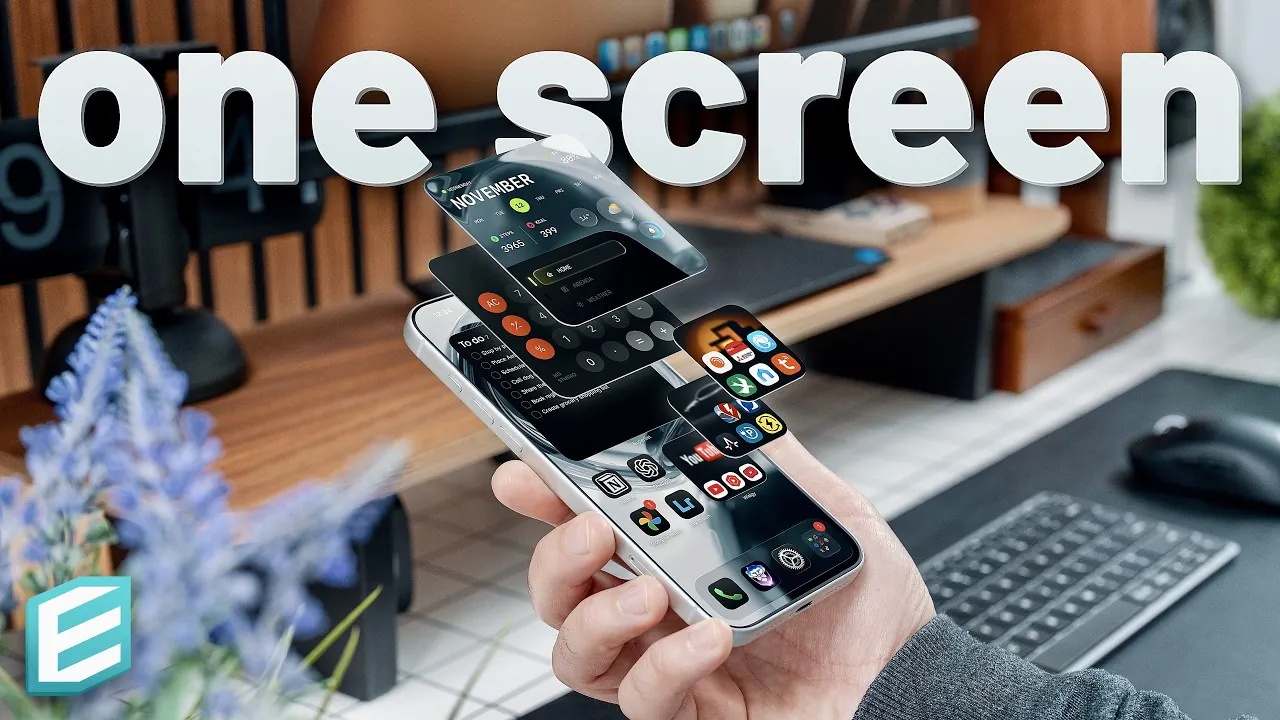
Designing the ideal iPhone home screen is about achieving a harmonious balance between simplicity, accessibility, and productivity. With the advanced features of the iPhone 17 Pro Max, you can create a streamlined interface that minimizes distractions while maximizing functionality. The awesome video below from ThisIsE explores how to craft a single-page layout that integrates widgets, shortcuts, and app organization to deliver a seamless user experience. By focusing on customization and efficiency, you can tailor your iPhone to meet your unique daily needs while maintaining a visually appealing design.
Why a Single-Page Layout Works
A single-page layout is built on the principle of ease of use and one-handed navigation. By eliminating redundant apps and unnecessary notifications, you can maintain a clean, distraction-free interface. Essential apps and widgets are strategically placed for instant access, making sure that everything you need is just a tap away. This approach simplifies navigation and enhances productivity by reducing the time spent searching for apps or features. A single-page layout also fosters a sense of organization, helping you focus on what truly matters without being overwhelmed by clutter.
Customizing Your Lock Screen
The lock screen is the first thing you see when you pick up your iPhone, making it a critical component of your setup. To make it both functional and visually appealing, consider these strategies:
- Use depth-effect wallpapers to add subtle movement and dimension, creating a dynamic and engaging look.
- Replace default shortcuts with tools you frequently use, such as a camera shortcut for quick photos or a Tesla battery widget for monitoring your car’s status.
- Incorporate widgets for weather updates, task management, or calendar events to ensure critical information is available at a glance.
A well-designed lock screen not only enhances usability but also sets the tone for the rest of your home screen.
Optimizing Widget Placement
Widgets are the backbone of an efficient home screen, offering quick access to essential information and apps. To maximize their utility:
- Group related widgets into widget stacks, such as health metrics, music controls, and news updates, to save space and improve organization.
- Enable smart rotate functionality to allow your iPhone to display the most relevant widget based on your usage patterns and time of day.
- For entertainment, add custom widgets for platforms like Netflix or Spotify to access your favorite content instantly.
This strategic organization ensures that your home screen remains functional without feeling cluttered, allowing you to focus on what’s important.
Streamlining App and Folder Management
A minimalist approach to app organization is essential for maintaining a clean and efficient home screen. Start by removing unused default apps and hiding new apps in the app library to reduce visual clutter. You can also use invisible folders, created with blank characters, to organize apps without visible labels, contributing to a sleek and modern design. For further categorization, consider using mini drawer widgets to group apps by function, such as smart home controls, car-related tools, or productivity apps. This method not only enhances accessibility but also ensures that your home screen remains visually appealing.
Enhancing the Control Center
The control center is a powerful tool for quick actions, and optimizing its layout can save you valuable time. Here’s how to make it work for you:
- Place essential toggles like Wi-Fi, Bluetooth, and airplane mode within easy reach for seamless connectivity management.
- Customize sliders for brightness and volume to suit your preferences and improve usability.
- Add utilities like the flashlight, calculator, or screen recording for added convenience and functionality.
By tailoring the control center to your specific needs, you can streamline your workflow and reduce unnecessary steps, making your device more intuitive and efficient.
Using Quick Action Shortcuts
Custom shortcuts are a fantastic option when it comes to automating repetitive tasks and enhancing efficiency. For example:
- Create shortcuts for Tesla controls, document scanning, or launching specific apps to save time and effort.
- Incorporate power on/off sounds to personalize your device further and make it uniquely yours.
These quick actions ensure that your most-used features are always accessible, allowing you to focus on your priorities without unnecessary distractions.
Making the Most of Interactive Widgets
Interactive widgets elevate functionality by combining multiple features into a single interface. For instance:
- The Nebula widget can display calendar events, weather updates, and daily activity tracking in one place, offering a comprehensive overview of your day.
- Large widgets provide detailed information, while smaller ones serve as app shortcuts or task reminders, making sure flexibility and customization.
This adaptability allows you to design a home screen that aligns with your priorities and preferences, making sure that your device works for you rather than the other way around.
Personalization Tips for a Unique Setup
Customization is at the heart of creating a home screen that reflects your personality and meets your needs. Here are some tips to make your iPhone truly yours:
- Use custom widget icons and backgrounds to match your aesthetic and create a cohesive design.
- Experiment with blending modes and opacity adjustments to refine the visual appeal of your home screen.
- Incorporate tap actions into widgets to add functionality without compromising style or simplicity.
These small details not only enhance usability but also make your iPhone a reflection of your individuality, making sure that it stands out while remaining practical.
Crafting a Seamless and Stylish Experience
This iPhone 17 Pro Max setup combines functionality and aesthetics to create a home screen that works for you. By focusing on a single-page layout, optimizing widgets and shortcuts, and customizing every detail, you can transform your device into a powerful tool for productivity and personalization. Whether you’re managing tasks, monitoring your car, or enjoying your favorite content, this setup ensures that everything you need is always within reach, offering a seamless and stylish experience tailored to your lifestyle.
Below are more guides on iPhone home screen setup from our extensive range of articles.
- Best iOS 26 Home Screen Setup Ideas
- The Best iPhone Home Screen Setup
- The Ultimate iPhone Home Screen Setup (Video)
- Master Your iPhone: The Ultimate Home Screen Setup Guide
- iPhone 17 Secrets: The Home Screen Setup Pros Use
Source & Image Credit: ThisIsE
Disclosure: Some of our articles include affiliate links. If you buy something through one of these links, Geeky Gadgets may earn an affiliate commission. Learn about our Disclosure Policy.
