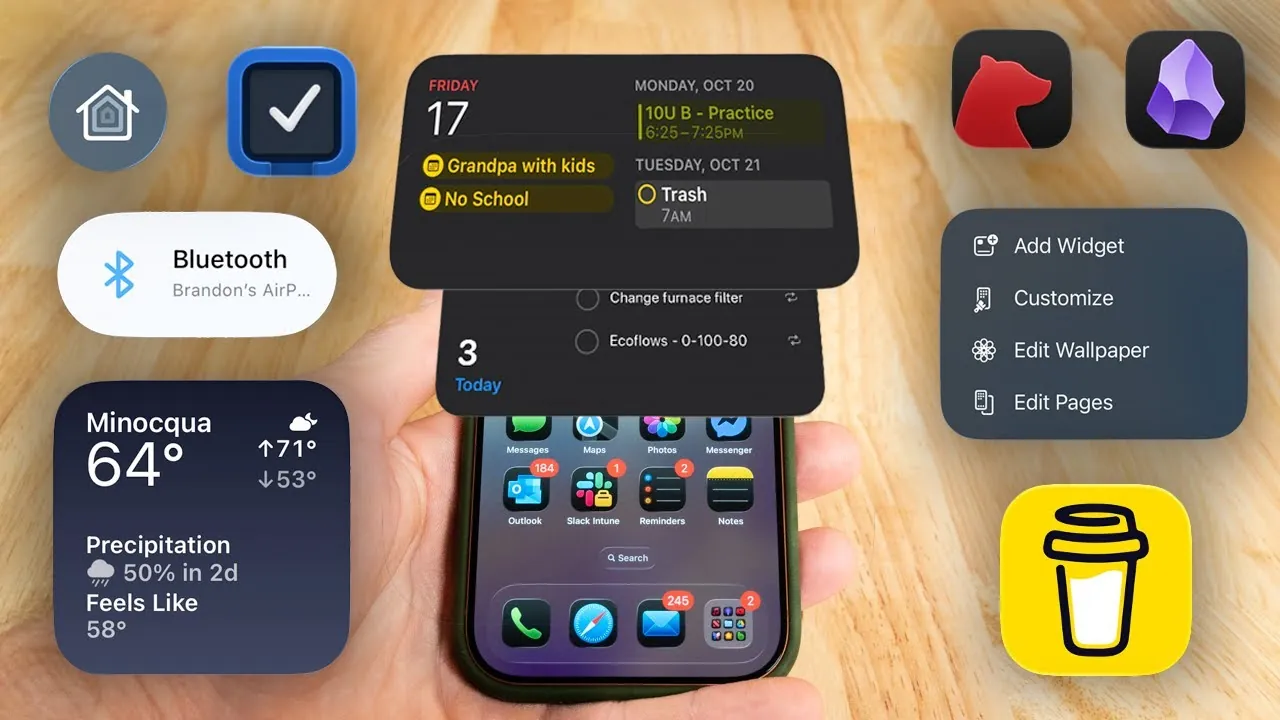
Your iPhone home screen is more than just a collection of apps—it’s a gateway to your daily productivity. A thoughtfully designed home screen can help you stay organized, reduce distractions, and make the most of your time. By using widgets, app organization, and iOS features, you can transform your device into an efficient tool tailored to your needs. The video below from Brandon Meves provides actionable steps to optimize your iPhone home screen for a clean, distraction-free experience.
Widgets: Instant Access to What Matters
Widgets are a powerful feature of iOS, offering quick access to essential information without the need to open individual apps. By incorporating widgets into your home screen, you can streamline your workflow and reduce unnecessary app navigation. Consider these examples:
- Calendar widget: Displays your daily schedule, making sure you stay on track with appointments and deadlines.
- Reminders widget: Keeps your to-do list front and center, helping you prioritize tasks effectively.
- Weather widget: Provides real-time updates, allowing you to plan your day with confidence.
To maximize their impact, select widgets that align with your priorities and place them strategically on your home screen. For instance, position the Calendar widget at the top for immediate visibility or the Reminders widget where it’s easy to glance at throughout the day. This approach minimizes the need to switch between apps, saving both time and mental energy.
App Organization: Simplify and Prioritize
A cluttered home screen can hinder productivity, while a well-organized one can enhance focus and efficiency. Start by identifying the apps you use most frequently—such as messaging platforms, work tools, or navigation apps—and place them on your main screen for quick access. To further streamline your setup:
- Remove distracting apps: Relocate social media or entertainment apps to the app library or hide them from your home screen. This reduces the temptation to check them impulsively.
- Group similar apps: Create folders for secondary apps, such as music players, photo editing tools, or utility apps. This keeps your main screen clean and focused on essential tools.
By organizing your apps intentionally, you can create a home screen that supports your goals rather than detracting from them. This method not only declutters your interface but also helps you maintain a clear mental focus on tasks that matter most.
Second Screen Setup: Organized for Efficiency
If you use a second home screen, it should complement your primary screen rather than serve as a catch-all for unused apps. Divide it into functional sections to maintain order and usability:
- Top section: Group secondary apps by category, such as finance, photography, or travel. This makes it easy to locate specific tools when needed.
- Bottom section: Dedicate this area to productivity apps, such as note-taking tools (e.g., Notion or Evernote) or task managers (e.g., Todoist or Things). These apps can support your workflow without cluttering your main screen.
This structured approach ensures that your second screen remains purposeful and easy to navigate, enhancing your overall productivity.
Customization: Aesthetic Meets Functionality
A visually appealing home screen isn’t just about aesthetics—it can also improve usability and reduce eye strain. Customizing your home screen allows you to create an interface that is both functional and enjoyable to use. Consider these tips:
- Dark app icons: Opt for darker or muted app icons to create a cohesive and professional appearance.
- Background blur: Enable this feature to make app icons stand out against your wallpaper, improving visibility.
- Automatic light/dark mode: Activate this setting to adjust your screen’s appearance based on the time of day, reducing eye strain during nighttime use.
These small adjustments can make a significant difference in how you interact with your device, making sure that your home screen is both practical and visually pleasing.
Search and App Library: Declutter Without Compromise
Not every app needs to occupy space on your home screen. For apps you use infrequently, rely on the app library or the search function to access them quickly. This approach keeps your home screen focused while maintaining access to all your apps. For example:
- Travel apps: If you only use a travel app occasionally, store it in the app library and locate it via the search bar when needed.
By reducing visual clutter, you create a more streamlined and distraction-free interface, allowing you to focus on the tools that matter most.
Automation and Shortcuts: Work Smarter, Not Harder
iOS automation features can simplify repetitive tasks and enhance your productivity. Custom shortcuts allow you to perform specific actions with a single tap, such as:
- Starting a playlist: Launch your favorite music or podcast instantly.
- Sending a pre-written message: Save time by automating routine communications.
- Adding tasks: Quickly update your to-do list without navigating through multiple screens.
Additionally, physical buttons on your iPhone can be programmed for quick access to essential features:
- Double-tap the side button: Launch the camera for instant photo capture.
- Long-press the power button: Activate the flashlight for quick use in low-light situations.
These shortcuts reduce the need for additional icons on your home screen, further decluttering your interface while enhancing functionality.
Minimalism and Intentionality: The Core Philosophy
An effective iPhone home screen setup is rooted in minimalism and intentionality. By limiting your setup to one or two pages of apps, you can focus on tools that enhance your productivity and align with your goals. This philosophy emphasizes:
- Intentional app placement: Arrange apps and widgets based on their importance and frequency of use.
- Using iOS features: Use widgets, shortcuts, and automation to streamline your workflow.
- Personalization: Customize your device to reflect your lifestyle and preferences.
By reducing distractions and tailoring your interface to your needs, you can create a home screen that works for you—not against you. Whether you’re managing a busy schedule or seeking a distraction-free digital environment, this setup ensures your iPhone remains a powerful tool for productivity.
Take a look at other insightful guides from our broad collection that might capture your interest in iPhone home screen setup.
- Best iOS 26 Home Screen Setup Ideas
- The Ultimate iPhone Home Screen Setup (Video)
- Master Your iPhone: The Ultimate Home Screen Setup Guide
- Insane iOS 18.2 Home Screen Setups (with Tutorials!)
- The BEST iOS 26 Home Screen Setups You Need To Try (3D Icons
Source & Image Credit: Brandon Meves
Disclosure: Some of our articles include affiliate links. If you buy something through one of these links, Geeky Gadgets may earn an affiliate commission. Learn about our Disclosure Policy.
