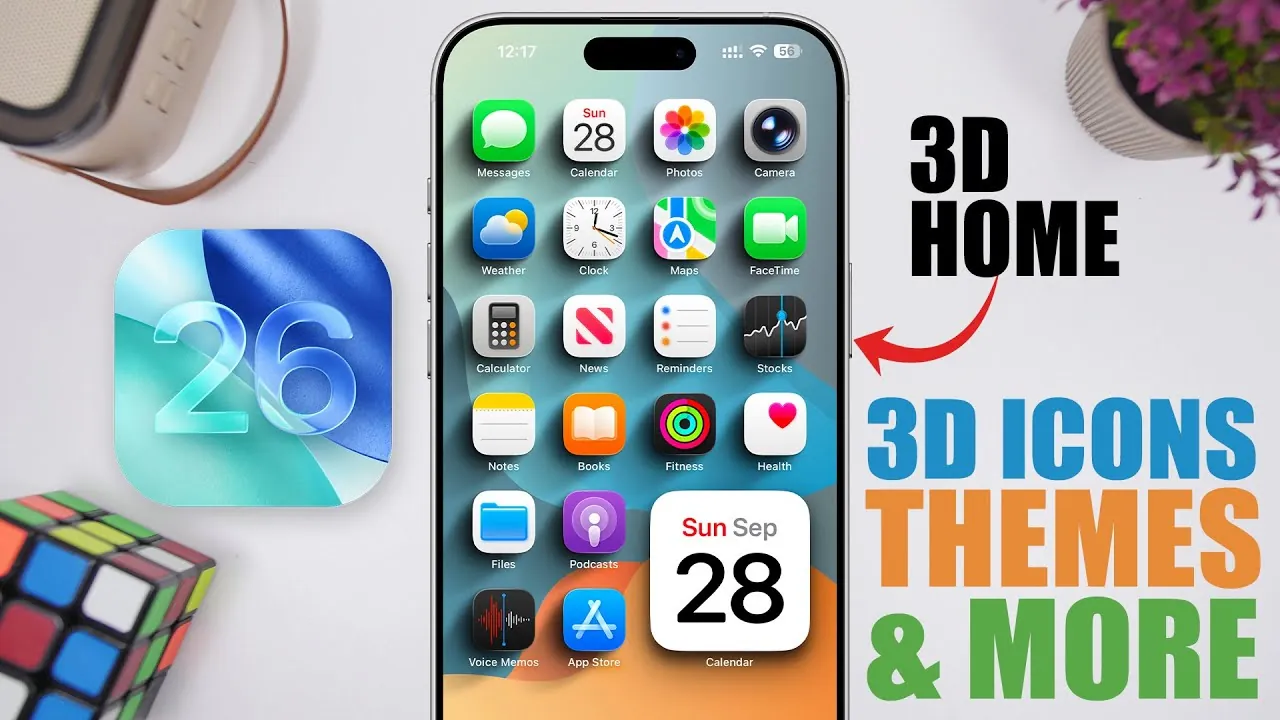
The release of iOS 26 introduces a robust set of customization tools, allowing you to craft a home screen that aligns with your personal style and functional needs. With features like 3D icons, hidden widgets, and custom themes, you can design an interface that is both visually captivating and highly practical. Whether you lean toward a minimalist aesthetic or a more intricate layout, these tools provide the flexibility to tailor your device to your preferences. Explore how these features can help you create a home screen that is uniquely yours in a new video from iReviews.

Streamline Your Home Screen with Hidden Widgets
Hidden widgets redefine how you organize your home screen by offering a clean, uncluttered interface without sacrificing functionality. With iOS 26, you can stack multiple widgets—such as weather updates, calendar events, and reminders—into a single, compact space. These widget stacks remain concealed until you swipe to reveal them, making sure your home screen remains sleek while keeping essential information just a gesture away.
This feature is particularly beneficial for maintaining a minimalist design while making sure quick access to critical tools. By customizing the placement and order of widget stacks, you can create a layout that is both visually appealing and highly efficient. Hidden widgets allow you to prioritize functionality without compromising on style.
Redefine Your Device with Custom Themes
Custom themes in iOS 26 let you completely transform the look and feel of your device, offering endless possibilities for personalization. Apps like “Maloco” provide access to a wide range of pre-designed themes, from nostalgic retro iOS 6 icons to sleek, modern aesthetics. Applying a theme is a straightforward process—simply download your preferred design and activate it through your device settings.
Switching between themes is just as simple, allowing you to experiment with different styles without committing to a permanent change. This flexibility encourages creativity, letting you refresh your device’s appearance whenever you like. Whether you want a bold, vibrant look or a subtle, understated design, custom themes make it easy to align your device with your personal taste.
Make Your Apps Stand Out with Custom Icons
Custom app icons offer another layer of personalization for your home screen. With tools available in apps like “Maloco”, you can design icons that perfectly match your chosen theme or personal style. Options include solid colors, gradients, and even personal images, allowing you to create a cohesive and visually striking look. Additionally, you can customize the symbols and frames of your icons to further enhance their appearance.
The iOS Shortcuts app simplifies the process of applying custom icons, making it easy to integrate them into your home screen. This feature is ideal for achieving a unified aesthetic, making sure that every detail of your home screen reflects your unique preferences. Custom icons allow you to add a personal touch to your device, making it truly one of a kind.
Add Dimension with 3D Icon Effects
The introduction of 3D icon effects in iOS 26 brings a new level of depth and visual interest to your home screen. By incorporating shadow and layering effects, these icons appear more dynamic and engaging, adding a sense of dimension to your interface. This feature enhances the overall aesthetic of your device, making it stand out in a subtle yet impactful way.
The “Home Screen Creator” shortcut streamlines the process of creating 3D effects, allowing you to customize wallpapers with shadow layers and precise icon placements. You can save these layouts for future use, making it easy to adapt your home screen to new wallpapers or themes while maintaining a polished and professional look. This feature ensures that your home screen remains visually cohesive and adaptable to your evolving style.
Complete Your Design with Wallpaper Customization
Wallpaper customization is the final touch that ties your entire home screen design together. iOS 26 allows you to integrate elements like shadows, frames, and other design features directly into your wallpapers, creating a seamless connection between your icons, widgets, and background. This level of customization ensures a cohesive and polished appearance across your device.
By saving and reusing wallpaper layouts, you can quickly update your home screen design to match new themes or styles. This feature encourages experimentation, making it easy to explore different looks while maintaining a unified aesthetic. Wallpaper customization is an essential tool for creating a home screen that is both functional and visually harmonious.
Transform Your Home Screen with iOS 26
iOS 26 provides a comprehensive suite of tools that empower you to design a home screen tailored to your style and needs. Features like hidden widgets, custom themes, 3D icon effects, and advanced wallpaper customization offer nearly limitless possibilities for personalization. Apps like “Maloco” and the iOS Shortcuts app make it simple to bring your creative vision to life, whether you prioritize aesthetics, functionality, or a balance of both. By using these tools, you can transform your device into a true reflection of your personality and preferences, making sure it is as unique as you are.
Here is a selection of other guides from our extensive library of content you may find of interest on iOS 26 Home Screen Customization.
- Best iOS 26 Home Screen Setup Ideas
- iOS 26 Customization Features: Everything You Need to Know
- How to Customize the iPhone Home Screen
- The Ultimate iOS 26 Settings You Should Change
- How iOS 26 Enhances Your iPhone with AI and Customization
Source & Image Credit: iReviews
Disclosure: Some of our articles include affiliate links. If you buy something through one of these links, Geeky Gadgets may earn an affiliate commission. Learn about our Disclosure Policy.
