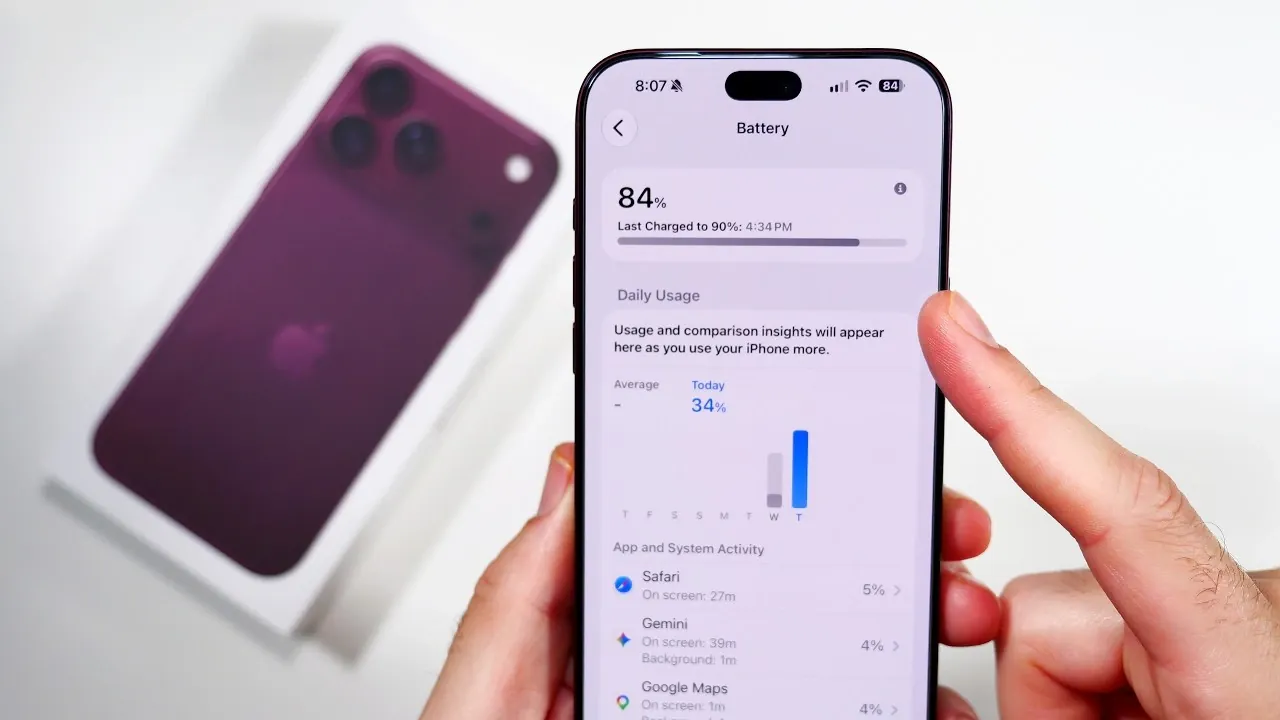
The iPhone 18 Pro Max is a feature-rich device designed to deliver exceptional performance, but its advanced capabilities can significantly impact battery life. By making targeted adjustments to specific settings, you can extend your device’s battery performance without compromising essential functionality. This guide highlights ten critical settings you can tweak to maximize power efficiency and keep your iPhone running longer.

1. Limit Background App Refresh
Background App Refresh allows apps to update their content even when not in use, consuming valuable battery power. To conserve energy, restrict this feature to Wi-Fi only or disable it entirely. Navigate to Settings > General > Background App Refresh and select “Wi-Fi” or “Off.” This adjustment reduces unnecessary background activity while making sure essential updates are still available when needed.
2. Turn Off Data Sharing
Your iPhone collects and shares analytics data to improve services, but this process can drain your battery over time. To prevent this, go to Settings > Privacy & Security > Analytics & Improvements and toggle off all options. Disabling data sharing not only saves energy but also enhances your privacy by limiting background data transmission.
3. Manage Location Services
Location tracking is one of the most significant contributors to battery drain. Features like “Significant Locations” monitor your movements even when you’re not actively using your device. To optimize battery usage, open Settings > Privacy & Security > Location Services > System Services and turn off “Significant Locations.” Additionally, review app-specific location permissions and disable access for apps that don’t require location tracking.
4. Disable Always-On Display
The Always-On Display is a convenient feature for quick access to information, but it consumes power, particularly on OLED screens. To save battery, disable this feature by navigating to Settings > Display & Brightness > Always-On Display. For further energy savings, consider using a black wallpaper, as OLED screens consume less power when displaying darker colors.
5. Shorten Auto-Lock Duration
Leaving your screen on for extended periods unnecessarily drains your battery. Adjusting the Auto-Lock setting to a shorter duration, such as 1 or 2 minutes, can help conserve energy. To make this change, go to Settings > Display & Brightness > Auto-Lock and select a shorter time interval.
6. Disable Haptic Keyboard Feedback
Haptic feedback enhances the typing experience by providing tactile responses, but it requires additional power. To turn off this feature, navigate to Settings > Sounds & Haptics > Keyboard Feedback and disable “Haptic.” While this adjustment may slightly alter your typing experience, it can contribute to noticeable battery savings over time.
7. Turn Off Automatic App Updates
Automatic app updates and in-app content downloads often run in the background, consuming both power and data. To disable these features, go to Settings > App Store and toggle off “App Updates” and “In-App Content.” By manually updating apps when necessary, you can better control background activity and reduce battery drain.
8. Optimize AirDrop Settings
AirDrop’s “Bring Devices Together” feature continuously scans for nearby devices, which can deplete your battery. To conserve power, turn off AirDrop when it’s not in use by going to Settings > General > AirDrop and selecting “Receiving Off.” This simple adjustment ensures that your device isn’t unnecessarily searching for connections.
9. Adjust 5G Settings
While 5G offers faster connectivity, keeping it active at all times can quickly drain your battery. To strike a balance between speed and efficiency, switch to “5G Auto” under Settings > Cellular > Cellular Data Options > Voice & Data. This setting enables your device to use 5G only when necessary, helping to preserve battery life without sacrificing performance.
10. Enable Reduce Motion
The iPhone’s animations and visual effects enhance the user experience but require additional processing power. To save battery, enable “Reduce Motion” by navigating to Settings > Accessibility > Motion and toggling it on. While this change reduces some visual appeal, it’s a practical trade-off for extended battery life, especially during heavy usage.
By implementing these ten adjustments, you can significantly improve the battery life of your iPhone 18 Pro Max. From limiting background processes to fine-tuning display and network settings, these changes allow you to strike a balance between functionality and power efficiency. Whether preparing for a long day or aiming to reduce frequent charging, these tips ensure your device lasts longer and performs optimally.
Learn more about iPhone 18 Pro Max with other articles and guides we have written below.
- Early iPhone 18 Reports Point to Major Unconfirmed Shifts
- iPhone 18 Pro Max Leaks: 10 Massive Upgrades Coming to Camera, Screen, and Battery
- Early iPhone 18 Pro Max Leak Reveals the Upgrade We’ve Been Waiting For
- Just Leaked: 10 Huge Upgrades for the iPhone 18 Pro Max
- Early First Look at the Expected iPhone 18 Pro Design
- Apple May Keep the iPhone 18’S Best New Feature Exclusive to the Pro Max
Source & Image Credit: Nick Ackerman
Disclosure: Some of our articles include affiliate links. If you buy something through one of these links, Geeky Gadgets may earn an affiliate commission. Learn about our Disclosure Policy.
