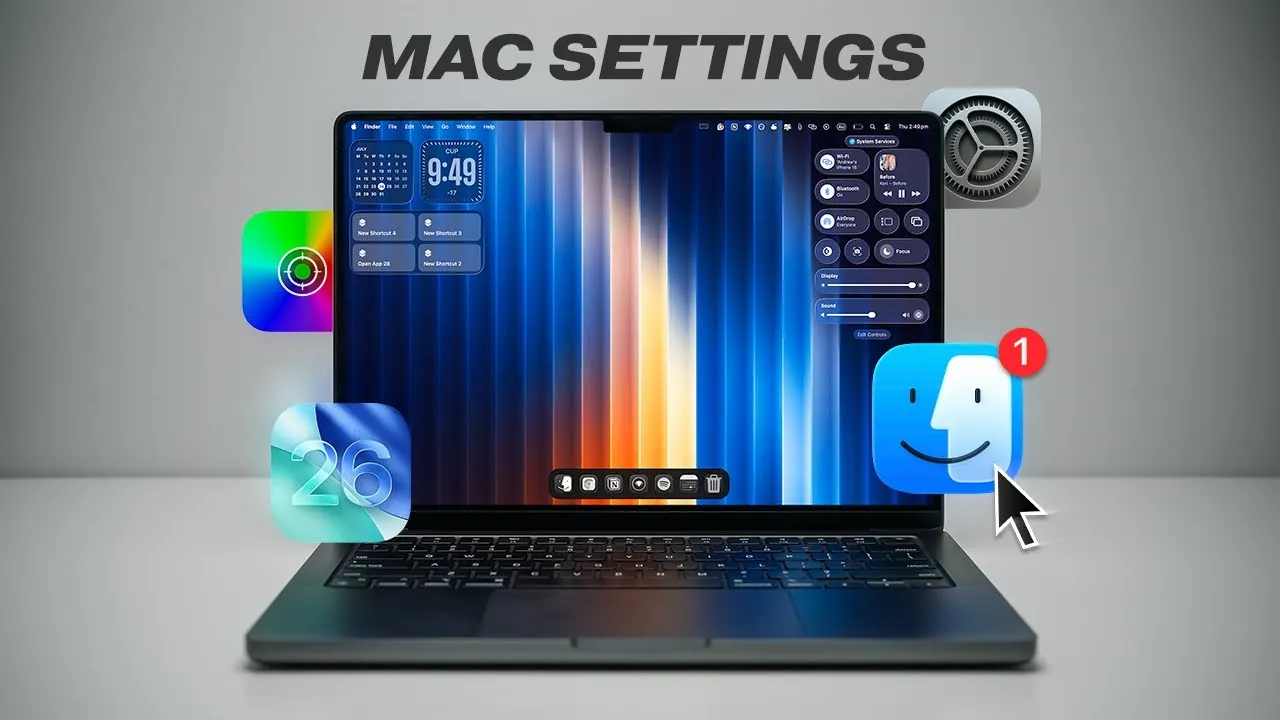
To maximize the performance and usability of your Mac or MacBook, it’s essential to focus on three key areas: optimization, customization, and security. Whether you’re setting up a brand-new device or refining an older one, this guide offers a comprehensive approach to tailoring your Mac to suit your needs. By implementing these strategies, you can ensure your Mac operates efficiently, remains secure, and provides a seamless user experience. From performance tweaks to using the latest features in macOS 26, here’s how to make your Mac work smarter and more effectively for you. The video below from Andrew Ethan Zeng shows us how to set up the Mac for optimal performance.

Performance Optimization: Boost Speed and Efficiency
A well-optimized Mac delivers faster performance and smoother multitasking. Start by managing your system’s resources effectively. Remove unnecessary startup applications that can slow down boot times and consume memory. You can do this by navigating to System Settings > Login Items and disabling apps you don’t need at startup. Additionally, ensure that macOS and security updates are enabled, as these updates often include performance improvements and critical patches to protect against vulnerabilities.
For MacBook users, maintaining battery health is crucial for consistent performance. Check your battery’s condition under System Settings > Battery. If the battery shows significant wear, consider replacing it to restore optimal performance and extend the lifespan of your device. Regularly calibrating your battery and avoiding extreme temperatures can also help preserve its health.
To further enhance performance, clear out unused files and applications that take up valuable storage space. Use the Storage Management tool to identify large files, old backups, and unnecessary system files that can be safely removed. For advanced users, allowing Activity Monitor can help identify resource-heavy processes and applications, allowing you to close or optimize them as needed.
Dock Customization: Simplify Your Workspace
Customizing your Dock can streamline your workflow and improve productivity. Remove unused applications by dragging them out of the Dock and resize it to match your preferences. For a cleaner workspace, enable the option to minimize windows into app icons and group windows by application. This reduces clutter and makes it easier to switch between tasks.
Use Hot Corners, a powerful macOS feature that assigns specific actions to the corners of your screen. For example, you can set a corner to activate Mission Control, launch the Desktop, or put your display to sleep. To avoid accidental activation, use modifier keys like Command or Option in combination with Hot Corners. This feature can significantly enhance your workflow by providing quick access to frequently used functions.
Privacy and Security Enhancements: Safeguard Your Data
Protecting your personal data is a top priority when setting up your Mac. Start by allowing FileVault, which encrypts your disk to prevent unauthorized access. This feature ensures that even if your Mac is lost or stolen, your data remains secure. Navigate to System Settings > Privacy & Security to activate FileVault and review other privacy settings.
Adjust permissions for location tracking, analytics sharing, and ad personalization to limit the amount of data shared with third parties. These settings can be customized under the Privacy & Security section. For added security, manage accessory permissions to restrict access to connected devices. This is especially important in shared environments, as it ensures that only authorized users can interact with your Mac.
To further enhance security, enable two-factor authentication for your Apple ID. This adds an extra layer of protection by requiring a verification code in addition to your password when signing in on a new device. Regularly review your app permissions and revoke access for apps that no longer need it.
macOS 26-Specific Features: New Tools for a Better Experience
The latest macOS 26 introduces several features designed to improve functionality and user experience. One standout feature is Live Activities, which provides real-time updates directly in the menu bar. Whether you’re tracking a delivery, monitoring a timer, or following a sports score, Live Activities keeps you informed without interrupting your workflow.
Another notable addition is Passkey portability, which allows you to transfer passwords between Apple’s Keychain and third-party password managers. This feature offers greater flexibility and ensures that your credentials are accessible across different platforms while maintaining security.
For users who frequently work on the go, the vehicle motion cues feature reduces motion animations when using your Mac in a moving vehicle. This thoughtful addition minimizes discomfort for those prone to motion sickness, making it easier to stay productive during travel.
File Organization and Display Settings: Stay Organized and Comfortable
Efficient file management is essential for staying organized and reducing frustration. Use Smart Folders to automatically sort files based on criteria such as type, date, or tags. This feature simplifies file organization and makes it easier to locate important documents. For sensitive files, consider using encryption tools like the Encrypto app to add an extra layer of security.
Customizing your display settings can also enhance comfort and usability. If you use external monitors, calibrate them for accurate color representation—an essential step for professionals in design or photography. Enable Night Shift and True Tone to adjust the screen’s color temperature based on ambient light, reducing eye strain during extended use.
For a faster and more responsive interface, reduce motion animations in System Settings. This adjustment not only improves performance but also makes navigation feel snappier and more intuitive.
Apple Ecosystem Features: Seamless Device Integration
One of the greatest advantages of using a Mac is its seamless integration with the Apple ecosystem. Enable Handoff to switch between devices effortlessly. For instance, you can start writing an email on your iPhone and finish it on your Mac without missing a beat. Similarly, Universal Clipboard allows you to copy text, images, or files on one Apple device and paste them on another.
Use AirDrop for quick and secure file transfers between Apple devices. To ensure privacy, adjust AirDrop settings to allow file sharing only with contacts or disable it entirely when not in use. These features make it easy to work across multiple devices, enhancing productivity and convenience.
By implementing these strategies, you can transform your Mac into a powerful, personalized tool that meets your unique needs. Whether you’re exploring the latest features in macOS 26 or refining existing settings, these steps will help you create a seamless and efficient experience tailored to your preferences.
Take a look at other insightful guides from our broad collection that might capture your interest in Mac performance optimization.
- Sensei Mac optimization tool now available with SSD trim and more
- M4 MacBook Air: 10 Essential Settings for Maximum Performance
- How to Optimize Your M4 MacBook Air for Maximum Performance
- How macOS Tahoe Enhances Performance and Productivity
- M4 MacBook Air setup guide for optimizing performance
Source & Image Credit: Andrew Ethan Zeng
Disclosure: Some of our articles include affiliate links. If you buy something through one of these links, Geeky Gadgets may earn an affiliate commission. Learn about our Disclosure Policy.
