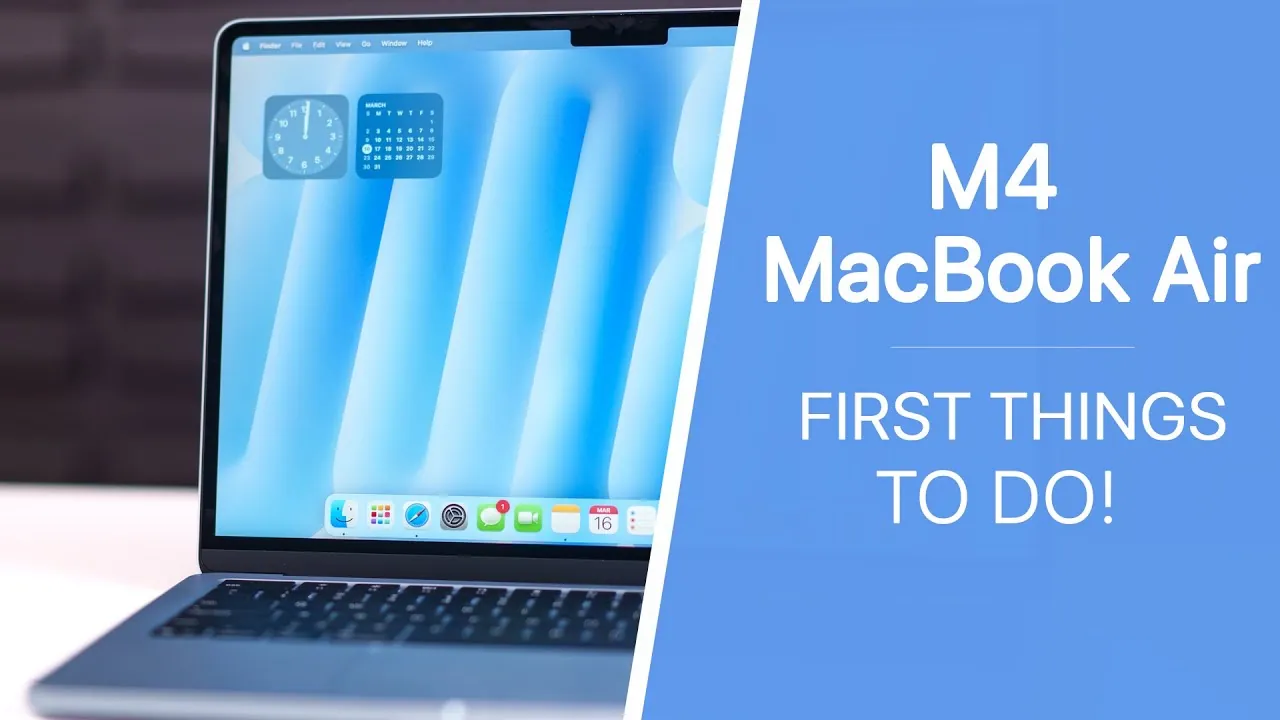
The M4 MacBook Air (2025) represents a significant leap in performance and usability, blending advanced hardware with the refined macOS Aqua interface. Whether you’re a seasoned Mac user or transitioning from another platform, the video from Brandon Butch provides essential tips to help you maximize your device’s capabilities. From initial setup to advanced customization, these steps will ensure you unlock the full potential of your MacBook Air.

1. Update macOS Aqua
Keeping your MacBook Air updated is crucial for optimal performance and security. The latest version of macOS Aqua introduces new features and stability improvements. To check for updates, navigate to System Settings > Software Update and install any available updates. Regular updates ensure your device remains secure and compatible with the latest apps.
2. Customize the Trackpad
The MacBook Air’s trackpad is a versatile tool that can be tailored to your preferences. Adjust its settings to enhance your workflow:
- Modify tracking speed for precise navigation.
- Enable “tap to click” for quicker interactions.
- Activate three-finger drag to move windows effortlessly.
- Adjust scrolling preferences, such as natural scrolling, to match your habits.
These adjustments make the trackpad more intuitive and aligned with your personal usage style.
3. Optimize Display Settings
Your MacBook Air’s display can be fine-tuned to improve both usability and comfort. Key adjustments include:
- Setting the resolution to balance clarity and workspace.
- Configuring lock screen and sleep preferences to suit your schedule.
- Using Hot Corners to assign quick actions like launching Mission Control or locking the screen.
These tweaks ensure your display is optimized for productivity and ease of use.
4. Integrate Your iPhone
Seamlessly connect your iPhone to your MacBook Air to create a unified Apple ecosystem. This integration allows you to:
- Access apps and notifications directly on your Mac.
- Transfer files effortlessly using AirDrop or iCloud Drive.
- Sync messages, calls, and FaceTime for uninterrupted communication.
This connectivity enhances multitasking and ensures your devices work together seamlessly.
5. Explore Camera Features
The upgraded 12MP Center Stage camera on the M4 MacBook Air is ideal for video calls and presentations. Take advantage of its features:
- Center Stage keeps you in focus during video calls, even as you move.
- Desk View allows you to share your desk or documents during virtual meetings.
- Use these tools to enhance remote work and online collaboration.
These features make the MacBook Air a powerful tool for professional and personal communication.
6. Expand with External Displays
Boost your productivity by connecting up to two external displays. This setup enables you to:
- Work across multiple applications and windows simultaneously.
- Create a more organized and efficient workspace.
- Enhance multitasking capabilities for complex projects.
External displays are particularly useful for professionals managing large workloads or creative projects.
7. Customize Battery and Menu Bar
Extend your MacBook Air’s battery life and streamline your menu bar for better efficiency:
- Display the battery percentage in the menu bar for real-time monitoring.
- Enable energy-saving modes to optimize power usage during travel or long work sessions.
- Organize the menu bar by hiding unnecessary icons and prioritizing frequently used tools.
These adjustments help you maintain a clean interface and maximize battery performance.
8. Streamline Your Dock and Widgets
A well-organized desktop enhances productivity. Customize your Dock and widgets by:
- Removing unused apps and disabling recent items in the Dock.
- Adding widgets for quick access to essential information like weather, calendar events, and reminders.
- Rearranging icons to prioritize frequently used applications.
These steps ensure your desktop remains clutter-free and functional.
9. Enhance Safari
Safari offers several features to improve your browsing experience:
- Enable Reader View for distraction-free reading of articles and web pages.
- Use Picture-in-Picture mode to watch videos while multitasking.
- Organize tabs into groups for better navigation and reduced clutter.
These tools make Safari a powerful and efficient browser for both work and leisure.
10. Master Spotlight Search and Siri
Spotlight Search and Siri are invaluable tools for boosting productivity. Use them effectively by:
- Customizing Spotlight to prioritize specific file types, apps, or web results.
- Allowing Siri for voice commands to perform tasks hands-free.
- Integrating third-party tools like ChatGPT for advanced queries and assistance.
These features save time and simplify complex tasks.
11. Learn Keyboard Shortcuts
Keyboard shortcuts are essential for efficient navigation and multitasking. Focus on mastering shortcuts for:
- Switching between applications and windows.
- Editing text quickly and accurately.
- Executing common commands like copy, paste, and undo.
Learning these shortcuts can significantly speed up your workflow.
12. Personalize Finder
Finder is a central tool for managing files on your Mac. Customize it to suit your needs by:
- Allowing the status and path bars for better navigation.
- Adjusting default view settings (list, icon, or column) to match your preferences.
- Creating custom tags and folders for better organization.
A personalized Finder setup makes file management more intuitive and efficient.
13. Manage Files Effectively
Efficient file management is key to maintaining a clutter-free system. Consider these tips:
- Use external SSDs for additional storage or backups.
- Organize files into folders and use descriptive names for easy retrieval.
- Set up web applications for frequently visited websites to save time.
These practices ensure your files remain accessible and well-organized.
14. Additional Tips for Personalization
Further enhance your MacBook Air experience with these suggestions:
- Set up Touch ID for multiple fingers to improve security and convenience.
- Enable Apple Watch unlocking for seamless access to your Mac.
- Adjust iMessage and FaceTime settings to align with your communication preferences.
- Explore third-party productivity apps like Alfred or Raycast to streamline your workflow.
These additional steps allow you to tailor your MacBook Air to your specific needs and preferences.
The M4 MacBook Air (2025) is a versatile and powerful device designed to meet the demands of modern users. By following these 24 tips, you can ensure a smooth setup process and unlock the full potential of your MacBook Air. Whether you’re focusing on productivity, creativity, or personalization, these steps will help you make the most of your new device.
Stay informed about the latest in M4 MacBook Air 2025 by exploring our other resources and articles.
- M4 MacBook Air 2025: Worth the Hype? (Leaks, Price, and More
- M4 MacBook Air SHOCKING Release Date & Price LEAKED
- MacBook Air M4 Release Date, Specs, and Features Explained
- MacBook Air M4 is COMING! Price & Release Date
- M4 MacBook Air Review: Performance, Design, and More
Source & Image Credit: Brandon Butch
Disclosure: Some of our articles include affiliate links. If you buy something through one of these links, Geeky Gadgets may earn an affiliate commission. Learn about our Disclosure Policy.
