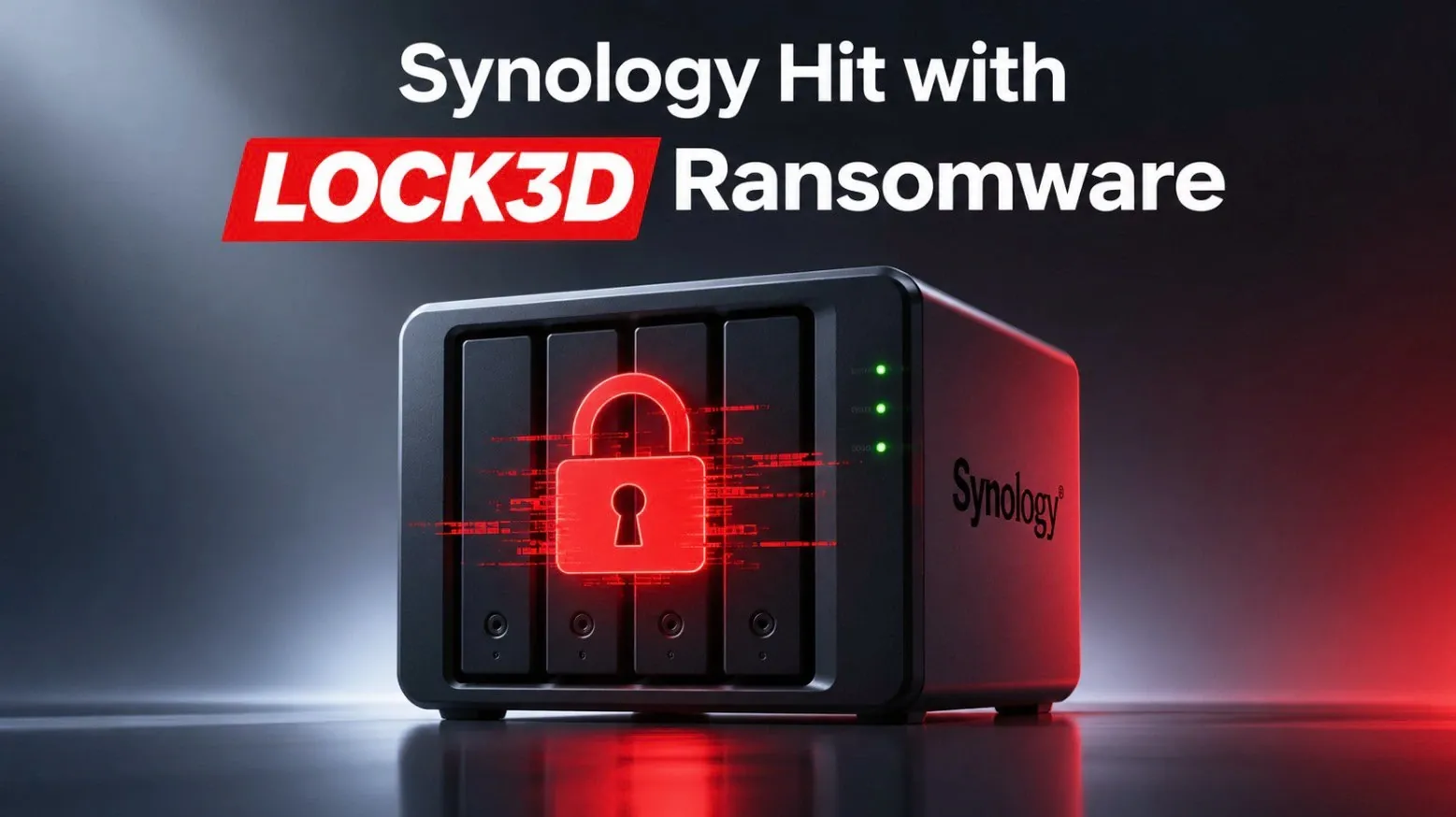
Ransomware attacks like the recent L0CK3D incident targeting Synology NAS devices highlight the critical need for proactive security measures. This attack exploited outdated DiskStation Manager (DSM) software and exposed management ports, allowing attackers to encrypt files and demand ransoms as high as $3,000 in Bitcoin. SpaceRex explores how vulnerabilities such as weak passwords, disabled two-factor authentication and neglected updates left many users vulnerable. The guide emphasizes the importance of addressing these gaps to protect your data and prevent similar incidents.
In this quick-start guide, you’ll gain insight into essential steps for safeguarding your Synology NAS device. Learn how to configure DSM settings to minimize exposure, implement strong backup strategies like immutable snapshots and secure remote access using VPNs instead of open ports. By following these actionable recommendations, you can significantly reduce your risk of falling victim to ransomware and ensure your data remains secure.
What Happened: Key Details of the Attack
TL;DR Key Takeaways :
- The L0CK3D ransomware group exploited vulnerabilities in outdated Synology DiskStation Manager (DSM) software, encrypting user data and demanding ransoms of up to $6,000 in Bitcoin.
- The attack stemmed from a flaw exposed during the “Pwn2Own 2024” competition, targeting NAS devices with exposed DSM management ports and weak security configurations.
- Key factors contributing to the attack’s success included outdated software, exposed ports, weak or reused passwords and bypassed two-factor authentication (2FA).
- Synology responded by releasing patches for all major DSM versions, urging users to update their systems, review settings and adopt secure configurations to prevent future incidents.
- To protect against ransomware, users are advised to keep DSM software updated, limit internet exposure, secure routers, implement robust backups and use tools like Synology’s Security Advisor for vulnerability checks.
The L0CK3D ransomware attack stemmed from a vulnerability exposed during the “Pwn2Own 2024” competition. This flaw allowed attackers to execute unauthorized code on vulnerable NAS devices, particularly those with exposed DSM management ports. Once inside, the ransomware encrypted files and demanded a ransom of $3,000 in Bitcoin, doubling the amount if payment was not made within 72 hours. Several factors contributed to the success of this attack:
- Outdated DSM software: Many victims had not updated their systems for over two years, leaving them vulnerable to known exploits.
- Exposed management ports: Open ports provided attackers with a direct entry point to the devices.
- Weak security measures: Attackers bypassed two-factor authentication (2FA) and exploited weak or reused passwords.
In some cases, the attackers went further by deleting backups and snapshots, leaving victims with no recovery options. This attack underscores the importance of maintaining up-to-date systems and implementing comprehensive security measures.
Impact on Users: Lessons Learned
The consequences of the attack were severe, with many users losing access to critical data. For some, backup files were permanently deleted, leaving no option for recovery. This incident demonstrated that even strong passwords and 2FA are insufficient if other vulnerabilities, such as outdated software or exposed configurations, are left unaddressed.
The attack serves as a stark reminder of the need for a multi-layered security approach. Relying on a single defense mechanism is not enough; users must address all potential points of failure to ensure their systems remain secure.

Here are more detailed guides and articles that you may find helpful on Synology NAS.
- Synology Apps Ranked : Essential, Situational and Outdated Options
- Synology & Hard Drive Compatibility Change IS Coming
- How to backup a Synology NAS to an external USB drive storage using Hyper Backup
- How to speed up your Synology NAS for faster data transfers
- Synology 2026 Roadmap Plan : New Video Chat App Planned?
- How to protect your NAS from ransomware
- How to move from Synology Video Station to PLEX on Synology DSM 7.2.2 NAS
- Tailscale vs OpenVPN which is the best option to secure your NAS?
- Tailscale for Synology NAS: Secure Remote Access Made Simple
- What is Synology NAS quick connect and how do you use it?
Synology’s Response to the Attack
In response to the attack, Synology took immediate action by releasing patches for all major DSM versions, including those for older, end-of-life systems. The company also provided detailed guidance to help users secure their NAS devices and prevent future incidents. Synology emphasized the following key measures:
- Apply patches promptly: Ensure all known vulnerabilities are addressed by updating your DSM software regularly.
- Review system settings: Eliminate unnecessary exposure by disabling unused features and services.
- Adopt secure configurations: Follow best practices to strengthen your device’s defenses against potential threats.
These steps aim to protect users from evolving cyber threats and reinforce the importance of proactive security management.
How to Protect Your NAS Device
To reduce the risk of ransomware attacks, it is crucial to implement the following security practices:
- Keep DSM software updated: Regular updates are essential to protect against newly discovered vulnerabilities. Enable automatic updates for critical patches.
- Limit internet exposure: Avoid exposing DSM management ports to the internet. Instead, use VPNs or reverse proxies for secure remote access.
- Secure your router: Disable unnecessary port forwarding and restrict access points to minimize potential entryways for attackers.
- Implement robust backups: Use immutable snapshots or external backups that cannot be modified or deleted by the NAS.
- Run security checks: Use Synology’s Security Advisor to identify and address vulnerabilities in your system.
By following these practices, you can significantly enhance the security of your NAS device and reduce the likelihood of falling victim to ransomware attacks.
Is QuickConnect Safe?
Synology’s QuickConnect feature provides convenient remote access to your NAS device, but it is not without risks. If improperly configured, QuickConnect can expose your system to potential vulnerabilities. While generally secure, it should not replace more robust options like VPNs for accessing sensitive data. For critical systems or highly sensitive information, prioritize VPN-only access to minimize exposure and enhance security.
Backup Strategies to Mitigate Ransomware Risks
A strong backup strategy is one of the most effective defenses against ransomware attacks. To ensure your data remains safe, consider the following approaches:
- Store backups separately: Keep backups on systems or devices that are not directly connected to your NAS.
- Use Synology features: Use tools like snapshot replication and Hyper Backup to create additional layers of protection.
- Use external or cloud storage: Diversify your backup methods by incorporating external drives or cloud-based solutions for redundancy.
By diversifying your backup strategy, you can ensure that your data remains recoverable even if your NAS device is compromised.
General Security Advice
Maintaining the security of your NAS device requires ongoing vigilance. Regularly review your security settings, disable unnecessary services and prioritize secure configurations. For critical use cases, avoid exposing your NAS to the internet entirely and rely on VPN-only access for remote connectivity. Proactive monitoring and maintenance are essential to staying ahead of potential threats.
Stay Ahead of the Threat
The L0CK3D ransomware attack serves as a critical reminder of the importance of proactive security measures. By keeping your DSM software updated, limiting exposure and implementing a robust backup strategy, you can significantly reduce the risk of falling victim to similar attacks. Take the time to review your system settings, adopt best practices and stay vigilant to protect your data against evolving cyber threats.
Media Credit: SpaceRex
Disclosure: Some of our articles include affiliate links. If you buy something through one of these links, Geeky Gadgets may earn an affiliate commission. Learn about our Disclosure Policy.
