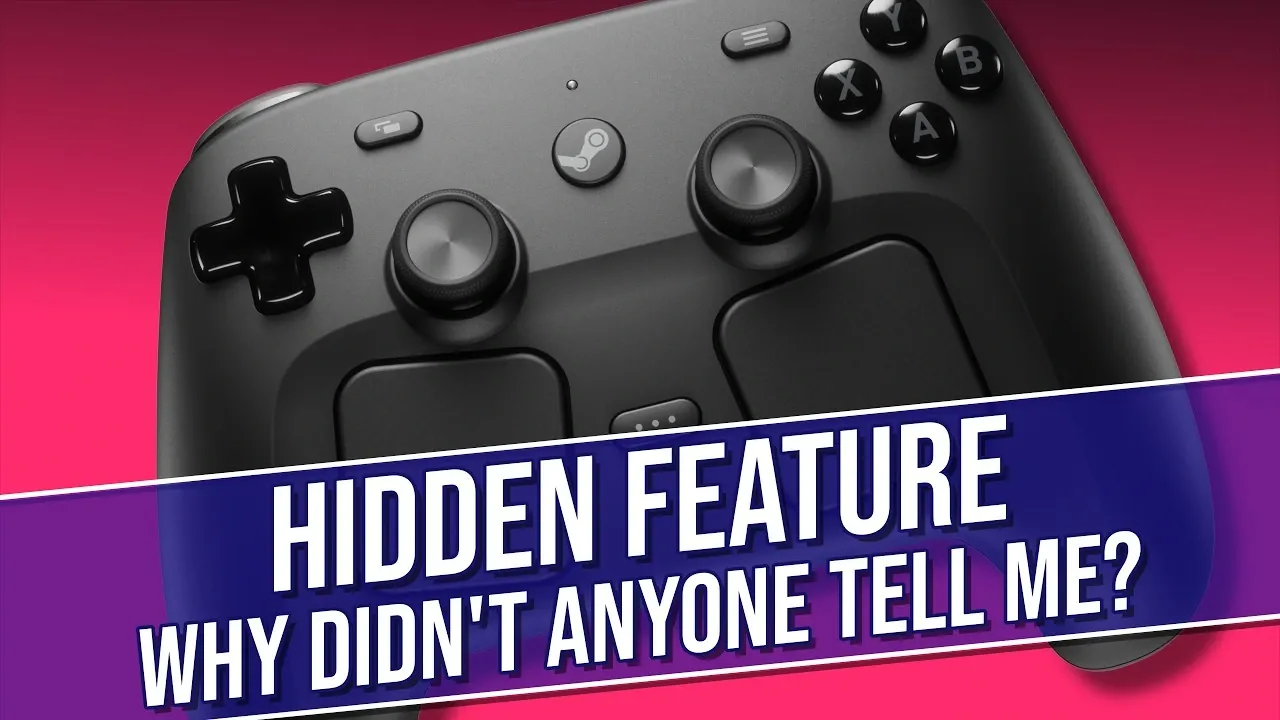
The Steam Controller includes a lesser-known feature that allows users to integrate custom icons into virtual menus, enhancing both functionality and personalization. This capability, enabled through Valve’s Steam Input software, lets players assign visual markers to specific commands, simplifying complex control schemes. According to NerdNest, this feature can be particularly useful for tasks like navigating detailed RPG interfaces or executing quick actions in high-intensity games, offering a tailored approach to controller customization.
Explore how to create and implement custom icons, including the use of properly sized PNG files for clear visuals. Learn how to organize these icons within Steam directories to set up game-specific configurations. Additionally, gain insight into optimizing this feature to align your controller setup with your preferred gaming style.
Steam Input Software: The Engine Behind the Customization
TL;DR Key Takeaways :
- The Steam Controller is celebrated for its exceptional customization options, allowing players to tailor button mapping, haptic feedback and game-specific profiles through the robust Steam Input software.
- One standout feature is the ability to create and integrate custom icons for virtual menus, enhancing usability and providing visual cues for commands, abilities, or game-specific elements.
- Custom icons simplify complex control schemes, improve gameplay efficiency and reduce cognitive load during intense gaming sessions by offering intuitive visual organization.
- Creating custom icons is straightforward, involving the use of image editing software to design PNG icons (512×512 resolution) and organizing them in Steam directories for easy access and game-specific setups.
- The Steam Controller’s adaptability and support for custom icons make it a powerful tool for immersive and personalized gaming experiences, setting it apart from competitors in the gaming industry.
At the heart of the Steam Controller’s versatility lies the Steam Input software, a robust and highly adaptable tool that provides full control over the controller’s configuration. This software enables you to customize everything from button mapping to haptic feedback, making sure that your controller performs optimally across a variety of games. Its flexibility allows you to create unique profiles for individual games, tailoring the controller to meet the specific demands of each title.
For example, in a fast-paced shooter, you can configure the controller for precise aiming and rapid response, while in a complex RPG, you can map intricate menu navigation to specific buttons. Steam Input ensures that no matter the genre, your gaming experience is optimized for both comfort and performance. This adaptability makes the Steam Controller a powerful tool for gamers who value precision and control.
Custom Icons: A Visual Upgrade for Virtual Menus
One of the most compelling features of the Steam Controller is its support for custom icons in virtual menus, a functionality that significantly enhances usability. These icons act as visual cues for commands, abilities, or other game-specific elements, simplifying complex control schemes and making them more intuitive. Instead of relying solely on memory to recall which button triggers a specific action, you can assign an icon that visually represents the command.
For instance, in a strategy game, you could use icons to represent unit commands, while in an action game, you might assign icons for weapons or abilities. This approach not only reduces confusion but also improves gameplay efficiency, particularly during high-pressure moments where quick decision-making is crucial. By integrating custom icons, the Steam Controller bridges the gap between functionality and user-friendly design.

Here are more guides from our previous articles and guides related to Steam Controller that you may find helpful.
- Steam Controller Gains HID Drivers for Non-Steam Games
- What Two Weeks with the Steam Controller Reveals About Its Hybrid Design
- 13 Hidden Steam Controller Features You Probably Missed
- $60 Steam Controller 2 is Packing Features PC Gamers Have Been Waiting For
- Why Custom Steam Controller Layouts Beat Community Templates
- Valve’s Potential Half-Life 3 Pairing Could Skyrocket Steam Machine Demand
- Hidden Steam Controller Settings Most Gamers Miss
- Steam Controller’s Capacitive Grips Will Change How You Play
- SteamOS Beta Update Fixes CPU Degradation and Wi-Fi Bugs
- Steam Controller 2026 is So Close to Being the Perfect Gamepad
Tailored Configurations for Every Game
The Steam Controller’s customization capabilities extend far beyond general use, offering the ability to create game-specific setups that adapt to the unique requirements of different genres. Through Steam Input, you can assign distinct icons and configurations for each game in your library, making sure that your controller is always optimized for the task at hand.
Organizing these configurations is straightforward. By saving icons and settings in separate folders within Steam directories, you can easily switch between profiles without disrupting your gaming flow. For example, your configuration for a platformer can prioritize precise jumps and movement, while your setup for a strategy game can focus on efficient menu navigation and command execution. This level of customization not only enhances usability but also immerses you more deeply into the gaming experience.
How to Create and Use Custom Icons
Designing and implementing custom icons for the Steam Controller is a simple yet rewarding process that allows you to personalize your gaming setup. Follow these steps to get started:
- Use image editing software to design your icons. For best results, save them in PNG format with a resolution of 512×512 pixels to ensure clarity and compatibility.
- Organize and save the icons in designated Steam directories. You can create folders for general use or game-specific setups, depending on your preferences.
- Experiment with different designs and layouts to determine what works best for your gaming style and the specific demands of each game.
This process not only enhances the functionality of your controller but also provides an opportunity to express your creativity. By designing icons that resonate with your personal preferences, you can make your gaming experience truly unique.
Why Custom Icons Matter
The ability to use custom icons goes beyond mere aesthetics, offering several practical benefits that enhance both gameplay and user experience. These advantages include:
- Improved efficiency: By visually organizing commands, custom icons reduce the need to memorize complex button layouts, allowing for quicker and more intuitive gameplay.
- Reduced cognitive load: During intense gaming sessions, custom icons help you focus on the game itself rather than struggling to remember control schemes.
- Enhanced understanding of Steam Input: Exploring the customization options encourages you to delve deeper into the capabilities of the Steam Controller, unlocking its full potential.
- Creative expression: Designing and implementing custom icons provides a creative outlet, allowing you to personalize your setup and make it uniquely yours.
By incorporating custom icons into your gaming routine, you can elevate both the functionality and enjoyment of your sessions, making the Steam Controller an even more powerful tool for immersive gameplay.
A Controller That Adapts to You
The Steam Controller’s ability to support custom icons for virtual menus exemplifies its adaptability and user-focused design. With the power of Steam Input software, you can create a gaming experience that is tailored to your preferences, enhancing both performance and enjoyment. Whether you’re a casual gamer or a dedicated enthusiast, this feature offers a level of customization that sets the Steam Controller apart from its competitors. By embracing these tools, you can unlock the full potential of your controller, transforming it into a device that truly adapts to your unique gaming needs.
Media Credit: NerdNest
Disclosure: Some of our articles include affiliate links. If you buy something through one of these links, Geeky Gadgets may earn an affiliate commission. Learn about our Disclosure Policy.
