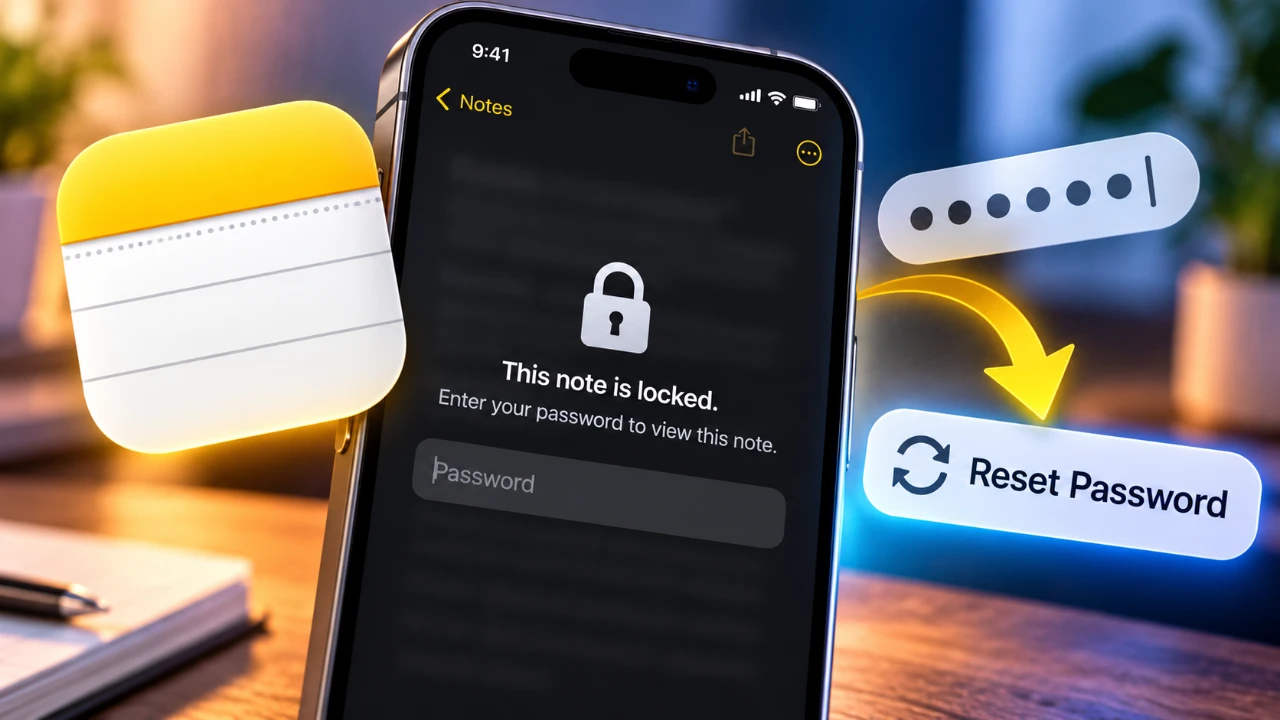
Forgetting the password to your iPhone Notes can be inconvenient, but Apple provides a clear process to reset it. However, this process comes with specific limitations that are important to understand. By learning how to reset your Notes password, recognizing the constraints of Apple’s security system, and implementing effective management strategies, you can ensure your notes remain secure and accessible. The video below from Daniel About Tech gives us more details.

How to Reset Your Notes Password
Resetting your Notes password is a straightforward process. Follow these steps to set up a new password:
- Open the Settings app on your iPhone.
- Scroll down and tap Notes.
- In the Notes settings menu, select Password.
- Authenticate using your Apple ID or iCloud password when prompted.
- Set a new password or choose to use your device passcode for unlocking notes.
Once you complete these steps, the new password will apply to any notes you create after the reset. However, it’s crucial to note that this change does not affect notes created before the reset. Those notes will remain locked with their original passwords, requiring you to remember or retrieve the old password to access them.
Understanding the Limitations
Apple’s Notes security system is designed to safeguard your information, but it has some inherent limitations that you should be aware of:
- Notes created before resetting the password will still require their original passwords to unlock.
- If you’ve used multiple passwords for different notes, you’ll need to recall each one to access those specific notes.
- There is no way to update or remove the password from older notes without knowing the original password.
These limitations emphasize the importance of keeping track of your passwords. Losing access to older notes can be avoided by adopting better password management practices, such as using a password manager or consolidating passwords.
Choosing Between a Device Passcode and a Custom Password
When resetting your Notes password, you can choose between using your device passcode or creating a custom password. Each option has distinct advantages and potential drawbacks:
- Device Passcode: This option is convenient because it eliminates the need to remember a separate password. However, it may be less secure if your device passcode is shared with others or is easy to guess.
- Custom Password: A unique password provides stronger security for your notes. However, forgetting this password could result in permanent loss of access to your notes.
To strike a balance between security and convenience, consider using a custom password along with a password hint. Alternatively, store your password securely in a trusted password manager to ensure you can retrieve it if needed.
Additional Security Features
Apple offers several features to enhance the security and usability of the Notes app. These features allow you to customize your security preferences while maintaining ease of access:
- Face ID Integration: You can enable Face ID to unlock your notes quickly and securely. This feature adds convenience, but there may be instances where you’ll need to manually enter your password, such as after restarting your device or during extended periods of inactivity.
- Password Management Flexibility: Apple allows you to switch between using a custom password and your device passcode at any time. This flexibility enables you to adjust your security settings based on your preferences and needs.
These features are designed to provide a seamless balance between security and usability, making sure that your notes remain protected while being easily accessible when required.
Tips for Managing Notes Security
To avoid future complications with locked notes, it’s essential to adopt effective security practices. Consider the following tips to manage your Notes app securely and efficiently:
- Use a password hint to help you recall your custom password if you forget it.
- Store your passwords securely in a reliable password manager to ensure you always have access to them.
- Weigh the trade-offs between convenience and security when deciding whether to use a device passcode or a custom password.
- Regularly review your notes and consolidate passwords to minimize the risk of losing access to older notes.
- Enable Face ID or Touch ID for quick and secure access to your notes without compromising security.
By implementing these strategies, you can maintain a secure and organized Notes app, reducing the likelihood of losing access to important information.
Maintaining Accessibility and Security
Resetting your iPhone Notes password is a simple process, but understanding Apple’s security limitations is crucial to managing your notes effectively. While resetting the password applies only to new notes, older notes remain locked with their original passwords. By carefully choosing between a device passcode and a custom password and by adopting best practices for password management, you can ensure that your notes remain both secure and accessible. With Apple’s additional security features, such as Face ID and password management flexibility, you can tailor your Notes app experience to suit your needs, balancing convenience with robust protection.
Source: Daniel About Tech
Disclosure: Some of our articles include affiliate links. If you buy something through one of these links, Geeky Gadgets may earn an affiliate commission. Learn about our Disclosure Policy.
