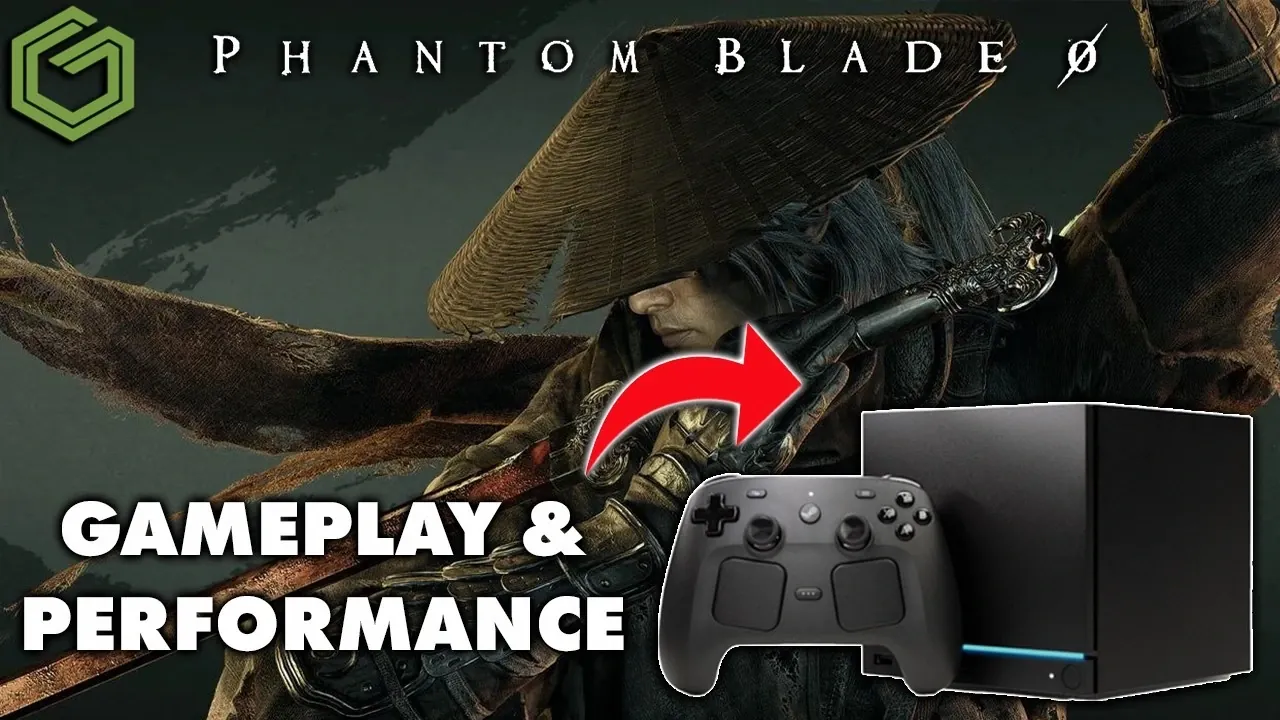
Testing Phantom Blade Zero on the Steam Machine provides a fascinating look at how the game performs on SteamOS. GameTechPlanet examines the interplay between the Proton compatibility layer and hardware utilization, uncovering key challenges like inconsistent GPU usage and frame rate drops. For example, the game struggles to maintain stability during graphically demanding scenes, particularly when running at higher resolutions like 1440p. These findings highlight the current limitations of the platform, especially for players seeking both high-quality visuals and smooth gameplay.
Dive into this analysis to explore practical solutions for optimizing your experience. Learn how adjusting specific graphical settings, such as lowering ray tracing and fine-tuning shadows, can improve performance without sacrificing too much visual fidelity. Gain insight into the trade-offs between upscaling technologies like FSR, XCSS and TSR and discover which option delivers the best balance for action-heavy sequences. This breakdown equips you with actionable strategies to enhance gameplay while navigating the unique constraints of the Steam Machine.
Performance Challenges and Hardware Utilization
TL;DR Key Takeaways :
- Performance Challenges: Running Phantom Blade Zero on the Steam Machine reveals issues with inefficient hardware utilization, inconsistent GPU usage and frame rate drops due to Proton layer limitations and lack of game-specific optimizations.
- Graphical Settings Optimization: Adjusting settings like disabling ray tracing, lowering shadows and reflections to medium and reducing hair quality can significantly improve performance while maintaining visual fidelity.
- Upscaling Technologies: XCSS in balanced mode is recommended for the best compromise between performance and image quality, while FSR offers higher frame rates at the cost of visual clarity and TSR struggles with latency and artifacts.
- Frame Rate Variability: Frame rates range from 40 to 70 FPS, with open-world areas causing dips in performance, highlighting the need for further optimization to ensure smoother gameplay.
- Future Updates and Community Role: Developers are expected to improve Proton compatibility and GPU optimization through updates, while player feedback is crucial for prioritizing fixes and enhancing the gaming experience.
Running Phantom Blade Zero on the Steam Machine highlights several performance challenges, primarily stemming from inefficient hardware utilization. SteamOS relies on Proton layers to enable compatibility with Windows-based games, but in this case, the system struggles to allocate resources effectively. This results in inconsistent GPU usage, leading to frame rate drops and reduced gameplay smoothness.
The root causes of these issues appear to be a combination of driver compatibility limitations, constraints within the Proton layer and the absence of game-specific optimizations. These factors collectively hinder the game’s ability to deliver a stable performance, particularly for users aiming to enjoy high-quality visuals alongside fluid gameplay. For now, the experience on SteamOS falls short of expectations, though future updates may address these concerns.
Optimizing Graphical Settings for Smoother Gameplay
To improve performance, adjusting the game’s graphical settings is essential. Testing at 1440p resolution revealed significant slowdowns during graphically intense scenes, making 1080p a more practical choice for consistent frame rates. Fine-tuning specific settings can further enhance the experience.
- Ray tracing: Disable this feature, as it heavily impacts performance while offering minimal visual benefits on this platform.
- Shadows, reflections, post-processing and lighting: Set these to medium for a balanced compromise between visual quality and system performance.
- Character textures and models: Keep these on high to preserve detail in key visual elements.
- Hair quality: Turn this off to reduce unnecessary strain on the system without significantly affecting immersion.
- Motion blur: Set to low to improve clarity during fast-paced action sequences.
These adjustments strike a balance between maintaining visual fidelity and making sure smoother gameplay. By tailoring these settings, you can make the game more enjoyable on the Steam Machine without sacrificing too much in terms of aesthetics.

Uncover more insights about Steam Machine in previous articles we have written.
- Testing Steam Machine: GTA V Holds 60 FPS with Ray Tracing
- Compact Steam Machine Alternative : Built for 1440p Gaming
- FSR 4.1 Pushes Crimson Desert to 70+ FPS on Steam Machine
- Steam Machine Display Settings Enable 4K and 120 Hz Refresh
- Steam Machine Guide: How to Get Maximum Performance Out of the 6-Inch Cube
- High End Emulation on the Steam Machine Tested
- Upgrading Valve’s Steam Machine to 64GB RAM and 4TB Storage
- DIY SteamOS PC Blasts Past Valve’s Steam Machine Speeds
- Play PlayStation 3 and Nintendo Switch Games on a Steam Machine
- Steam Machine Settings to Hits 70fps in the Witcher 3: Wild Hunt via FSR
Evaluating Upscaling Technologies
Upscaling technologies play a crucial role in enhancing performance while maintaining visual quality. Three methods were tested on the Steam Machine: FSR (FidelityFX Super Resolution), XCSS (Xe Super Sampling), and TSR (Temporal Super Resolution). Each offers distinct advantages and trade-offs.
- FSR: This method significantly boosts performance but at the cost of reduced image quality. It often darkens visuals, making it suitable for players who prioritize frame rates over graphical detail.
- XCSS: The balanced mode provides the best compromise between performance and image quality. It delivers smoother gameplay while retaining sharpness and clarity, making it ideal for action-heavy moments.
- TSR: While promising, TSR struggles with input latency and occasional visual artifacts, making it less effective for fast-paced gameplay scenarios.
For the best experience, XCSS in balanced mode is recommended. This option ensures a smoother and more visually appealing experience, particularly during demanding gameplay sequences.
Frame Rate Variability and Gameplay Impact
Frame rate performance on the Steam Machine varies widely, ranging from 40 to 70 FPS depending on the in-game environment. Open-world areas with complex lighting and reflections tend to push the system to its limits, causing noticeable dips in performance. Conversely, enclosed spaces and less demanding scenes allow for smoother gameplay.
Despite these fluctuations, the game remains playable with adjusted settings. However, occasional stutters and input delays can disrupt immersion, particularly during high-action sequences. These issues underscore the need for further optimization to fully use the Steam Machine’s hardware capabilities.
Future Optimizations and Community Contributions
Looking ahead, updates and patches are expected to address many of the current performance challenges. Developers are likely to focus on improving Proton layer compatibility, optimizing GPU utilization and refining graphical settings specifically for SteamOS. These improvements could significantly enhance the gaming experience on this platform.
In the meantime, experimenting with graphical settings and upscaling technologies can help you find the best balance for your preferences. Additionally, your feedback plays a vital role in shaping future updates. By sharing your experiences and reporting issues, you contribute to the development process, helping developers prioritize fixes and enhancements that benefit the entire gaming community.
Phantom Blade Zero on the Steam Machine showcases the potential of gaming on SteamOS while highlighting the challenges of optimizing performance for this platform. Through careful adjustments, using upscaling technologies and staying engaged with updates, you can enjoy a more refined experience as the game evolves. Your involvement is key to driving improvements and making sure a better gaming experience for all players.
Media Credit: GameTechPlanet
Disclosure: Some of our articles include affiliate links. If you buy something through one of these links, Geeky Gadgets may earn an affiliate commission. Learn about our Disclosure Policy.
