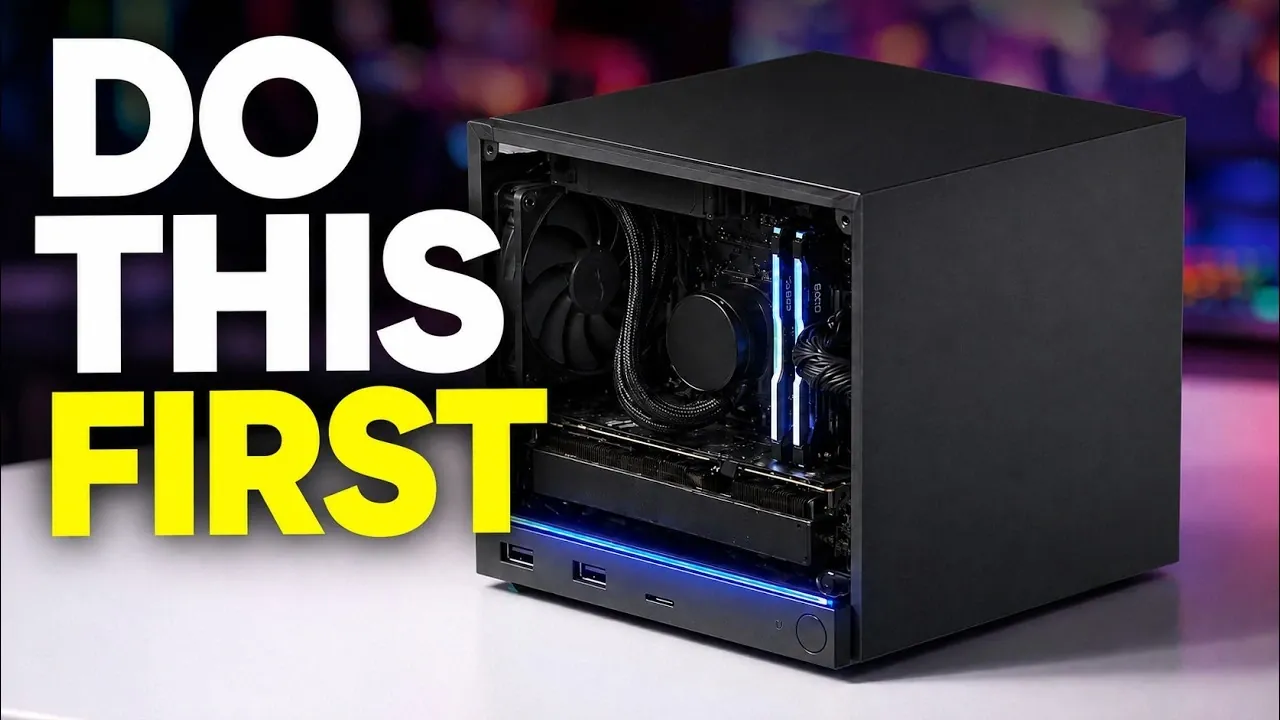
The Steam Machine offers a wealth of features designed to enhance gaming and multimedia experiences, but unlocking its full potential often requires a deeper understanding of its settings and capabilities. Deck Ready explores actionable strategies for optimizing this device, such as allowing advanced display options like 4K resolution and a 120 Hz refresh rate. These adjustments not only improve visual quality but also ensure smoother gameplay, particularly in fast-paced or competitive titles. By focusing on practical steps like these, users can elevate their gaming sessions to a more immersive level.
Dive into this analysis to discover how to expand your Steam Machine’s storage using high-capacity microSD cards, allowing a larger game library without sacrificing convenience. You’ll also gain insight into using advanced performance features, such as FidelityFX Super Resolution (FSR4) and Proton GE, to handle demanding games with ease. Additionally, learn how to personalize your setup with controller integration and LED bar customization, making sure a gaming environment tailored to your preferences.
Optimize Display Settings for Enhanced Visuals
TL;DR Key Takeaways :
- Optimize display settings by allowing 4K resolution and 120 Hz refresh rate for enhanced visuals and smoother gameplay, making sure compatibility with your monitor or TV.
- Expand storage using high-speed microSD cards and hot-swapping capabilities to maintain a large gaming library without compromising performance.
- Boost performance with advanced features like FidelityFX Super Resolution (FSR4) and Proton GE for improved image quality, frame rates and game compatibility.
- Stream games seamlessly with Remote Play by using a strong network connection, allowing you to play on other devices while the Steam Machine handles processing.
- Enhance functionality with app integration (e.g., YouTube, Discord) and personalize features like the LED bar and library appearance for a tailored gaming experience.
The Steam Machine supports advanced display technologies, such as 4K resolution and a 120 Hz refresh rate, but these features often require manual configuration. To ensure you’re getting the best possible visuals:
- Access the display settings in your Steam Machine and enable 4K resolution for games and media that support it.
- Activate the 120 Hz refresh rate to enjoy smoother gameplay, particularly in fast-paced or competitive titles.
- Verify that your monitor or TV is compatible with these settings to avoid potential issues.
Making these adjustments can significantly enhance the visual quality and responsiveness of your games, providing a more immersive experience.
Expand Storage for a Larger Library
Running out of storage space can limit your ability to install new games or updates, but the Steam Machine offers flexible solutions to address this challenge:
- Use the microSD card slot to expand your storage capacity with a high-speed, high-capacity card.
- Take advantage of the hot-swapping feature to switch between microSD cards, allowing you to access different games and save files effortlessly.
This approach ensures you can maintain a vast gaming library without sacrificing performance or convenience.

Check out more relevant guides from our extensive collection on Steam Machine that you might find useful.
- Why Valve is Releasing 4 Different Steam Machine Variants
- Inside Valve’s Unusual Rollout Plan for the Steam Machine
- Why Valve’s New Steam Machine Could Outperform the PS5 in Your Living Room
- Valve Confirms Summer 2026 Release Window for Steam Machine and Steam Frame
- What Valve’s Leaked June 2026 Steam Machine Details Mean for Your Living Room
- Leaked Geekbench Scores Reveal the True Power of the $750 Steam Machine
- Valve Explains Why We Got a New Steam Controller but No Steam Machine
- What Valve’s Latest Hardware Leaks Reveal About the Modular Steam Machine
- Why Valve’s Latest SteamOS Update Changes Everything for Your Steam Machine
- Latest Leaked Clues Pointing to Valve’s Steam Machine Launch Date
Boost Performance with Advanced Features
To get the most out of your Steam Machine, you can use advanced tools and settings that enhance performance:
- Enable FidelityFX Super Resolution (FSR4) through Proton Experimental to improve image quality while maintaining high frame rates, especially in demanding games.
- Install Proton GE, a community-driven version of Proton, to unlock additional compatibility options and performance optimizations for a wider range of games.
These enhancements are particularly useful for resource-intensive titles, making sure smooth gameplay and stunning visuals without compromising performance.
Seamless Controller Integration for Personalized Gameplay
The Steam Machine supports a wide variety of controllers, allowing you to customize your gaming setup to suit your preferences. To make the most of this feature:
- Pair popular controllers such as Xbox, DualSense, or Nintendo Switch models with ease.
- Connect up to 16 controllers simultaneously for multiplayer gaming sessions.
- Use advanced features like haptic feedback and adaptive triggers for a more immersive and tactile gaming experience.
These options provide flexibility and ensure that your gaming setup is tailored to your specific needs.
Stream Games Anywhere with Remote Play
Remote Play allows you to stream games from your Steam Machine to other devices, such as the Steam Deck or a compatible PC. To ensure a smooth streaming experience:
- Use a wired Ethernet connection or a strong Wi-Fi network to minimize latency and maintain stable performance.
- Stream demanding games to devices with lower hardware capabilities, as the Steam Machine handles the processing workload.
This feature is ideal for gaming on the go or sharing your library across multiple devices, making it a convenient addition to your setup.
Enhance Functionality with App Integration
The Steam Machine is more than just a gaming device, it can also function as a versatile multimedia hub. To expand its functionality:
- Install apps like YouTube and Discord to watch videos, join voice chats and stay connected with friends while gaming.
- Customize your library’s appearance using Steam Grid DB to create a polished and visually cohesive interface.
These integrations enhance the usability of your Steam Machine, making it a central hub for both entertainment and communication.
Personalize the LED Bar for Style and Functionality
The LED bar on your Steam Machine is not just a decorative feature, it can also be customized to add functionality and style to your setup:
- Adjust the LED settings to display download progress or match the aesthetic of your gaming environment.
This subtle yet impactful feature allows you to personalize your device while adding a touch of practicality.
Manage Your Library with Remote Downloads
Save time and streamline your gaming experience by managing your library remotely. Using the Steam app:
- Log in to your account, select a game and initiate the download process from anywhere.
This ensures that your games are ready to play as soon as you return to your Steam Machine, eliminating unnecessary waiting.
Test Game Compatibility to Expand Your Library
While some games may be labeled as unsupported, many of them can still run smoothly on the Steam Machine. To discover hidden gems:
- Test unsupported titles to identify games that perform well despite their compatibility status.
This proactive approach allows you to make the most of your gaming library and explore a wider range of titles.
Maximize Your Steam Machine Experience
By implementing these strategies, you can unlock the full potential of your Steam Machine. From optimizing display settings and expanding storage to enhancing performance and integrating apps, these tips address common challenges and elevate your gaming experience. Whether you’re a casual player or a dedicated enthusiast, these practical insights will help you create a seamless and immersive setup tailored to your preferences.
Media Credit: Deck Ready
Disclosure: Some of our articles include affiliate links. If you buy something through one of these links, Geeky Gadgets may earn an affiliate commission. Learn about our Disclosure Policy.
