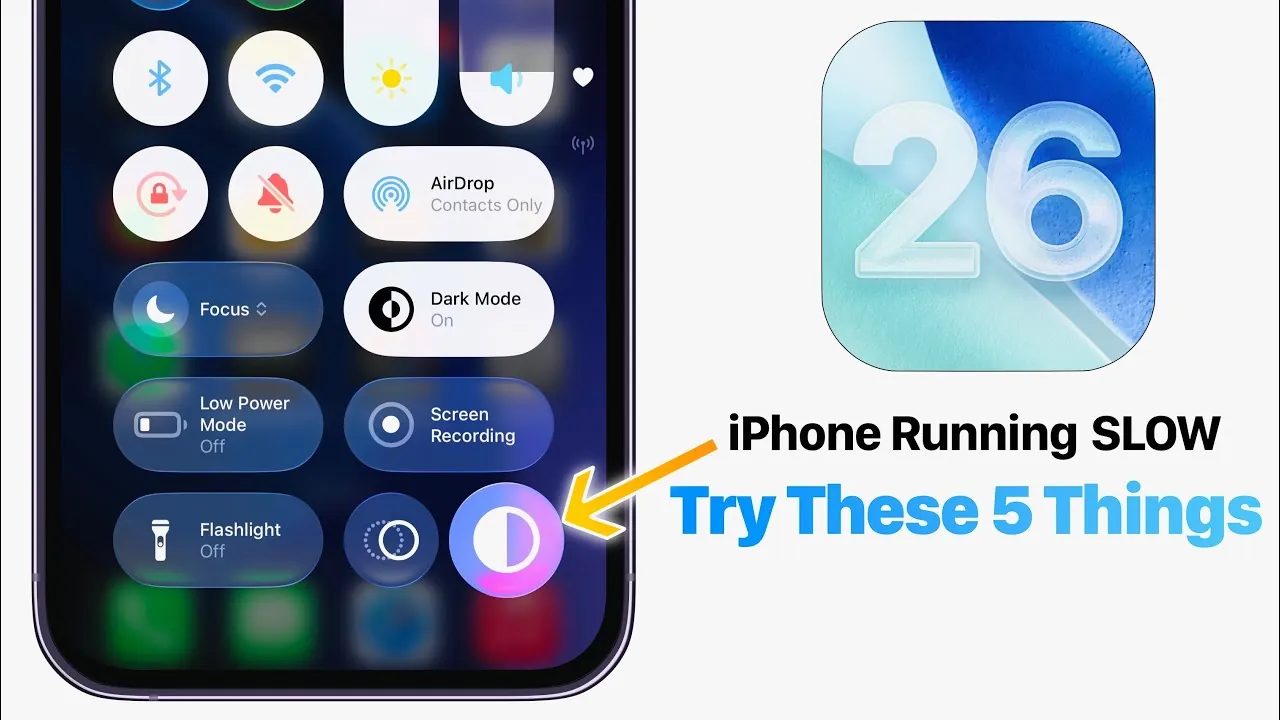
The release of iOS 26 has brought a range of new features and enhancements, but some users are reporting performance issues such as battery drain, overheating, lag, and occasional system crashes. While these issues may resolve naturally after the first few days as the system completes background processes, they can persist for some users. If you’re facing these challenges, there are practical steps you can take to improve your iPhone’s performance and ensure a smoother experience. The video below from iDeviceHelp shows us a number of things we can do to improve the performance of iOS 26.

1. Use Low Power Mode Sparingly
Low Power Mode is a useful feature designed to conserve battery life when your charge drops below 20%. However, overusing Low Power Mode can have unintended consequences for your device’s performance. This mode limits background processes, reduces app refresh rates, and can slow down overall responsiveness. To maintain optimal performance, only enable Low Power Mode when absolutely necessary, such as during extended periods without access to a charger. Once your battery is sufficiently charged, disable the feature to allow your iPhone to operate at full capacity.
2. Monitor and Maintain Battery Health
Your iPhone’s battery health plays a critical role in its overall performance. A degraded battery can lead to throttling, where the device intentionally reduces processing power to prevent unexpected shutdowns. To check your battery health, navigate to Settings > Battery > Battery Health & Charging. If the battery health percentage is significantly reduced or you see a recommendation for replacement, it may be time to replace the battery. Installing a new battery can restore your device’s speed and reliability, making sure it functions efficiently for a longer period.
3. Free Up Storage Space
Insufficient storage can cause your iPhone to slow down and become less responsive. To maintain smooth performance, aim to keep at least 10–15% of your device’s storage free. You can check your storage usage by going to Settings > General > iPhone Storage. If you’re running low on space, consider the following strategies:
- Delete apps you no longer use.
- Clear cached data from frequently used apps.
- Transfer photos, videos, and other large files to iCloud or an external storage solution.
Using iCloud’s optimization features can help you free up physical storage while keeping your data accessible when needed. Regularly managing your storage ensures your iPhone remains responsive and efficient.
4. Adjust Display Settings for Better Performance
The advanced visual effects introduced in iOS 26 can place additional strain on older iPhone models, potentially leading to slower performance. To reduce this strain, you can adjust your display settings to prioritize performance over aesthetics. Enable “Increase Contrast” by going to Settings > Accessibility > Display & Text Size. This setting reduces the intensity of visual effects, making it easier for your device to render graphics and improving overall responsiveness. Small adjustments like this can make a noticeable difference, especially on devices with older hardware.
5. Perform a Force Restart
If your iPhone continues to experience lag, glitches, or unresponsiveness, performing a force restart can help resolve temporary issues. This process clears the device’s RAM and resets its performance without affecting your data. To perform a force restart, follow these steps:
- Press and release the Volume Up button.
- Press and release the Volume Down button.
- Hold the Side Button until the Apple logo appears on the screen.
A force restart is a quick and effective way to address minor software issues and restore your device’s functionality.
What to Expect Moving Forward
Apple is expected to release updates to address the performance issues reported with iOS 26. Until then, taking proactive measures can help you manage your device effectively. By using Low Power Mode judiciously, monitoring your battery health, freeing up storage space, adjusting display settings, and performing a force restart when necessary, you can mitigate many of the challenges associated with the update. These steps not only improve your iPhone’s performance but also enhance its longevity, making sure a more reliable and enjoyable user experience.
Stay informed about the latest in iOS 26 performance issues by exploring our other resources and articles.
- iOS 26 Beta 4 Features, Bugs, and Performance
- Should You Upgrade to iOS 26 Beta ?
- iOS 18.6 Beta 1 and iOS 26 Beta 1.5 Battery Fix
- When will apple release iOS 26?
- iOS 26 Public Beta 3 and Beta 6: Features, Fixes, and Performance
Source & Image Credit: iDeviceHelp
Disclosure: Some of our articles include affiliate links. If you buy something through one of these links, Geeky Gadgets may earn an affiliate commission. Learn about our Disclosure Policy.
