Have you ever found yourself endlessly scrolling through your notes, desperately trying to locate that one key detail buried somewhere in your OneNote notebook? It’s a frustrating experience, especially when you know there’s a better way to stay organized. The truth is, many OneNote users overlook one of its most powerful features: linking capabilities. By mastering how to connect your notes internally and externally, you can transform your workspace into a streamlined, interconnected system that works for you, not against you. Whether you’re managing a complex project or simply trying to keep your thoughts in order, OneNote links can be the secret weapon you didn’t know you needed.
In this how-to by Andy Park, you’ll uncover practical strategies to use OneNote links more efficiently, from creating centralized launchpads to using advanced features like linking to specific paragraphs. You’ll also explore how to integrate organizational methods like the PARA framework, making sure your notes are not only accessible but also purposeful. Along the way, you’ll discover small tweaks, like adding a back button or using emojis, that can make a big difference in your workflow. Ready to rethink how you navigate your digital workspace? Let’s explore how OneNote links can help you work smarter, not harder.
OneNote Note Organization
TL;DR Key Takeaways :
- OneNote’s linking capabilities allow seamless navigation through internal links (paragraphs, pages, sections) and external links (files, cloud storage, web pages), enhancing organization and accessibility.
- Creating a centralized “launchpad” with categorized links, tables, and visual elements improves navigation and boosts productivity.
- The PARA framework (Projects, Areas, Resources, Archive) helps structure notes effectively, keeping your workspace organized and focused.
- Practical tips like using shortcuts (e.g., “Ctrl + K”), adding a “Back” button, and incorporating emojis can streamline navigation and improve note usability.
- Advanced features, such as hiding table borders, linking to specific paragraphs, and using the OneTastic plugin, enhance customization and functionality in OneNote.
Understanding OneNote’s Linking Capabilities
OneNote’s linking features allow you to connect information seamlessly, both within the application and externally. These capabilities can significantly improve how you access and manage your notes.
- Internal Links: OneNote enables you to link to specific paragraphs, pages, sections, section groups, or even entire notebooks. This feature allows for quick navigation within your notes, reducing the time spent searching for information and making sure a more organized workspace.
- External Links: You can also link to external resources, such as local files, cloud storage, or web pages. For example, linking a project page to a OneDrive file or a relevant website ensures all your resources are accessible from a single location.
By combining internal and external links, you can create a highly interconnected system that keeps all your essential information at your fingertips.
Creating a Centralized Launchpad
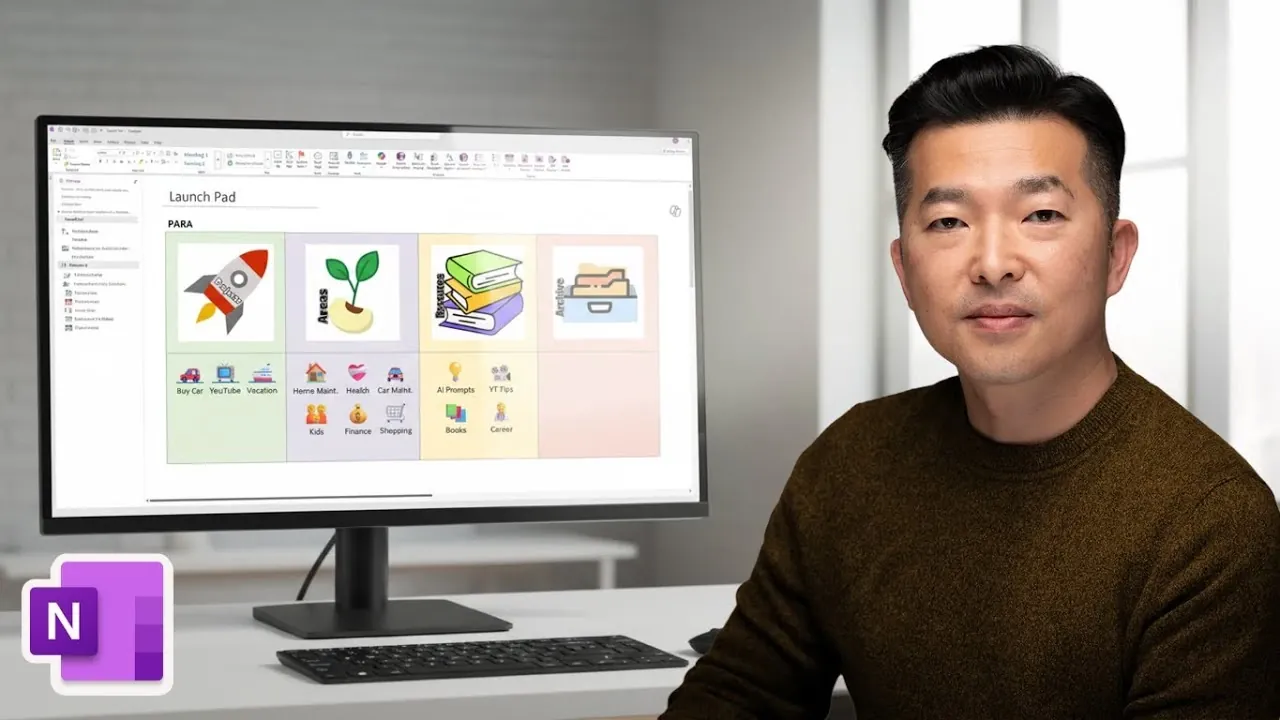
A centralized “launchpad” in OneNote serves as a hub for quick navigation to your most-used sections, pages, and external resources. This approach can significantly enhance your productivity by reducing the time spent searching for frequently accessed content.
- Design the Layout: Use tables, images, and emojis to organize links into categories or sub-sections. For instance, you can use emojis to differentiate between personal and professional projects or to highlight high-priority tasks.
- Maintain Visual Clarity: Align elements neatly and adjust image sizes to create a clean, professional appearance. A well-organized layout makes navigation intuitive and improves the overall usability of your launchpad.
A thoughtfully designed launchpad not only saves time but also makes your OneNote workspace more engaging and efficient.
How to Use OneNote Links More Efficiently
Explore further guides and articles from our vast library that you may find relevant to your interests in Microsoft Onenote .
- New 2024 OneNote features to improve your notetaking and more
- 5 Essential OneNote Tips to Organize Your Digital Life
- How to Migrate Notes from Apple Notes, OneNote & Notion to
- Advanced Note-Taking Techniques with Microsoft OneNote
- How to Use Copilot Vision for Smarter Work and Learning in 2025
- Microsoft Copilot in Teams: Tips for Seamless Collaboration in 2025
- How to Use Tags in OneNote 2025 for Better Organization
- The Complete Guide to Microsoft OneNote Features and Benefits
- How to use Copilot AI to make amazing PowerPoint slides
- How to Use PARA in Microsoft OneNote to Boost Productivity
Organizing Your Notes with the PARA Framework
The PARA framework is a powerful method for structuring your notes in OneNote. By categorizing information into four distinct areas, you can maintain clarity and focus while making sure your notes remain easy to navigate.
- Projects: Temporary efforts with specific outcomes, such as preparing a presentation or completing a report.
- Areas: Ongoing responsibilities, like managing team projects or tracking personal finances.
- Resources: Reference materials, including research articles, tutorials, or guides that support your work.
- Archive: Completed or inactive items stored for future reference, making sure your active workspace remains uncluttered.
By grouping related sections under these categories, you can create a structured system that supports your workflow and keeps your notes purposeful.
Boosting Efficiency with Practical Tips
Small adjustments and shortcuts can make a significant difference in how efficiently you use OneNote. Here are some practical tips to help you work smarter:
- Use Shortcuts: Use the “Ctrl + K” shortcut to quickly create links, and copy links directly from the navigation pane to save time.
- Add a Back Button: Customize your quick access toolbar with a “Back” button to easily return to the previous page, improving navigation efficiency.
- Incorporate Emojis: Use emojis to label sub-sections or highlight important notes. When used sparingly, they can make your notes more visually appealing without causing clutter.
Implementing these tips can help you navigate your notes more quickly and effectively.
Using Advanced Features
OneNote offers advanced features that can refine your notes and enhance functionality. These tools allow you to customize your workspace and improve your overall experience.
- Hide Table Borders: Removing table borders creates a cleaner, more polished look, especially for launchpads or structured layouts.
- Link to Specific Paragraphs: This feature enables precise navigation within lengthy documents, saving time when accessing specific information.
- Use the OneTastic Plugin: The OneTastic plugin provides additional customization options, such as pinning frequently used pages and automating repetitive tasks, further enhancing OneNote’s capabilities.
These advanced tools can help you take your OneNote experience to the next level, making it an even more powerful productivity tool.
Polishing Your Notes
To ensure your notes are both functional and visually appealing, pay attention to alignment, spacing, and link accuracy. These finishing touches can make a significant difference in the usability of your notes.
- Align Elements: Proper alignment creates a professional appearance and makes your notes easier to read.
- Maintain Consistent Spacing: Consistent spacing improves readability and prevents your notes from feeling cluttered or overwhelming.
- Test Your Links: Regularly verify that all links work correctly to avoid disruptions in your workflow. Address any broken links promptly to maintain a seamless experience.
By focusing on these details, you can create notes that are not only effective but also enjoyable to use.
Maximizing OneNote’s Potential
Mastering OneNote’s linking capabilities and organizational tools can transform it into a dynamic hub for managing and accessing information. Whether you’re building a centralized launchpad, implementing the PARA framework, or exploring advanced features, these strategies will help you work more efficiently. With thoughtful design and attention to detail, OneNote can become an indispensable tool in your productivity toolkit, empowering you to stay organized and focused in all your endeavors.
Media Credit: Andy Park
Disclosure: Some of our articles include affiliate links. If you buy something through one of these links, Geeky Gadgets may earn an affiliate commission. Learn about our Disclosure Policy.
