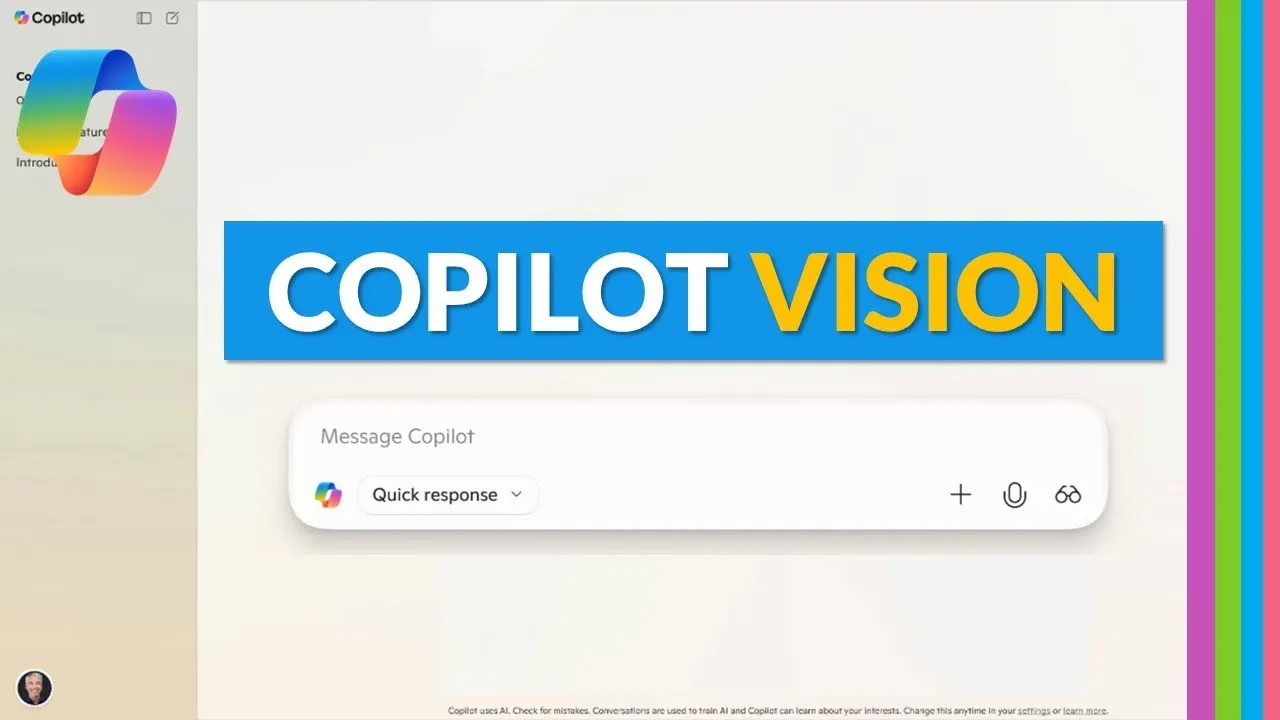
Have you ever wished your computer could truly understand what you need—without endless clicks, menus, or instructions? With Copilot Vision in Microsoft Copilot, that wish is no longer a distant dream. Imagine seamlessly navigating your workday by simply sharing your screen and giving voice commands, while an AI assistant handles the heavy lifting in real time. Whether you’re managing a complex project in OneNote, solving math equations step by step, or delivering a polished lesson as an educator, Copilot Vision transforms how you interact with technology. This isn’t just a tool; it’s a smarter, more intuitive way to work, learn, and collaborate.
In this how-to by Mike Tholfsen, you’ll learn the full potential of Copilot Vision, from its AI-powered screen sharing to its ability to generate automatic transcripts of your sessions. We’ll explore how it integrates with tools like Microsoft Edge and OneNote, making even the most intricate tasks feel effortless. Along the way, you’ll discover features that cater to educators, students, and professionals alike—like personalized learning support and real-time feedback. Whether you’re new to Copilot Vision or looking to master its advanced capabilities, this guide, inspired by insights from Mike Tholfsen, will help you unlock a more productive, hands-free workflow. After all, the future of work and learning isn’t just about doing more—it’s about doing it smarter.
Getting Started with Copilot Vision
TL;DR Key Takeaways :
- Copilot Vision integrates AI-powered assistance with voice commands and screen sharing, enhancing productivity and collaboration across applications like Microsoft Edge and OneNote.
- Key features include real-time feedback, voice-activated commands, and seamless screen sharing for multitasking and workflow optimization.
- Enhanced OneNote integration supports educators and students with tools for organizing, distributing, and navigating content efficiently.
- Specialized features like math tutoring, visual learning tools, and automatic transcript creation cater to educational and professional needs.
- Copilot Vision is globally available with localized support, making sure accessibility and usability for diverse audiences worldwide.
To begin using Copilot Vision, access it through the Consumer Copilot app on your Windows device. If the app is not pre-installed, you can download it from the Microsoft Store. Once installed, activate Copilot Vision to start sharing windows and interacting with the AI assistant. The interface is designed to be intuitive, allowing you to focus on your work while the AI manages technical details in the background.
To ensure a smooth experience, verify that your device meets the system requirements for the app. Once activated, you can immediately begin exploring its features, such as voice-activated commands and real-time content analysis, which are tailored to streamline your workflow.
Key Features of Screen Sharing
One of the most notable features of Copilot Vision is its ability to share specific windows with the AI assistant. This functionality allows the AI to analyze and respond to the content displayed in real time, making it a powerful tool for multitasking. For example, you can share your Microsoft Edge browser or a OneNote document and use voice commands to:
- Navigate tools and menus effortlessly without manual input.
- Request explanations or clarifications on visible content for better understanding.
- Receive constructive feedback to refine your work or ideas.
This hands-free interaction not only saves time but also enhances productivity by allowing you to focus on critical tasks while the AI handles routine operations. The seamless integration of screen sharing with voice commands ensures a fluid and efficient workflow.
Using Copilot Vision for Smarter Work & Learning

Discover other guides from our vast content that could be of interest on Copilot Vision.
- Microsoft Copilot Vision: Internet Browsing with AI Features
- How to Get Started with Microsoft Copilot in 2025
- Github Copilot Agent Mode : Free Autonomous AI Coding Assistant
- GitHub Copilot in Visual Studio Code for Smarter Development
- GitHub Copilot & Visual Studio Code: A New Era of Coding
- Microsoft Copilot : The AI Assistant Redefining AI for Everyday Use
- Microsoft AI Copilot Updates Boosting Productivity with AI
- Microsoft Copilot Updates: AI Tools for Meetings, Design & Data
- How to Set Up Microsoft Copilot on Your iPad to Boost Productivity
- How to use GitHub Copilot AI coding assistant
Enhanced OneNote Integration
Copilot Vision is particularly effective when paired with OneNote, offering a range of features that benefit both educators and students. The AI assistant recognizes toolbar functions, including those in Class Notebook, and provides step-by-step guidance on their use. This integration allows educators to:
- Distribute pages to students quickly and efficiently.
- Organize and manage student notebooks with minimal effort.
- Access detailed explanations of advanced features to maximize functionality.
For students, this integration simplifies the learning process by offering personalized support and guidance. Whether you’re navigating OneNote for the first time or exploring its advanced tools, Copilot Vision ensures you can unlock its full potential without requiring extensive training.
Math Tutoring and Visual Learning
Copilot Vision excels in supporting math-focused tasks, offering robust tutoring capabilities that break down complex problems into manageable steps. For example, it can guide you through solving equations like the Pythagorean theorem by providing clear, step-by-step instructions. Additionally, it supports:
- Drawing and annotating graphs or shapes to enhance visual understanding.
- Offering interactive tools for solving complex mathematical concepts.
These features are invaluable for subjects that demand detailed explanations and visual aids. By combining interactive problem-solving tools with AI-driven guidance, Copilot Vision makes learning math more engaging and accessible, catering to a wide range of educational needs.
Automatic Transcript Creation
Another significant feature of Copilot Vision is its ability to automatically record and generate transcripts of all interactions. This functionality is particularly useful in educational and professional settings, where revisiting explanations or instructions can reinforce understanding. The transcript ensures that no detail is overlooked, providing a reliable reference for:
- Reviewing key points discussed during a session.
- Tracking progress and identifying areas for improvement.
- Sharing detailed records with team members or students for collaboration.
By offering a comprehensive record of interactions, Copilot Vision supports continuous learning and ensures that users can revisit important details whenever needed.
Applications in Education
Copilot Vision is designed to enhance collaboration and learning experiences, making it an invaluable tool for educators and students alike. Its AI-powered tools and real-time feedback create an interactive environment that fosters engagement and productivity. Key educational applications include:
- Improving lesson delivery with AI-guided tools that simplify complex topics.
- Providing personalized support to students during assignments or projects.
- Facilitating content sharing and annotation for group activities.
By integrating AI assistance with collaborative features, Copilot Vision transforms traditional learning methods into dynamic, interactive experiences. Its ability to adapt to various educational scenarios ensures that both teachers and students can benefit from its capabilities.
Availability and Regional Support
Copilot Vision is available globally, although access may vary depending on your region. Microsoft provides localized support to ensure users can understand and use the feature effectively in their area. This approach ensures that Copilot Vision is accessible to a diverse audience, making it a valuable tool for users worldwide.
To check availability in your region, visit the Microsoft website or consult the app’s settings for localized options. By offering tailored support, Microsoft ensures that users can maximize the benefits of Copilot Vision regardless of their location.
Media Credit: Mike Tholfsen
Disclosure: Some of our articles include affiliate links. If you buy something through one of these links, Geeky Gadgets may earn an affiliate commission. Learn about our Disclosure Policy.
