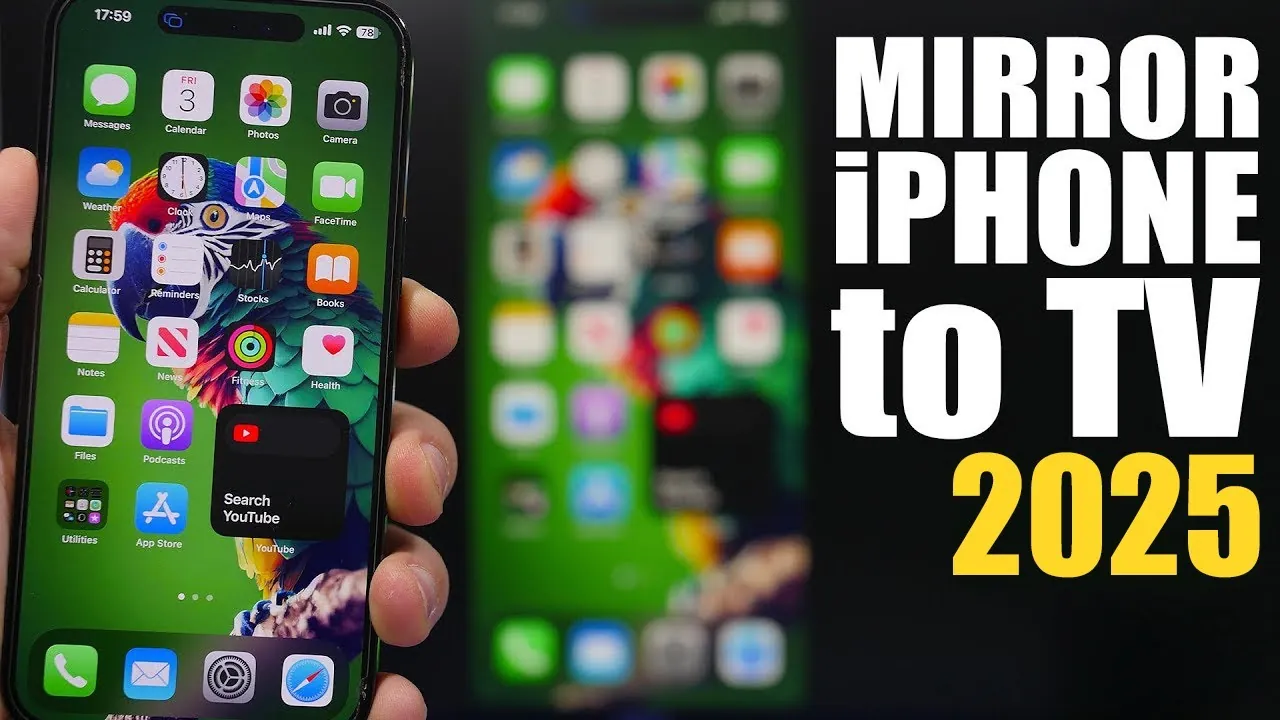
Screen mirroring has become an essential tool for sharing your iPhone’s display on a larger screen. Whether you want to stream videos, showcase photos, or deliver impactful presentations, the process has never been more straightforward. With advancements in technology, connecting your iPhone to a TV is now a seamless experience. By making sure both devices are connected to the same Wi-Fi network, you can access a range of tools designed to enhance your viewing and sharing capabilities. The video below from iReviews highlights the most effective methods for mirroring your iPhone screen, offering practical solutions for various needs.

Top Methods for iPhone Screen Mirroring
Several reliable and user-friendly options are available for mirroring your iPhone screen to a TV. Each method caters to different preferences and device compatibility, making sure a solution for everyone.
1. Universal Remote App: All-in-One TV Control
The Universal Remote App transforms your iPhone into a powerful tool for managing your TV. Beyond basic screen mirroring, it allows you to adjust volume, switch channels, and control other TV settings directly from your device. This app is ideal for users seeking a comprehensive solution that combines mirroring with full TV control.
Steps to use the Universal Remote App:
- Download and install the Universal Remote App from the App Store.
- Ensure both your iPhone and TV are connected to the same Wi-Fi network.
- Open the app and scan for compatible devices to establish a connection.
This method is particularly useful for those who want a single app to handle both screen mirroring and TV management.
2. AirScreen for Android TVs: A Simple Solution
For Android TV users, the AirScreen app offers a straightforward and reliable way to mirror your iPhone screen. By using Apple’s AirPlay technology, AirScreen ensures a stable connection with minimal setup required.
Steps to use AirScreen:
- Download the AirScreen app from the Google Play Store and install it on your Android TV.
- Open the Control Center on your iPhone and select “Screen Mirroring.”
- Choose your TV from the list of available devices to connect.
This method is perfect for users who prioritize ease of use and a dependable connection for their mirroring needs.
3. Screen Mirror App: Browser-Based Flexibility
The Screen Mirror App provides a browser-based approach to screen mirroring, making it compatible with TVs or computers that lack built-in mirroring features. This method is versatile and works across a wide range of devices.
Steps to use the Screen Mirror App:
- Install the Screen Mirror App on your iPhone.
- Follow the app’s instructions to scan a QR code or enter a code displayed on your TV’s browser.
- Once connected, your iPhone screen will be mirrored in real time.
This option is ideal for users who need a flexible solution that works with devices equipped with a web browser.
4. Tubio App: Stream Media with Ease
The Tubio app is a great choice for users who frequently stream content from platforms like YouTube, SoundCloud, or other media services. It allows you to cast media directly from your iPhone to your TV, even if your TV lacks native apps for these platforms.
Steps to use Tubio:
- Install the Tubio app on your iPhone.
- Ensure both your iPhone and TV are connected to the same Wi-Fi network.
- Select your TV from the list of available devices within the app.
This method is particularly beneficial for older TVs or those with limited app support, simplifying the process of streaming media.
Key Tips for a Smooth Mirroring Experience
To ensure a seamless and hassle-free mirroring experience, consider the following tips:
- Always connect your iPhone and TV to the same Wi-Fi network to avoid connectivity issues.
- Enable screen mirroring in the iPhone’s Control Center if it is not already visible.
- For browser-based mirroring, confirm that your TV or computer has a compatible web browser installed.
- Carefully follow the setup instructions for apps like AirScreen or Tubio, as some may require additional configuration steps.
- Keep your apps updated to ensure compatibility with the latest iPhone and TV software versions.
By following these tips, you can minimize potential issues and enjoy a smooth mirroring experience tailored to your needs.
Enhance Your Viewing Experience
Mirroring your iPhone screen to a TV has become more accessible and versatile in 2025, thanks to a variety of apps and tools designed to meet different requirements. Whether you choose the Universal Remote App for comprehensive control, AirScreen for Android TVs, the Screen Mirror App for browser-based flexibility, or Tubio for effortless media streaming, each method offers unique advantages. By making sure both devices are connected to the same Wi-Fi network and carefully following the setup instructions, you can unlock a seamless and enhanced viewing experience that caters to your preferences and devices.
Explore further guides and articles from our vast library that you may find relevant to your interests in iPhone screen mirroring.
- iPhone & iPad Screen Mirroring with AirPlay: A How-To Guide
- How to mirror your iPhone screen to a TV
- How to Easily Mirror Your iPhone Screen to Your Mac
- How to Mirror Your iPhone to a Windows PC
- How to use AirPlay to stream video or mirror your iPhone or iPad
Source & Image Credit: iReviews
Disclosure: Some of our articles include affiliate links. If you buy something through one of these links, Geeky Gadgets may earn an affiliate commission. Learn about our Disclosure Policy.
