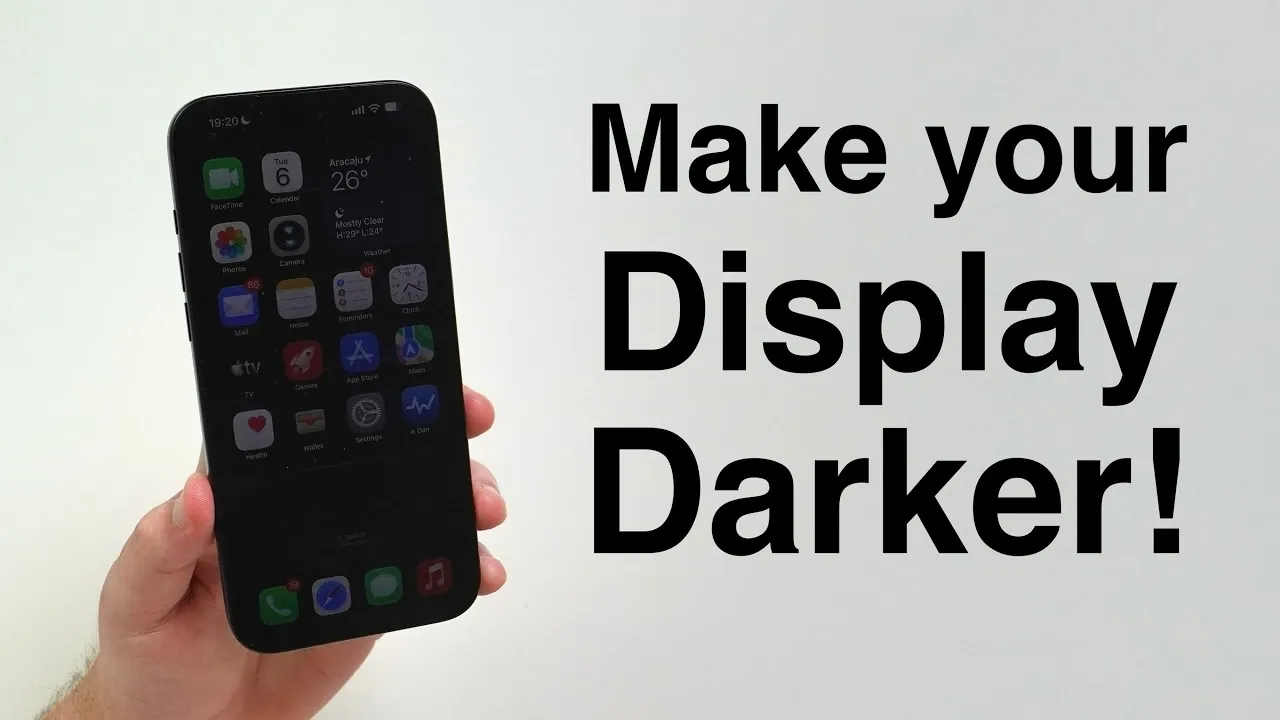
Have you ever found your iPhone’s screen uncomfortably bright, even when set to its lowest brightness level? This is a common issue, especially in low-light environments. Fortunately, your iPhone includes built-in features that allow you to dim the screen beyond the standard minimum brightness. By adjusting a few settings, you can create a more comfortable viewing experience, reduce eye strain, and even improve usability in dark surroundings. This guide will walk you through the steps to achieve a darker display.

Enable “Reduce White Point” for Enhanced Dimming
The “Reduce White Point” feature is one of the most effective tools for dimming your iPhone’s screen. This setting reduces the intensity of bright colors, making the overall display appear dimmer without compromising visibility. To enable and customize this feature:
- Open the Settings app and navigate to Accessibility > Display & Text Size.
- Locate the “Reduce White Point” option and toggle it on.
- Adjust the slider to set the brightness reduction level. A higher percentage will result in a darker screen.
This feature is particularly useful in dark environments, such as at night or in dimly lit rooms, where even the lowest brightness setting can feel too intense. By reducing the white point, you can achieve a softer, more comfortable display.
Disable Auto-Brightness for Full Manual Control
Auto-Brightness is a default feature that adjusts your screen’s brightness based on ambient lighting conditions. While convenient, it can interfere with your ability to maintain consistent manual control over the display. Disabling Auto-Brightness allows you to set and keep your preferred brightness level without interruptions. Here’s how to turn it off:
- Go to Settings and select Accessibility > Display & Text Size.
- Scroll to the bottom of the menu and toggle off the “Auto-Brightness” option.
Once disabled, you can manually adjust the brightness using the slider in the Control Center or within the Display settings. This ensures that your screen remains at the exact brightness level you prefer, regardless of changes in your environment.
Combine Features for Precise Brightness Adjustment
For the ultimate control over your iPhone’s brightness, consider combining the “Reduce White Point” feature with manual adjustments. You can access the brightness slider quickly by swiping down from the top-right corner of the screen (or swiping up from the bottom on older iPhone models) to open the Control Center. Adjust the slider to your desired level and pair it with “Reduce White Point” for an exceptionally dim display.
This combination is particularly beneficial for nighttime use, as it minimizes glare and reduces the strain on your eyes. Whether you’re reading, browsing, or simply checking notifications in a dark room, these settings allow you to fine-tune your screen’s brightness to suit your needs.
Understand the Impact on Battery Life
While disabling Auto-Brightness gives you complete control over your screen’s brightness, it’s important to note the potential impact on battery life. Auto-Brightness is designed to optimize power consumption by adjusting the display based on your surroundings. When you manually set the brightness to a fixed level, your device may use more power in certain conditions, especially if the screen is brighter than necessary.
If conserving battery life is a priority, consider re-allowing Auto-Brightness after you’ve finished using manual adjustments. This way, you can strike a balance between customization and energy efficiency.
Restoring Default Display Settings
If you ever want to return your iPhone’s display settings to their original state, the process is simple:
- Re-enable Auto-Brightness by going to Settings > Accessibility > Display & Text Size and toggling it back on.
- Turn off the “Reduce White Point” feature in the same menu to restore the default brightness levels.
These steps will reset your iPhone’s display behavior, allowing it to automatically adjust brightness and restore the default intensity of colors.
Tailoring Your iPhone Display for Comfort
By using features like “Reduce White Point” and disabling Auto-Brightness, you can customize your iPhone’s display to make it darker than the default minimum. These adjustments are particularly useful for reducing eye strain in low-light conditions, creating a more comfortable viewing experience, or simply tailoring the screen to your personal preferences. Whether you’re trying to minimize glare during nighttime use or prefer a dimmer display for extended periods, these tools provide the flexibility to adapt your device to your needs.
Source & Image Credit: Daniel About Tech
Disclosure: Some of our articles include affiliate links. If you buy something through one of these links, Geeky Gadgets may earn an affiliate commission. Learn about our Disclosure Policy.
