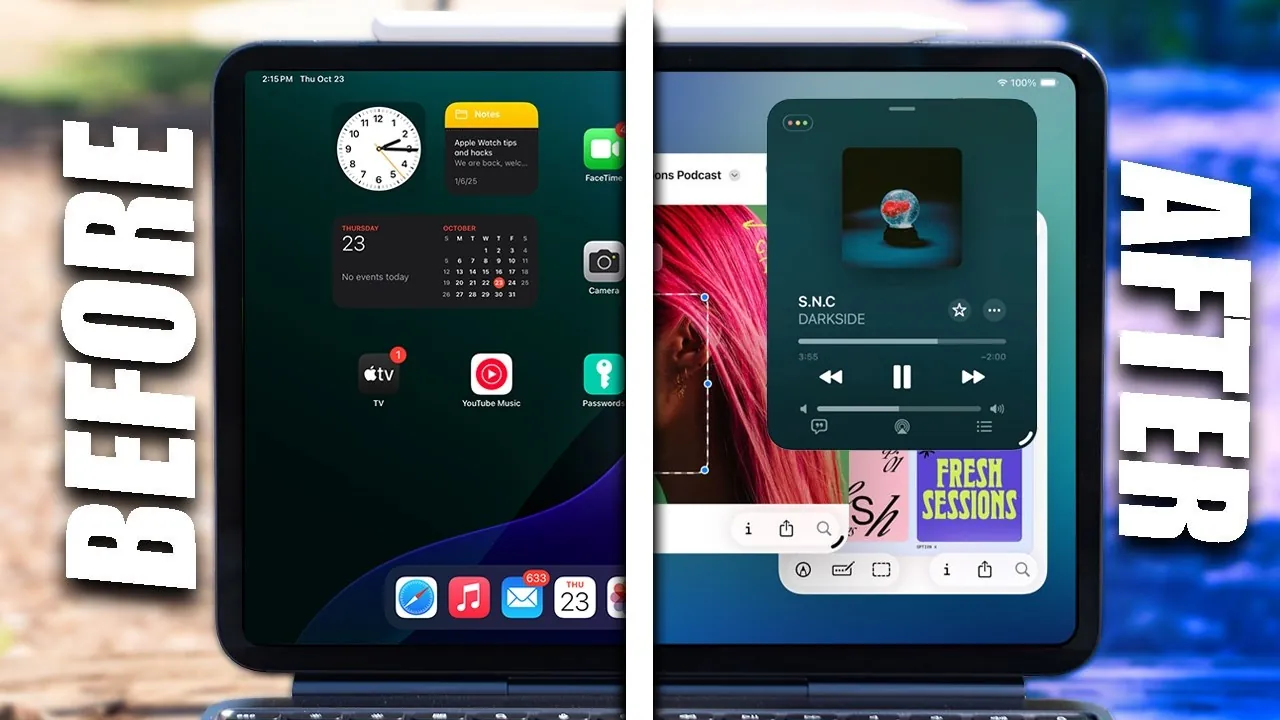
The M5 iPad Pro 2025 is a highly advanced device engineered to enhance productivity, creativity, and convenience. To unlock its full potential, it’s important to configure the device properly, explore its extensive features, and adapt it to your specific needs. The video below from HotshotTek outlines 25 essential steps to help you optimize your iPad Pro, focusing on setup, multitasking, customization, and troubleshooting.

Initial Setup: Laying the Foundation
Making sure your iPad Pro is ready for use is the first step toward a seamless experience. Begin by checking the battery health to confirm it’s functioning at its best. Adjust the display settings to suit your preferences:
- Enable dark mode to reduce eye strain during prolonged use.
- Customize text size and enable bold text for improved readability.
These adjustments create a personalized and comfortable user experience from the very beginning.
Strengthening Security and Tracking Features
Securing your iPad Pro and protecting your data is essential. Start by:
- Allowing “Find My iPad” and “Find My Network” to locate your device, even when it’s powered off.
- Setting up Face ID for secure and convenient access. You can configure it for multiple appearances or additional users if necessary.
These measures ensure your device and personal information remain safe, giving you peace of mind.
Mastering Multitouch Gestures and Shortcuts
Efficiency is a cornerstone of the iPad Pro experience. Learning multitouch gestures can significantly enhance your workflow:
- Switch between apps effortlessly with intuitive swipes.
- Use gestures to undo or redo actions quickly.
- Copy and paste text with simple multitouch commands.
Additionally, familiarize yourself with screenshot shortcuts and keyboard minimization techniques to further streamline your tasks.
Optimizing Multitasking and Window Management
The iPad Pro is designed to handle multiple tasks simultaneously. To maximize its multitasking capabilities:
- Enable Stage Manager to organize and manage multiple apps and windows efficiently.
- Use drag-and-drop functionality to move files or content between apps seamlessly.
These features allow you to juggle tasks with ease, boosting your overall productivity.
Customizing the Control Center
The Control Center serves as a quick-access hub for essential tools. Personalize it to suit your needs by:
- Adding controls for screen recording, low power mode, and other frequently used features.
- Adjusting text size and accessibility settings directly from the Control Center for on-the-go convenience.
This customization ensures that the tools you use most are always within easy reach.
Organizing Your Home Screen
A well-organized home screen enhances usability and efficiency. To declutter and streamline access:
- Create folders to group similar apps together for easier navigation.
- Hide unnecessary apps to maintain a clean and focused interface.
- Use Face ID to secure or hide specific apps for added privacy.
These steps make your home screen more intuitive and tailored to your workflow.
Using Widgets and Apple Pencil
Widgets and the Apple Pencil are powerful tools that expand the iPad Pro’s functionality:
- Add widgets to your home screen for quick access to important information, such as calendars or reminders.
- Use the Apple Pencil for taking notes, annotating documents, or sketching creative ideas.
These features enhance both productivity and creativity, making the iPad Pro a versatile tool for various tasks.
Exploring External Device Compatibility
The iPad Pro’s USB-C port opens up a world of possibilities for external device compatibility:
- Transfer files quickly or connect external drives to expand your storage options.
- Use Sidecar or Universal Control to turn your iPad into a secondary screen for your Mac, enhancing your workspace.
These capabilities make the iPad Pro an indispensable companion for multitasking and collaboration.
Using Document Scanning and AI Features
The iPad Pro’s AI-enhanced features simplify document management and organization:
- Use the Files app to scan documents with exceptional clarity and quality.
- Digitize important paperwork for easy storage, sharing, and retrieval.
These tools are particularly useful for professionals and students managing large volumes of documents.
Troubleshooting Common Issues
Even the most advanced devices can encounter occasional issues. If your iPad becomes unresponsive:
- Perform a soft reboot to restore functionality and resolve minor glitches.
This simple step can address many common problems, making sure your device continues to operate smoothly.
Maximizing the Potential of Your iPad Pro
The M5 iPad Pro 2025 is a feature-rich device designed to cater to a wide range of needs, from productivity and creativity to entertainment and collaboration. By following these 25 steps, you can optimize its performance, enhance its functionality, and tailor it to your specific requirements. Whether you’re a professional, student, or casual user, these tips will help you make the most of your iPad Pro, making sure it becomes an indispensable part of your daily routine.
Uncover more insights about M5 iPad Pro 2025 in previous articles we have written.
- M5 iPad Pro: New Display, M5 Chip, and Camera Upgrades
- M5 Chip in iPad Pro 2025: Benchmark Results and Features
- iPad Pro 2025: M5 Chip, Wi-Fi 7, and 12GB RAM Explained
- How the M5 iPad Pro Redefines Tablet Technology in 2025
- M5 iPad Pro Leaks: OLED Display, M5 Chip, and Dual Face ID
Source & Image Credit: HotshotTek
Disclosure: Some of our articles include affiliate links. If you buy something through one of these links, Geeky Gadgets may earn an affiliate commission. Learn about our Disclosure Policy.
