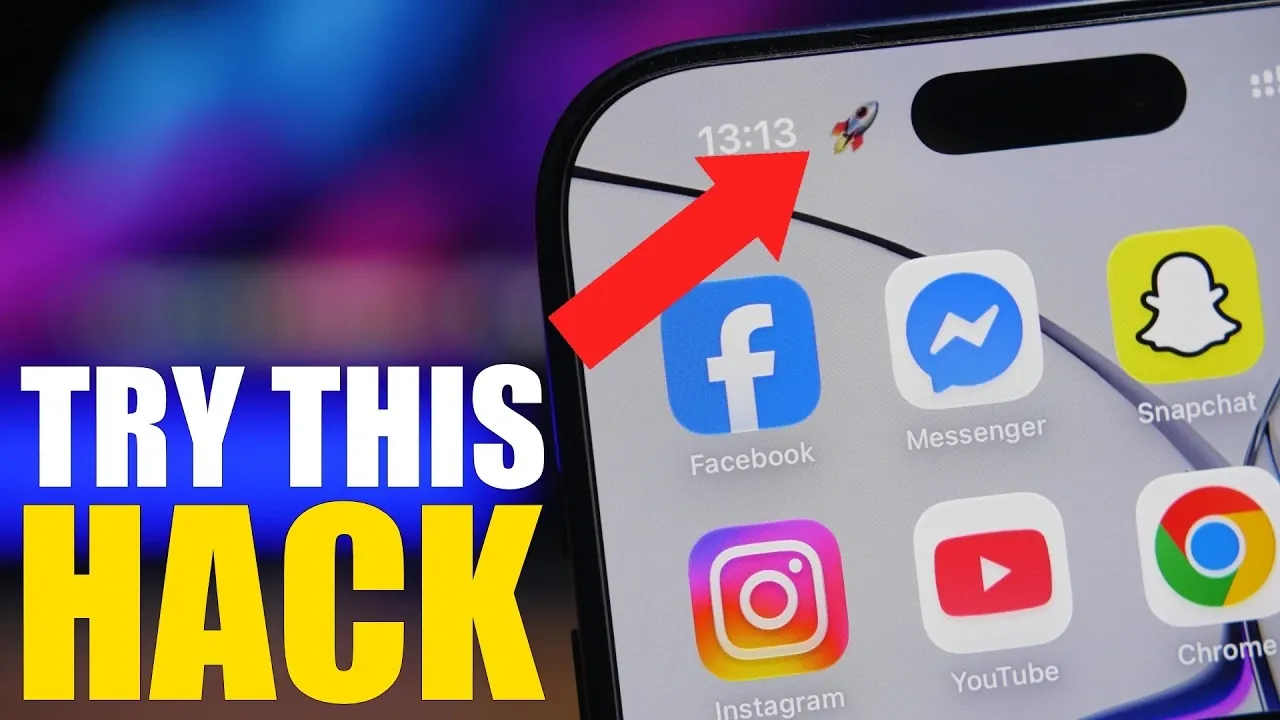
Think you’ve mastered your iPhone? Beneath its sleek interface lies a wealth of features designed to enhance your daily life. From simplifying tasks to personalizing your device, these seven iPhone hacks will help you maximize your smartphone’s capabilities. Whether you’re looking to boost productivity, secure your data, or add a personal touch, these tips will transform how you use your iPhone. The video below from iReviews gives us more details.
TL;DR Key Takeaways :
- QR Code Shortcuts: Press and hold any QR code on your screen—whether in a photo, app, or website—to instantly open or copy links.
- Secure Screenshots: Use solid rectangular shapes in markup instead of drawing over text to ensure private data can’t be revealed via brightness boosts.
- Multitouch App Moving: Hold down an icon to enter edit mode, then use a second finger to swipe between pages and bundle multiple apps together instantly.
- Safari PDF Conversion: Convert any webpage into an annotated PDF using quick two-finger gestures for research and sharing.
1. Interact Seamlessly with QR Codes
Your iPhone’s camera is more than just a tool for capturing moments; it’s also a powerful way to interact with QR codes. By simply pressing and holding a QR code on your screen, you can instantly access options such as opening links in Safari, copying them to your clipboard, or sharing them with others. This feature isn’t limited to physical QR codes; it works with codes embedded in photos, websites, or apps. Whether you’re scanning a restaurant menu, joining a Wi-Fi network, or downloading an app, this functionality makes the process faster and more intuitive. Mastering this feature can save you time and streamline your interactions with digital content.
2. Convert and Annotate Webpages in Safari
Safari’s built-in tools allow you to turn any webpage into a PDF, making it easier to save, share, or annotate important information. With just a few taps, you can convert a webpage into a PDF and use the markup tools to highlight text, add notes, or draw directly on the document. The intuitive two-finger gestures make editing seamless, and once you’re done, you can save or share the annotated PDF for future reference. This feature is particularly useful for research, work projects, or sharing detailed information with colleagues or friends. By integrating this tool into your workflow, you can enhance productivity and stay organized.
3. Protect Sensitive Information in Screenshots
When sharing screenshots, it’s essential to safeguard any private or sensitive information. While the markup tool allows you to obscure details, simply drawing over text or images isn’t always secure; adjusting brightness or contrast can sometimes reveal what’s underneath. To ensure your data stays hidden, use solid shapes like rectangles from the markup menu to cover private areas completely. This method provides a reliable way to protect your information, even if someone attempts to manipulate the image. Whether you’re sharing screenshots of conversations, financial details, or personal data, this extra step ensures your privacy remains intact.
4. Customize Your Home Screen with Widgets
Widgets on iOS are more than just a visual enhancement; they’re a practical tool for organizing your home screen and accessing information quickly. With iOS 27, you can add full-page widgets to display calendars, media players, or app shortcuts. For added convenience, stack multiple widgets on top of each other and swipe through them as needed. This feature helps declutter your home screen while keeping essential tools and information at your fingertips. By customizing your widgets, you can create a home screen layout that reflects your priorities and streamlines your daily tasks.
5. Add a Personal Touch to Your Status Bar
Your iPhone’s status bar doesn’t have to remain static. By editing your wallpaper with the markup tool, you can add emojis, text, or small designs that align perfectly with the status bar area. Adjust the size and placement to create a subtle, personalized touch that makes your device uniquely yours. This simple customization allows you to express your personality and make your iPhone stand out. Whether you prefer a minimalist design or something more playful, this hack lets you tailor your device to your style.
6. Move App Icons More Efficiently
Reorganizing your home screen can be a tedious task, but there’s a faster way to move app icons. Instead of dragging them one by one, use a multitouch gesture to speed up the process. Activate edit mode by holding down an app icon, then use another finger to swipe between home screen pages. This allows you to move multiple icons quickly and efficiently. By mastering this technique, you can save time and create a more organized home screen layout with minimal effort. Whether you’re rearranging apps for productivity or aesthetics, this hack simplifies the process.
7. Enhance Conversations with iMessage Effects
iMessage offers a variety of built-in effects to make your conversations more engaging. Whether you want to emphasize a point or add some flair, effects like “Loud,” “Gentle,” or “Slam” can make your messages stand out. Additionally, reply effects such as thumbs up or heart reactions allow you to respond creatively without typing a word. These features add personality and interactivity to your chats, making them more dynamic and enjoyable. By exploring the range of effects available, you can make your messages more expressive and memorable.
Unlocking the Full Potential of Your iPhone
These seven iPhone hacks highlight how small adjustments can lead to significant improvements in your user experience. From interacting with QR codes to customizing widgets and protecting your privacy, these tips empower you to use your device more effectively. By exploring these features, you can save time, enhance productivity, and discover new ways to personalize and optimize your iPhone. Whether for work, leisure, or communication, these hacks ensure you’re getting the most out of your smartphone.

Unlock more potential in iPhone Tips by reading previous articles we have written.
- 25 Awesome iPhone Tips & Tricks You Need to Know
- 10 iPhone Tricks That Will Blow Your Mind
- 20 Secret iPhone Tricks You’ll Wish You Knew Sooner
- Apple Sets Keynote Date: First Look at the Foldable iPhone Ultra and Everything Else Debuting
- Apple’s iPhone Fold Ultra Might Be Hard to Buy At Launch
- iPhone 18 Pro Max: Final Leaks Drop Hours Before Apple’s Event
Source & Image Credit: iReviews
Disclosure: Some of our articles include affiliate links. If you buy something through one of these links, Geeky Gadgets may earn an affiliate commission. Learn about our Disclosure Policy.
