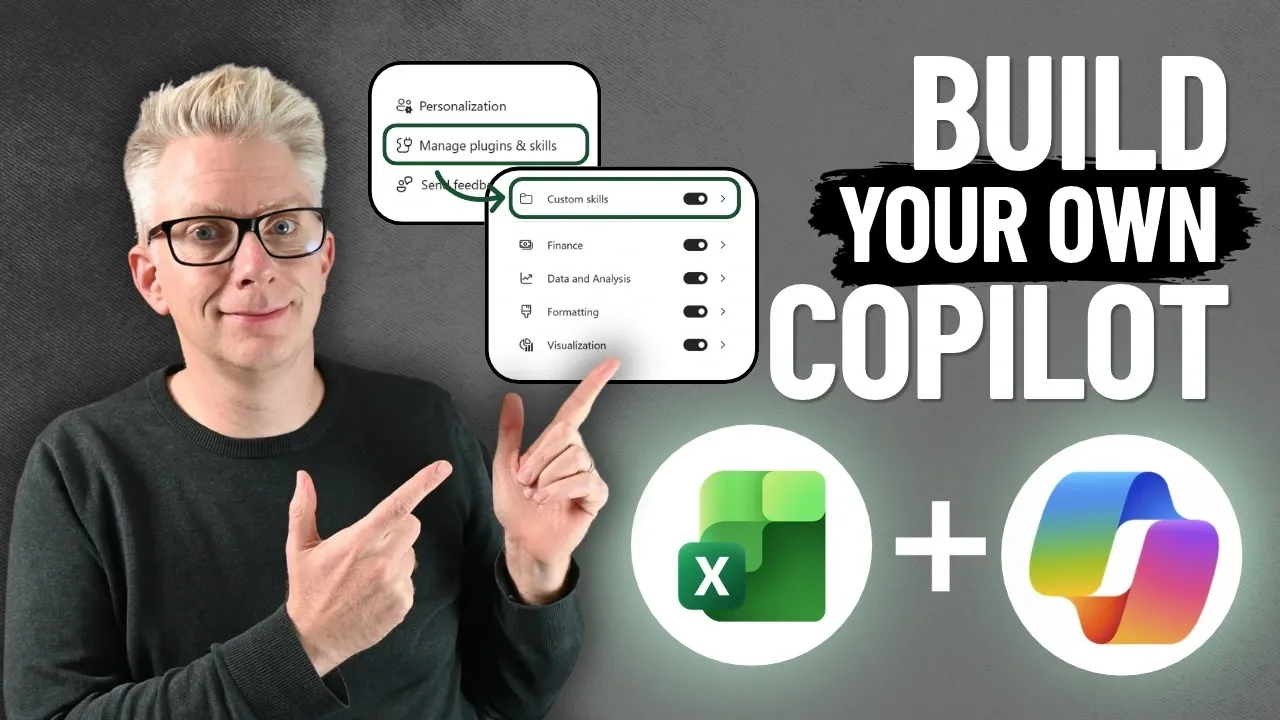
Creating custom Copilot skills in Excel allows users to automate repetitive tasks by saving detailed instructions in a specific folder structure on OneDrive. For example, a skill named “finance commentary writer” was designed to generate financial summaries based on visible worksheet data, such as income or gross profit variances. These skills require manual setup, including creating a folder and a properly formatted file, as demonstrated by Excel Off The Grid.
Explore how to configure the folder structure, write effective instructions using markdown, and test your custom skills in Excel. You’ll gain insight into using the @SkillName syntax to activate skills, setting variance thresholds for financial commentary, and managing outputs directly in your worksheet. This guide provides practical steps to help you streamline workflows and enhance productivity in Excel.
Create Custom Copilot Skills in Excel
TL;DR Key Takeaways :
- Microsoft Excel users with an M365 Copilot license can now create custom skills to automate repetitive tasks, using saved instructions referenced in prompts.
- Custom Copilot skills are stored as text-based instructions in a specific folder structure on OneDrive, which users must manually configure despite partial automation for folder creation.
- A walkthrough demonstrated the creation of a “finance commentary writer” skill, which generated financial commentary based on predefined sentence structures and variance thresholds.
- The “finance commentary writer” skill successfully produced commentary directly on the worksheet, with changes highlighted by a rainbow-colored border and an “undo” option for revisions.
- While the process for creating custom skills is straightforward, it requires manual setup and an M365 Copilot license, but offers significant productivity improvements for Excel users.
Microsoft Excel users with an M365 Copilot license can now create custom skills to simplify repetitive tasks and improve productivity. These skills act as saved instructions referenced in prompts, removing the need to repeatedly rewrite commands. A recent walkthrough demonstrated how to set up and test a custom skill, showcasing its potential for summarizing financial data.
What Are Copilot Skills?
Copilot skills are text-based instructions saved in a specific folder structure on OneDrive. They allow tasks to be automated by referencing these instructions directly in Excel prompts. This feature is available only with an M365 Copilot license, part of Microsoft’s premium offerings.
The skills are stored in a “skills” folder within the “Microsoft Excel” directory on OneDrive. This folder is created automatically when the “create skills folder” option is selected in Excel, typically appearing after about 4-5 seconds. However, users must manually create and configure the skill files.
The “skills” folder is located under “Documents” and then “Copilot” in OneDrive. It includes a subfolder named “skills,” which contains an example file called “makecal.”

Enhance your knowledge on Excel Copilot by exploring a selection of articles and guides on the subject.
- 6 Powerful Microsoft Copilot in Excel Use Cases & Workflow Examples
- Create Incredible Copilot Dashboards in Excel, PowerPoint & SharePoint
- Excel Copilot Adds ChatGPT and Claude Switching for Spreadsheets
- Copilot Excel AI Beginners Guide: Faster Cleaning, Smart Analysis, Python Insights
- MS Excel Copilot Beginners Guide : How to Make Data Analysis Effortless in 2025
- Microsoft Copilot Generates Excel Dashboards in Just 2 Minutes
- How to use Copilot AI in Excel, Word and Powerpoint
- The Only Microsoft Excel Tutorial Beginners Need In 2026
- New Excel’s Copilot() Function : AI Spreadsheets Just Got Smarter
- How to use Excel Copilot AI assistant to simplify complex spreadsheet tasks
Building a Custom Skill
To create a custom skill, users must set up a folder and a skill file within the correct structure. Each skill requires its own folder, and the folder name must match the skill name exactly.
For example, a skill named “create table bold first column” must be placed in a folder with the same name. The skill file, a text file with an .md extension, must be named skill.md. Inside this file, a “front matter” section is required, formatted as follows:
---
name: Skill Name
description: Skill Description
---
The front matter must include the skill’s name and description, with three dashes at the top and bottom to define the section. Below this, users can define the specific instructions for the skill. For instance, a skill named “finance commentary writer” was created to generate financial commentary. The instructions included sentence structures, terms like “favorable” or “adverse,” and rules for interpreting variances.
Testing the “Finance Commentary Writer” Skill
After creating the skill and placing it in the correct folder, it was activated in Excel by refreshing the Copilot settings. The syntax @SkillName is used to call the skill. For this test, @finance commentary writer was entered to draft commentary for financial data.
The skill was tested with the following inputs:
- Income in cell G7
- Gross profit in cell G9
- Overheads in cell G17
- EBIT in cell G19
The instructions specified that the skill should not perform calculations but rely on visible worksheet data. For example, an income variance of 682 was described as “broadly in line with budget” because it was less than 1%. A gross profit variance of 659 was labeled “adverse to budget” as it exceeded 1%. The skill also correctly identified that the overheads value was in G17, despite an incorrect reference to G19 in the inputs.
Once activated, the “finance commentary writer” skill populated the commentary onto the worksheet, highlighting changes with a rainbow-colored border. Copilot marked the process as complete with a “done” message and provided an “undo” option for revisions.
Output and Practical Use
The commentary generated by the skill appeared directly on the worksheet, with changes highlighted by a rainbow-colored border. Copilot confirmed completion with a “done” message and offered an “undo” option for adjustments. While functional, the commentary was noted to be more suitable for emails or report covers than for direct worksheet display.
The “finance commentary writer” skill successfully generated commentary based on predefined sentence structures and variance thresholds. For instance, the income variance of 682 was described as “broadly in line with budget” because it was less than 1%, while the gross profit variance of 659 was described as “adverse to budget” because it exceeded 1%. These results illustrate how Copilot can assist users in drafting information efficiently.
Limitations of the “Add” Button
Excel’s Copilot interface includes an “add” button for skills, which directs users to the OneDrive folder for skills but does not automate the creation of folders or files. Users must still manually set up the folder structure and skill files.
The process for creating a skills folder in OneDrive is partially automated. For example, the folder for Microsoft Excel appeared in OneDrive after about 4-5 seconds when the “create skills folder” option was selected. However, the “add” button only navigates to the folder and does not handle folder or file creation.
The walkthrough showed that creating custom Copilot skills in Excel is a straightforward but manual process. The “finance commentary writer” skill successfully generated accurate financial summaries based on predefined rules, demonstrating the potential of custom skills for automating repetitive tasks. However, users need an M365 Copilot license and must handle the manual setup. For those willing to invest the effort, custom skills can significantly improve productivity in Excel.
Media Credit: Excel Off The Grid
Disclosure: Some of our articles include affiliate links. If you buy something through one of these links, Geeky Gadgets may earn an affiliate commission. Learn about our Disclosure Policy.
