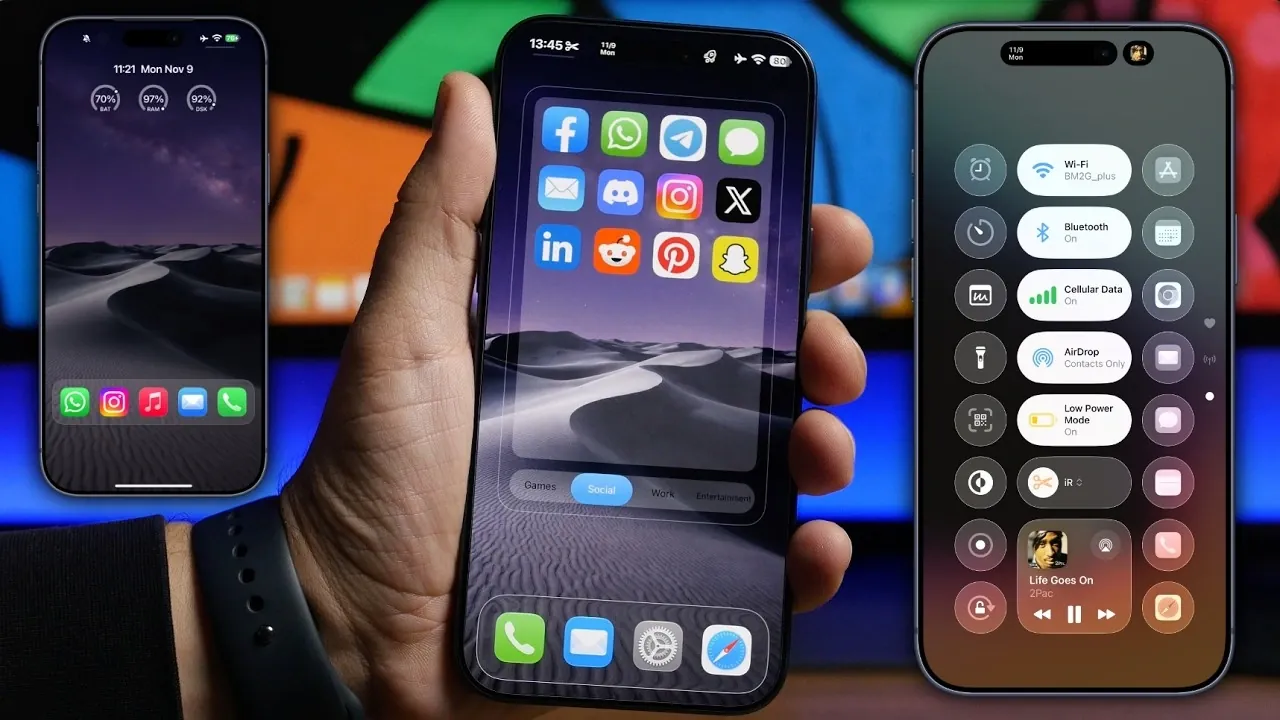
Optimizing your iPhone setup has never been more accessible, thanks to the advanced features of iOS 27. This guide explores how to customize your lock screen, home screen, and Control Center to achieve the perfect balance of functionality and aesthetics. By using built-in tools and third-party apps, you can transform your device into a highly efficient and personalized tool that caters to your unique needs.
TL;DR Key Takeaways :
- Lock Screen Customization: Set up minimalist clocks, battery/RAM widgets, and quick-launch app shortcuts via third-party tools like *Lock Launcher*.
- Home Screen Organization: Utilize large widgets, transparent accessibility borders, and category-based layouts (using tools like *Mojo*) for a sleek design.
- Control Center Refinement: Group frequently used toggles into dedicated columns, streamline app shortcuts, and customize the *Now Playing* module.
- Productivity Boost: Leverage iOS 27’s modular design tools to merge high aesthetic appeal with daily efficiency.

Lock Screen: Where Function Meets Style
The lock screen is the gateway to your iPhone, and iOS 27 provides a range of customization options to make it both practical and visually appealing. Here’s how to maximize its potential:
- Minimalist Clock: Activate the small clock feature for a clean and modern look. With iOS 27.3, you can further personalize the clock by adjusting its font and color to align with your preferences.
- Widgets for Quick Insights: Add widgets that display essential information, such as battery percentage, RAM usage, or calendar events. Apps like “Usage” make it easy to monitor system data directly from your lock screen.
- Declutter Your Screen: Simplify your lock screen by removing unnecessary buttons, creating a streamlined and distraction-free interface.
- Quick Access to Apps: Use the “Lock Launcher” app to place shortcuts to your most-used apps on the lock screen, making sure they are always within reach without needing to unlock your device.
These features allow you to design a lock screen that is not only visually appealing but also tailored to your daily routines and priorities.
Home Screen: Organize and Personalize
The home screen serves as the central hub of your iPhone experience. With iOS 27, you can create a layout that is both functional and visually engaging. Here are some ways to enhance your home screen:
- Large Widgets: Take advantage of large widgets to display key information, such as weather updates, reminders, or your daily schedule, in an easily accessible format.
- Transparent Borders: Enable transparent borders in the accessibility settings to achieve a sleek and modern aesthetic that complements your wallpaper.
- Category-Based Widgets: Organize your apps and widgets by category using tools like “Mojo.” Create dedicated sections for work, entertainment, or social activities to keep your screen organized and easy to navigate.
- Left-Side Widget Space: Use the left-side widget area for additional functionality, such as quick access to news, fitness stats, or frequently used tools, without overcrowding your main home screen.
These customization options ensure that your home screen is not only visually appealing but also optimized for your specific needs, making it easier to stay organized and productive.
Control Center: Streamline Your Access
The control center is a critical component of your iPhone’s interface, offering quick access to essential features. Customizing it can significantly enhance your device’s usability. Here’s how to make the most of it:
- Organized Toggles: Arrange frequently used toggles, such as the flashlight, timer and dark mode, into a dedicated column for quick and easy access.
- App Shortcuts: Add shortcuts to your most-used apps, such as messaging platforms, the camera, or streaming services, to streamline navigation.
- Essential Settings: Place key settings like Wi-Fi, Bluetooth and low power mode in a central location within the control center for maximum convenience.
- Customizing “Now Playing”: Adjust the layout of the “Now Playing” section to integrate seamlessly with the rest of your control center, making sure a cohesive and functional design.
By organizing and personalizing the control center, you can access your most-used features with minimal effort, enhancing your overall iPhone experience.
Unlock the Full Potential of iOS 27
iOS 27 provides a wealth of tools and features to help you customize your iPhone to suit your lifestyle. By optimizing your lock screen, home screen and Control Center, you can create a setup that reflects your personal style while improving usability. Whether you prefer a minimalist design or a feature-rich interface, these customization options allow you to tailor your device to your exact needs. Take advantage of these capabilities to transform your iPhone into a seamless and efficient tool that works perfectly for you.
Find more information on iPhone by browsing our extensive range of articles, guides, and tutorials.
- Apple May Keep the iPhone 18’S Best New Feature Exclusive to the Pro Max
- iPhone Air 2 Leaks: Apple Reportedly Solves the Biggest Battery Flaw
- Why the iPhone Air 2 Might Actually Be Worth Buying This Time
- Early iPhone 18 Reports Point to Major Unconfirmed Shifts
- iPhone Air 2 Leak: Apple Finally Fixes the Camera and Battery
- iPhone Air 2 Leaks Reveal a Second Camera, 2nm Chip, and Spring 2027 Release
Source & Image Credit: iReviews
Disclosure: Some of our articles include affiliate links. If you buy something through one of these links, Geeky Gadgets may earn an affiliate commission. Learn about our Disclosure Policy.
