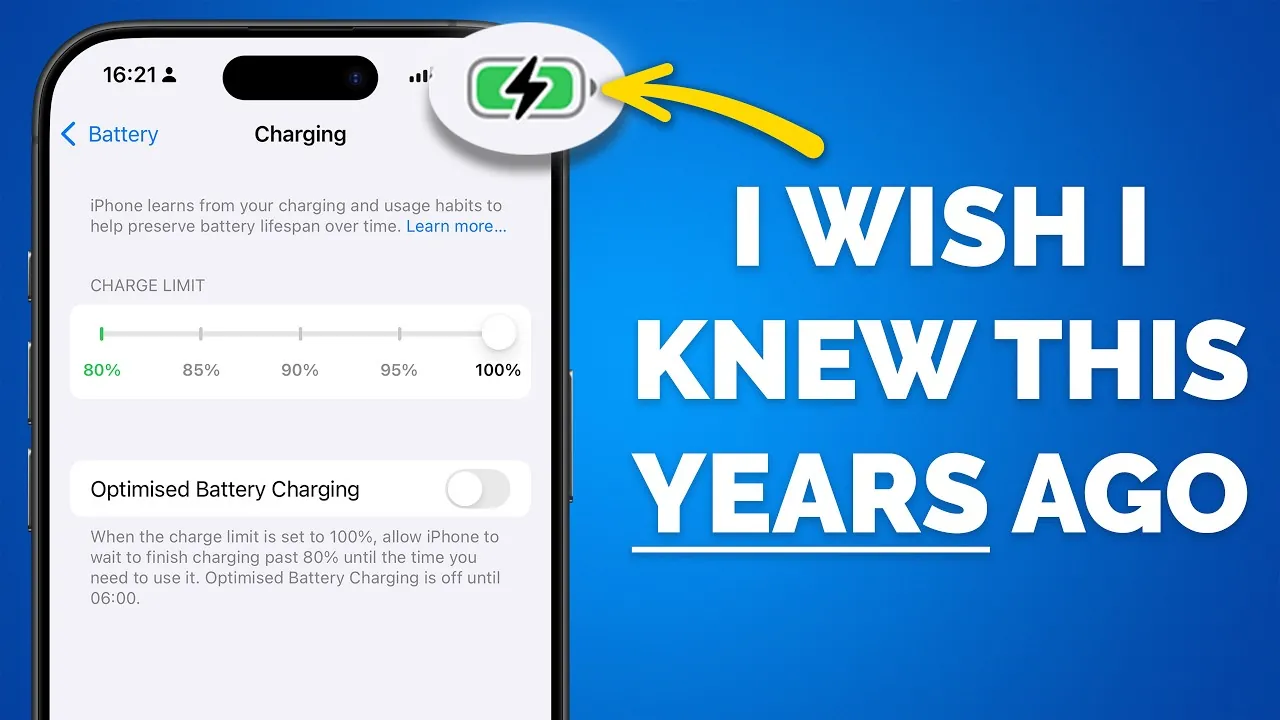
If your iPhone battery drains faster than you’d like, you’re not alone. Many users face this challenge, but the good news is that there are effective ways to extend battery life without compromising usability. By making small adjustments to your settings and managing features wisely, you can significantly reduce power consumption while maintaining a seamless experience. In the video below, Proper Honest Tech explains 10 practical tips to help you get the most out of your iPhone battery.
1. Enable Dark Mode for OLED Screens
Dark Mode is a simple yet effective way to conserve battery, particularly on iPhones with OLED screens. OLED technology allows individual pixels to turn off when displaying black, which reduces power usage. By allowing Dark Mode, you ensure that apps and system interfaces use darker elements, leading to noticeable energy savings over time. This feature not only enhances battery life but also provides a visually comfortable experience, especially in low-light environments.
2. Use Low Power Mode Strategically
Low Power Mode is a built-in feature designed to extend battery life during critical moments. When activated, it reduces background activity, disables visual effects, and limits features like automatic mail fetching. While it’s not intended for continuous use, allowing Low Power Mode during long days, travel, or when your battery is running low can help you stretch its life. To activate it quickly, add the Low Power Mode toggle to your Control Center for easy access.
3. Optimize Location Services
Location Services can be a significant contributor to battery drain if not managed properly. Adjusting these settings can make a big difference:
- Set app location access to “While Using the App” instead of “Always” to prevent unnecessary GPS activity.
- Disable precise location for apps that don’t require it, such as weather or photo editing tools.
These changes reduce the frequency of location tracking, helping to conserve power without affecting essential functionality.
4. Prioritize Wi-Fi Over Mobile Data
Whenever possible, connect to Wi-Fi instead of relying on mobile data. Wi-Fi generally consumes less power, especially in areas with weak cellular signals. For users with 5G-capable iPhones, setting the 5G option to “Auto” ensures a balance between performance and battery efficiency. Additionally, turning off mobile data when you’re in a strong Wi-Fi zone can further reduce unnecessary power usage.
5. Adjust Email Fetch Settings
Frequent email fetching can drain your battery faster than you might realize. Instead of using “Push” for real-time updates, switch to “Fetch” or “Manual.” This allows you to check emails on your own schedule, reducing background activity and conserving energy. For those who receive a high volume of emails, this adjustment can make a noticeable difference in daily battery life.
6. Manage Notifications Wisely
Every notification that lights up your screen consumes battery power. To minimize this:
- Turn off notifications for non-essential apps to reduce unnecessary interruptions.
- Group notifications to appear in summaries rather than individually.
For instance, social media notifications can often wait until you open the app, rather than constantly pinging you throughout the day. This not only saves battery but also helps you stay focused.
7. Customize the Always-On Display
On newer iPhone models with Always-On Display, this feature can subtly but consistently drain your battery. Consider disabling it entirely or customizing it to show only essential information, such as the time or calendar events. This small adjustment can add hours of battery life over the course of a day, especially for users who don’t rely heavily on this feature.
8. Streamline Widgets
Widgets are convenient but can consume resources by updating in the background. To optimize battery life, remove unnecessary widgets from your Home Screen. For example, widgets like weather, news, or stock updates often refresh frequently, which can impact power usage. Keeping only the most essential widgets ensures that your battery isn’t drained by background processes.
9. Disable Haptic Feedback
Haptic feedback enhances the typing experience by providing tactile responses, but it also uses additional power. If you type frequently or use apps with extensive haptic feedback, disabling this feature can save battery. This is particularly useful for users who prioritize battery life over the added sensation of haptics.
10. Use Auto-Brightness
Auto-Brightness adjusts your screen’s brightness based on ambient light conditions, making sure the display isn’t unnecessarily bright. This feature not only improves visibility but also conserves battery by reducing power consumption in dim environments. For users who spend time in varying lighting conditions, Auto-Brightness is an effortless way to optimize energy usage.
Bonus Tips for Advanced Users
For those looking to take battery optimization a step further, consider these advanced strategies:
- Offline Maps: Download maps for offline use in Apple Maps to reduce data usage and improve performance in areas with poor connectivity.
- ProMotion Display: On Pro models, limit the refresh rate to 60Hz instead of the default 120Hz to save battery.
- Avoid Force Quitting Apps: Let iOS manage background apps. Force quitting and reopening apps often consumes more power than leaving them in standby mode.
- Disable Unused Accessibility Features: Turn off features like voice control, eye tracking, and sound recognition if you don’t use them regularly.
By implementing these tips, you can significantly extend your iPhone’s battery life without compromising its functionality. From allowing Dark Mode and Auto-Brightness to managing notifications and location services, these adjustments offer a balanced approach to power conservation. Whether you’re traveling, working long hours, or simply aiming to reduce wear on your device, these strategies ensure your iPhone remains efficient and reliable throughout the day.
Check out more relevant guides from our extensive collection on iPhone Battery Optimization that you might find useful.
- Drain No More: iOS 18 Battery Saving Hacks You Need to Know
- How to Maximize Your iPhone Battery Health
- How to Optimize iPhone Battery Life in iOS 17.4
- How to Extend iPhone Battery Life Without Losing Performance
- How to Fix iOS 17.6.1 Battery Drain
Source & Image Credit: Proper Honest Tech
Disclosure: Some of our articles include affiliate links. If you buy something through one of these links, Geeky Gadgets may earn an affiliate commission. Learn about our Disclosure Policy.
