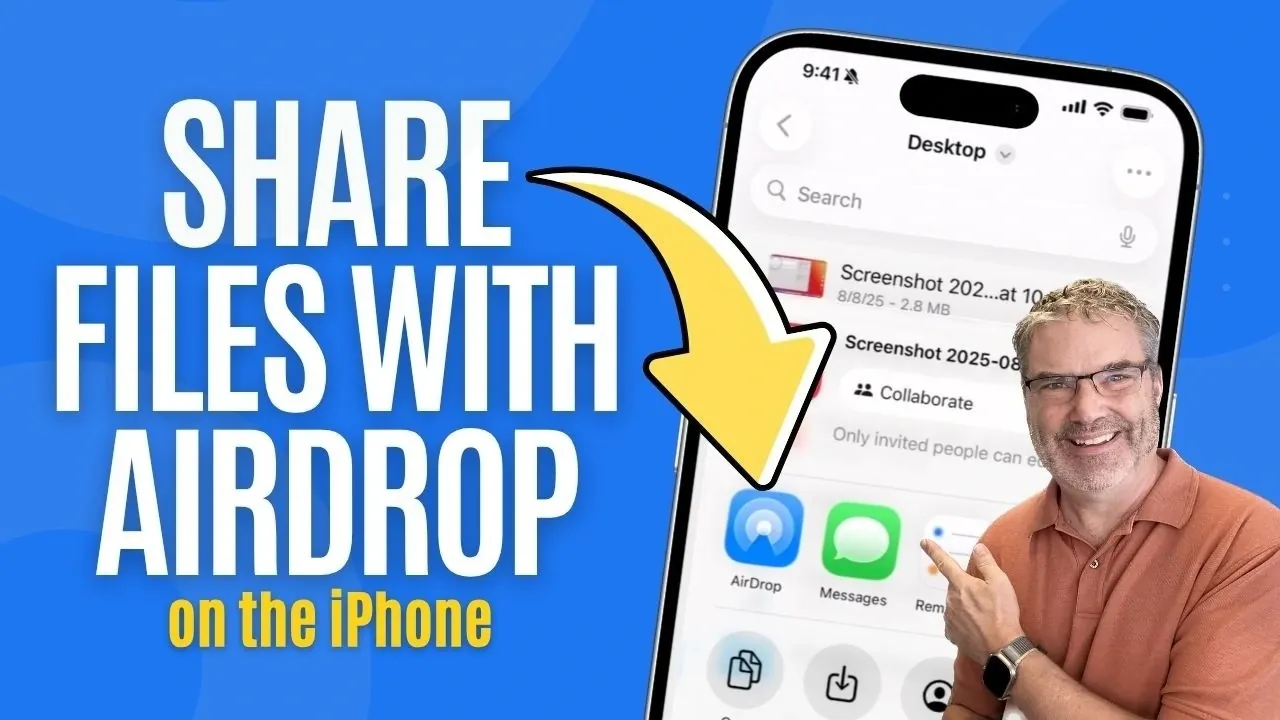
AirDrop is a feature on Apple devices that enables wireless file sharing using Bluetooth and Wi-Fi. It allows users to transfer items like photos and documents between iPhones, iPads and Macs without requiring internet access or third-party apps. Dan’s Tutorials explains how to use AirDrop effectively, including selecting a recipient’s device from a list of nearby AirDrop-enabled devices. The feature also includes privacy settings that let users control who can send files, such as limiting transfers to known contacts or temporarily allowing broader access.
Discover how to customize AirDrop settings to enhance security, including options for restricting file sharing in public spaces. Learn about the types of files AirDrop supports, such as high-resolution images and large documents and how it maintains their quality during transfers. Gain insight into practical use cases, like sharing files offline or transferring content between Apple devices, to better understand how AirDrop can fit into your daily workflow.
How AirDrop Works
TL;DR Key Takeaways :
- AirDrop is a built-in Apple feature that enables fast, wireless file sharing across iPhones, iPads and Macs using Bluetooth and Wi-Fi technology.
- Users can customize AirDrop settings to control file-sharing permissions, including options like “Contacts Only,” “Everyone for 10 Minutes,” and “Receiving Off” for enhanced privacy and security.
- AirDrop supports a wide range of file types and allows seamless integration with Apple apps, making sure files open directly in the appropriate application upon transfer.
- It works offline without internet connectivity and can handle large, high-quality files without compression, making it ideal for personal and professional use.
- To maximize security, users are advised to use restrictive settings like “Contacts Only” in public spaces and disable AirDrop when not in use to avoid unsolicited file transfers.
AirDrop is designed with simplicity in mind, allowing you to share files in just a few steps. Here’s how you can use it effectively:
- Open the app containing the file you want to share, such as Photos, Notes, or Pages.
- Tap the Share icon, which is typically represented by a square with an upward-pointing arrow.
- Select AirDrop from the list of sharing options that appear.
- Choose the recipient’s device from the list of nearby AirDrop-enabled devices.
Once the recipient accepts the transfer, the file is sent wirelessly and opens automatically in the appropriate app. For instance, photos will appear in the Photos app, while documents shared from Pages will open directly in Pages. This seamless integration eliminates the need for additional steps, saving you time and effort. Additionally, AirDrop supports a wide range of file types, making it versatile for various tasks.
Customizing AirDrop Settings
AirDrop offers flexible settings to suit different needs, allowing you to control who can send files to your device. To adjust these settings, navigate to Settings > General > AirDrop. Here are the three primary options available:
- Contacts Only: Restricts file sharing to people saved in your contacts, providing an added layer of privacy and security.
- Everyone for 10 Minutes: Temporarily allows anyone nearby to send files, which is particularly useful in collaborative environments or public spaces.
- Receiving Off: Disables AirDrop entirely, preventing any incoming file requests.
For added convenience, AirDrop can detect nearby devices, allowing you to initiate sharing simply by bringing devices close together. If you’re in an area without Wi-Fi, you can enable cellular data for AirDrop, making sure uninterrupted file sharing. This feature is especially beneficial for users who frequently work in remote locations or need to transfer files while traveling.

Browse through more resources below from our in-depth content covering more areas on Apple AirDrop.
- Samsung Adds AirDrop Support to Quick Share on Galaxy S26 Phones
- Share Photos Instantly: How to Master AirDrop on Your iPhone & iPad
- 5 Ways Your iPhone & Mac Are Designed to Work Together
- How to easily AirDrop anything on iPhone or iPad
- How to Turn Off AirDrop on the iPhone, iPad and Mac
- Send Full-Resolution Photos & Videos with AirDrop
- How to AirDrop from Android to iPhone (New Official Way)
- How to AirDrop from Android to iPhone: The New Quick Share Update
- How to turn on AirDrop on Mac and transfer files
- How to edit and change your Apple AirDrop name
Staying Secure While Using AirDrop
While AirDrop is incredibly convenient, it’s essential to prioritize security to protect your privacy. Here are some best practices to ensure safe usage:
- Use the Contacts Only setting whenever possible. This limits file sharing to trusted individuals in your contact list.
- Reserve the Everyone for 10 Minutes setting for specific situations, such as collaborative projects or events and switch back to a more secure setting afterward.
- Disable AirDrop or set it to Receiving Off when in public spaces to avoid unsolicited file requests or potential security risks.
By following these recommendations, you can enjoy the convenience of AirDrop while minimizing the risk of unauthorized access or unwanted file transfers.
Practical Applications of AirDrop
AirDrop’s versatility makes it a valuable tool in a wide range of scenarios. Here are some practical ways to use it:
- Quick File Transfers: Share large files, such as videos, presentations, or high-resolution images, without relying on email or cloud services.
- Collaborative Work: Transfer documents, spreadsheets, or design files between Apple devices during team projects or meetings.
- Offline Sharing: Use AirDrop without an internet connection, making it ideal for areas with limited connectivity or during travel.
- Cross-Device Integration: Send files from your Mac to your iPhone or iPad for on-the-go access and editing.
These capabilities highlight AirDrop’s role as a reliable and efficient tool for both personal and professional tasks, streamlining workflows and enhancing productivity.
Additional Features and Benefits
AirDrop’s integration within the Apple ecosystem enhances its functionality and ease of use. It works seamlessly across iPhones, iPads and Macs, making sure compatibility and a consistent user experience. The ability to enable cellular data for AirDrop adds flexibility, allowing you to share files even when Wi-Fi is unavailable. This feature is particularly useful for users who frequently work in remote areas or need to transfer files while on the move.
Another advantage of AirDrop is its ability to handle large files without compression, preserving the quality of photos, videos and other media. This makes it an excellent choice for creative professionals, photographers and anyone who values high-quality file transfers. Additionally, AirDrop’s offline capabilities mean you can share files instantly without worrying about internet connectivity, making it a dependable option in various situations.
Maximizing the Benefits of AirDrop
AirDrop is more than just a file-sharing tool; it’s a feature that enhances the overall Apple device experience. By understanding its settings, security measures and practical applications, you can make the most of its capabilities. Whether you’re sharing files at home, collaborating in the office, or transferring media on the go, AirDrop offers a reliable and efficient solution that saves time and effort. Its seamless integration with Apple’s ecosystem ensures that file sharing is not only convenient but also secure and versatile, making it an essential feature for any Apple device user.
Media Credit: Dan’s Tutorials
Disclosure: Some of our articles include affiliate links. If you buy something through one of these links, Geeky Gadgets may earn an affiliate commission. Learn about our Disclosure Policy.
