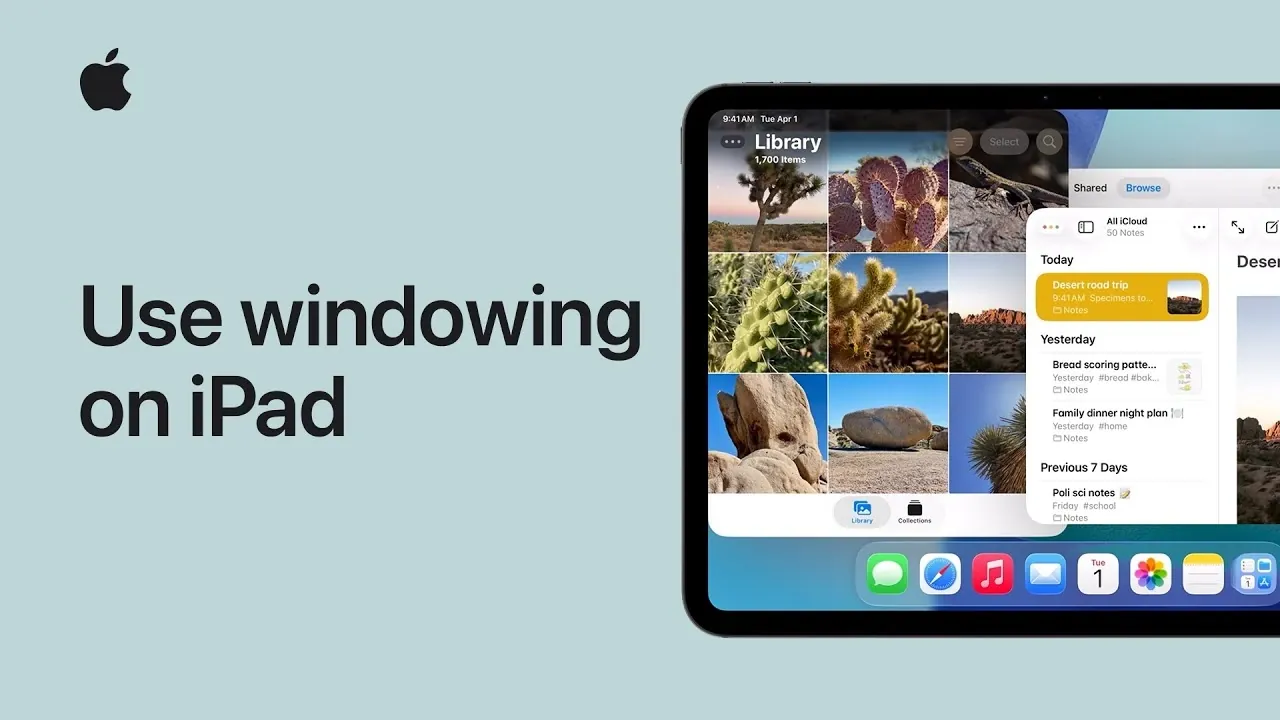
iPadOS offers a range of multitasking features designed to make managing multiple apps and tasks more efficient. As overviewed by Apple Support, features like Split Screen, Slide Over, and Exposé allow you to work with apps side by side, access floating windows, and organize your workspace with ease. For example, Split Screen enables you to use two apps simultaneously by dragging one from the Dock and resizing the windows to fit your needs. These capabilities are particularly useful for tasks such as comparing documents, referencing information, or staying productive during meetings.
In this practical guide, you’ll learn how to enable multitasking features, set up and customize Split Screen, and use Slide Over for quick access to essential apps. You’ll also explore how Exposé helps you manage multiple open windows and maintain an organized workspace. By mastering these features, you can create a workflow that suits your specific needs, whether you’re juggling multiple projects or focusing on a single task.
iPad Window Multitasking Features
TL;DR Key Takeaways :
- iPadOS multitasking features like Split Screen, Slide Over, and Exposé enhance productivity by allowing efficient app management and workspace organization.
- To activate multitasking, enable the necessary settings under “Home Screen & Multitasking” in the iPad’s Settings app.
- Split Screen allows simultaneous use of two apps, with adjustable window sizes for better multitasking and workflow efficiency.
- Exposé provides an overview of all open windows, making it easier to manage, rearrange, or close apps for a more organized workspace.
- Slide Over offers quick access to essential apps in a floating window, making sure seamless multitasking without disrupting the primary activity.
Getting Started: Allowing Windowing Features
Before exploring multitasking capabilities, ensure that the necessary windowing features are activated on your iPad. This step is essential for accessing tools like Split Screen and Slide Over. Follow these steps to enable multitasking:
- Open the Settings app and navigate to the Home Screen & Multitasking section.
- Locate the Multitasking option and toggle it on.
- Alternatively, access the Control Center to confirm that multitasking controls are enabled.
Once activated, these features allow you to interact with multiple apps in a dynamic and efficient manner, making multitasking seamless.
Split Screen: Enhancing Productivity with Side-by-Side Apps
Split Screen is a versatile feature that enables you to use two apps simultaneously, making it ideal for tasks such as comparing documents, referencing information, or multitasking during meetings. To use Split Screen:
- Open an app in full-screen mode.
- Swipe up from the bottom of the screen to reveal the Dock.
- Drag a second app from the Dock to the left or right edge of the screen.
- Adjust the size of each app window by dragging the divider between them.
You can replace one of the apps by dragging a new app from the Dock into the desired section. This feature allows you to work more efficiently by eliminating the need to switch between apps constantly.
How to Use & Arrange Windows on iPad
Enhance your knowledge on iPadOS by exploring a selection of articles and guides on the subject.
- These iPadOS 15 features do not work on older iPads (Video)
- iPadOS 18 vs. iPadOS 26: Key Differences and Upgrades
- Getting the Most Out of iPadOS 26.2 Multitasking
- What’s New in iPadOS 26 Multitasking?
- iPadOS 26 Features: Multitasking, AI, and Design Upgrades
- iPadOS 26: Every Feature That Won’t Work on Your Older iPad
- iPadOS 26: Key Features That Transform Your iPad
- How Apple’s 26.2 Update Improves iOS, iPadOS, and macOS
- hings You NEED to Do After Installing iPadOS 26
- iPadOS 26.2 Beta 3 Split View: Everything You Need to Know
Resizing and Organizing Windows for a Custom Workspace
iPadOS provides extensive flexibility in resizing and organizing your workspace, allowing you to tailor it to your specific needs. To resize a window:
- Locate the handle in the bottom-right corner of the window and drag it to adjust the size.
To reposition a window:
- Tap and hold the three dots at the top of the window, then drag it to your desired location.
For quick minimization or to access additional options, tap the window controls button (three dots). These tools allow you to create a workspace that aligns with your workflow, whether you’re managing multiple projects or focusing on a single task.
Managing Multiple Windows with Exposé
Exposé is a powerful tool for managing multiple open windows, making sure that you can stay organized even when juggling several apps. To access Exposé:
- Swipe up from the bottom of the screen and pause to reveal all open windows.
- Alternatively, tap the App Switcher button to view your active apps.
From this view, you can rearrange windows, close unnecessary ones, or group them into layouts such as quarters. Exposé provides a clear overview of your workspace, making it easier to locate and manage your active apps without losing focus.
Slide Over: Keeping Essential Apps Within Reach
Slide Over is designed for quick access to apps without disrupting your primary activity. This feature is particularly useful for tasks like replying to messages, checking emails, or referencing information. To activate Slide Over:
- Drag an app from the Dock to the edge of the screen to create a floating window.
- Move the floating window by dragging it to a different edge of the screen.
- Swipe left or right on the floating window to cycle through other apps in Slide Over.
You can replace the app in Slide Over by dragging a new one from the Dock. This feature ensures that essential apps are always accessible without cluttering your main workspace.
Exiting Slide Over or Returning to Full-Screen Mode
When you’re ready to exit Slide Over or return an app to full-screen mode, iPadOS provides intuitive options:
- Drag the Slide Over window to the center of the screen to expand it to full-screen mode.
- Alternatively, tap the three dots at the top of the Slide Over window and select the full-screen option.
- To close Slide Over entirely, swipe the floating window off the edge of the screen.
These options allow you to transition seamlessly between multitasking and focused work, making sure a smooth and efficient user experience.
Maximizing Productivity with iPadOS Windowing Features
The advanced windowing features in iPadOS, including Split Screen, Slide Over, and Exposé, offer a robust set of tools for multitasking and workspace organization. By mastering these features, you can enhance your productivity, streamline your workflow, and customize your iPad experience to suit your needs. Whether you’re managing multiple projects, studying, or simply organizing your apps, these tools provide the flexibility and control to optimize your daily tasks.
Media Credit: Apple Support
Disclosure: Some of our articles include affiliate links. If you buy something through one of these links, Geeky Gadgets may earn an affiliate commission. Learn about our Disclosure Policy.
