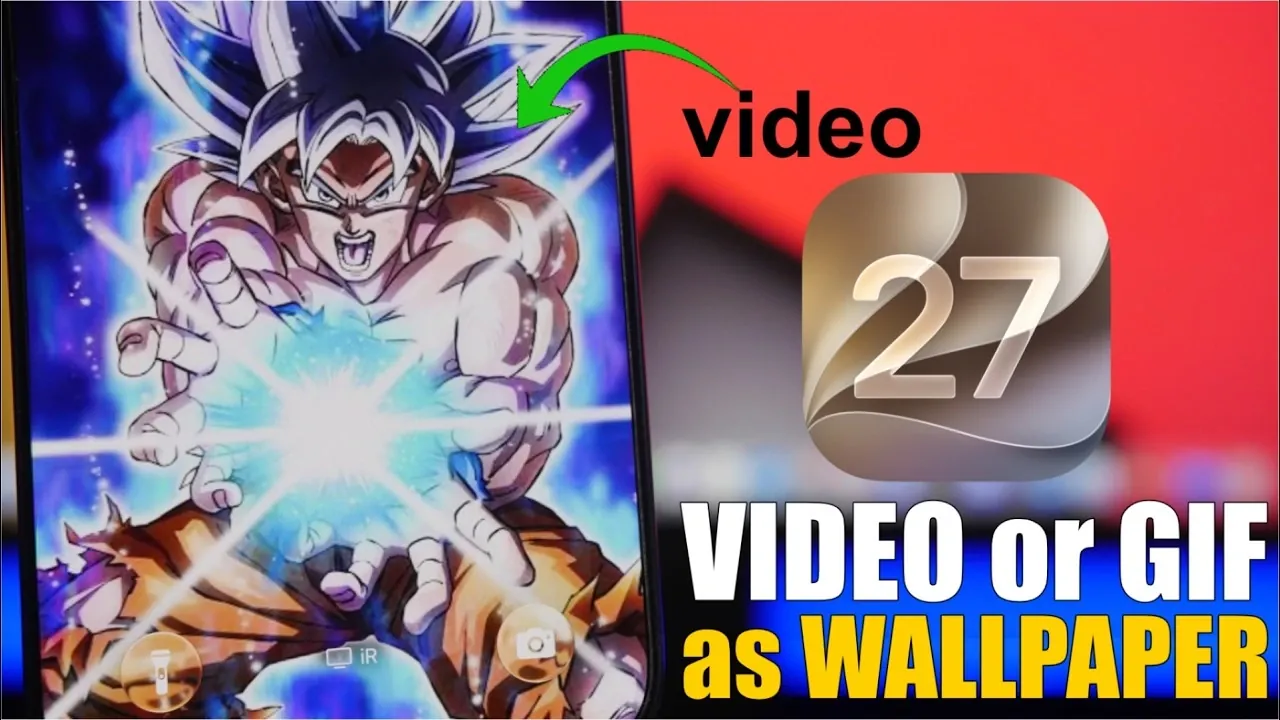
iOS 27 introduces a new way to personalize your iPhone by allowing you to set a video or GIF as your lock screen wallpaper. This feature allows you to transform your lock screen into a dynamic and visually engaging display. Whether you want to showcase a favorite memory, a creative animation, or a design that reflects your personality, this guide will walk you through the process step-by-step. From selecting your media to applying it as a live wallpaper, you’ll learn how to make your lock screen stand out in the video below from iReviews.

1: Download a Free Live Wallpaper App
To begin, you’ll need to download a free app from the App Store that specializes in converting videos or GIFs into live wallpapers. These apps are designed to simplify the process and often include user-friendly tools for customization. While most apps are free to use, some may offer optional in-app purchases or display ads. Once installed, this app will serve as your primary tool for creating and editing live wallpapers.
Key Tip: Look for apps with high ratings and positive reviews to ensure a smooth experience. Popular options often include features like trimming, editing and previewing your live wallpaper before saving it.
2: Choose Your Video or GIF
After installing the app, grant it access to your photo library. This step is essential as it allows you to browse and select the video or GIF you want to use. For the best results, choose a short clip or animation that loops seamlessly. Many apps include built-in tools to trim your media to a 2-second segment, which is the standard duration for live wallpapers on iOS.
Pro Tip: Select a video or GIF with vibrant colors and smooth transitions to ensure it looks visually appealing when activated on your lock screen.
3: Customize Your Live Wallpaper
Once you’ve selected your media, the app will provide a range of editing tools to help you refine your live wallpaper. These tools typically include options to:
- Trim the video or GIF to the desired length for optimal playback.
- Add effects, stickers, or text to personalize your wallpaper further.
- Adjust brightness, contrast, or cropping to ensure the media fits your screen perfectly.
Preview your edits to confirm that the final result aligns with your vision. This step is crucial for creating a wallpaper that reflects your unique style and preferences.
4: Save and Apply Your Wallpaper
After finalizing your edits, save the live wallpaper to your camera roll. To apply it as your lock screen wallpaper, follow these steps:
- Open your iPhone’s Settings app.
- Tap Wallpaper, then select Choose a New Wallpaper.
- Navigate to the Live Photos section and select your newly created wallpaper.
- Set it as your lock screen wallpaper and ensure the live feature is enabled.
Once applied, you can activate the animation by pressing and holding your lock screen. This interactive feature adds a dynamic element to your device, making it more engaging.
5: Check Compatibility
This feature is available exclusively on devices running iOS 27. It’s important to note that live wallpapers only animate on the lock screen. On the home screen, the wallpaper will remain static. Ensure your iPhone is updated to iOS 27 to access this functionality. If your device is not compatible, consider upgrading to a newer model to enjoy this feature.
Important Reminder: Live wallpapers require 3D Touch or Haptic Touch functionality, which may not be available on older iPhone models.
Why Use a Live Wallpaper?
Setting a video or GIF as your lock screen wallpaper is more than just a customization option, it’s a way to express your individuality. Whether it’s a cherished memory, a creative design, or an animation that resonates with you, live wallpapers bring a personal and dynamic touch to your device. They allow you to make your iPhone feel uniquely yours while adding a layer of interactivity to your daily experience.
Benefits of Live Wallpapers:
- Enhance your device’s aesthetic appeal with vibrant, animated visuals.
- Showcase your creativity and personality through custom designs.
- Enjoy a more engaging and interactive lock screen experience.
With iOS 27, creating and applying live wallpapers is a straightforward process that anyone can master. By following these steps, you can transform your lock screen into a lively, animated display that reflects your style and preferences.
Deep dive into the latest in ios 27 by exploring our other resources and articles.
- Apple Delaying iOS 27 Beta 5? Here’s When to Expect the Next Update
- New iOS 27 Beta 5 Release Arrives with a Big Shift Coming
- iOS 27 Beta 5 Is Late: What’s Holding Up Apple’s Next Release?
- The iOS 27 Beta 5 Release Imminent with More New Features
- Apple iOS 27 Beta 5 Preview: a Look at the Next Release
- iOS 27 is Finally Coming: Apple to Confirm Release Date Today
Source & Image Credit: iReviews
Disclosure: Some of our articles include affiliate links. If you buy something through one of these links, Geeky Gadgets may earn an affiliate commission. Learn about our Disclosure Policy.
