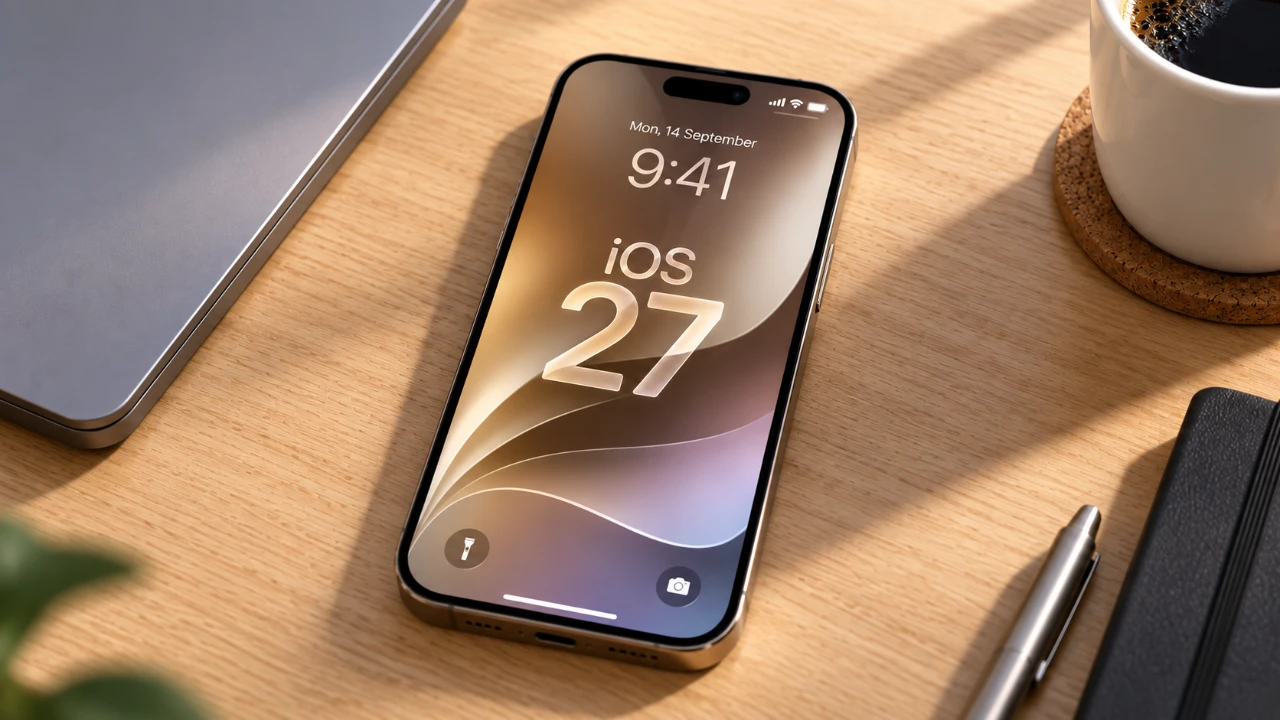
Efficiently managing your iPhone’s storage is essential for maintaining optimal performance and making sure sufficient space for apps, photos, and system updates. With iOS 27, Apple has introduced enhanced tools to help users optimize storage more effectively. This guide outlines practical, step-by-step strategies to free up space, focusing on apps, media, system settings, and additional resources to maintain a clutter-free device. The video below from Daniel About Tech gives us more details.

Understanding Your iPhone’s Storage
Your iPhone’s storage is categorized into apps, media, system data, and “Other.” To assess your current usage, navigate to Settings > General > iPhone Storage. This section provides a detailed breakdown, helping you identify which areas consume the most space. For smooth performance, it is recommended to maintain at least 10 GB of free storage. This buffer ensures your device can handle temporary files, system updates, and other processes without slowing down.
Streamlining App Storage
Apps often occupy significant storage, especially those with large caches or unused data. To optimize app storage:
- Identify Unused Apps: In the iPhone Storage menu, apps are listed by size. Delete apps you no longer use by selecting the app and tapping Delete App.
- Clear App Data: For apps you frequently use, remove unnecessary data:
- In YouTube, delete downloaded videos you no longer need.
- In Spotify, remove offline playlists you rarely listen to.
- In Netflix, delete downloaded shows and movies after watching them.
- Offload Unused Apps: Enable the “Offload Unused Apps” feature under Settings > App Store. This automatically removes unused apps while retaining their data for future use.
These steps can significantly reduce the storage footprint of your apps while preserving essential data.
Optimizing Media Storage
Photos and videos often take up the largest portion of your device’s storage. Managing media efficiently can free up substantial space:
- Enable iCloud Photos: Turn on the “Optimize iPhone Storage” setting to store full-resolution photos and videos in iCloud while keeping smaller versions on your device. Go to Settings > Photos > Optimize iPhone Storage to activate this feature.
- Delete Unnecessary Media: Regularly review your photo library and remove unwanted images or videos. Use the “Recently Deleted” album to permanently delete files and reclaim storage.
- Manage Media in Messaging Apps: Apps like WhatsApp and Messages can accumulate large files over time:
- In WhatsApp, go to Settings > Storage and Data > Manage Storage to delete large files and old conversations.
- In Messages, enable automatic deletion of old messages by navigating to Settings > Messages > Keep Messages and selecting “30 Days.”
These adjustments help declutter your media library while making sure important files are safely stored.
Reducing System Data Usage
System data, including caches and Siri-related files, can accumulate over time. To minimize this usage:
- Disable Siri: If you rarely use Siri, turning it off can free up storage. Go to Settings > Siri & Search and disable all Siri-related options.
- Clear Safari Data: Safari caches and website data can take up space. To clear it, go to Settings > Safari > Clear History and Website Data.
- Restrict AI Features: Limit Siri’s AI-driven features by allowing Content & Privacy Restrictions under Settings > Screen Time.
These steps can reduce the storage consumed by system processes and improve overall efficiency.
Eliminating Duplicate Files
Duplicate photos and videos can clutter your library and waste valuable storage. iOS 27 includes a built-in “Duplicates” feature to address this issue. To use it:
- Open Photos > Albums > Utilities > Duplicates.
- Review and merge duplicate files, keeping only the highest-quality version while deleting redundant ones.
This feature simplifies the process of decluttering your media library, making sure you retain only the most important files.
Expanding Storage with iCloud+
If you require additional storage, upgrading to an iCloud+ subscription is a practical solution. iCloud+ offers expanded cloud storage for photos, videos and app data. Plans range from 50 GB to 2 TB, providing flexibility based on your needs. To upgrade:
- Go to Settings > [Your Name] > iCloud > Manage Storage > Change Storage Plan.
This option is particularly beneficial for users with extensive media libraries or large app data requirements.
Using Third-Party Tools
For advanced storage management, third-party apps can provide additional insights and features. These tools often include:
- Guided tutorials for optimizing storage.
- Duplicate file detection and removal.
- Performance monitoring to identify hidden storage hogs.
Popular options such as CleanMyPhone or Phone Cleaner can help you further optimize your device and maintain a clutter-free experience.
Maintaining a High-Performing iPhone
By implementing these strategies, you can effectively manage your iPhone’s storage on iOS 27. Regularly reviewing your storage settings, removing unnecessary files and using tools like iCloud and third-party apps will ensure your device remains efficient and ready for future updates. Consistent maintenance not only improves performance but also extends the lifespan of your iPhone, allowing you to make the most of its capabilities.
Uncover more insights about iPhone Storage Optimization in previous articles we have written.
Source: Daniel About Tech
Disclosure: Some of our articles include affiliate links. If you buy something through one of these links, Geeky Gadgets may earn an affiliate commission. Learn about our Disclosure Policy.
