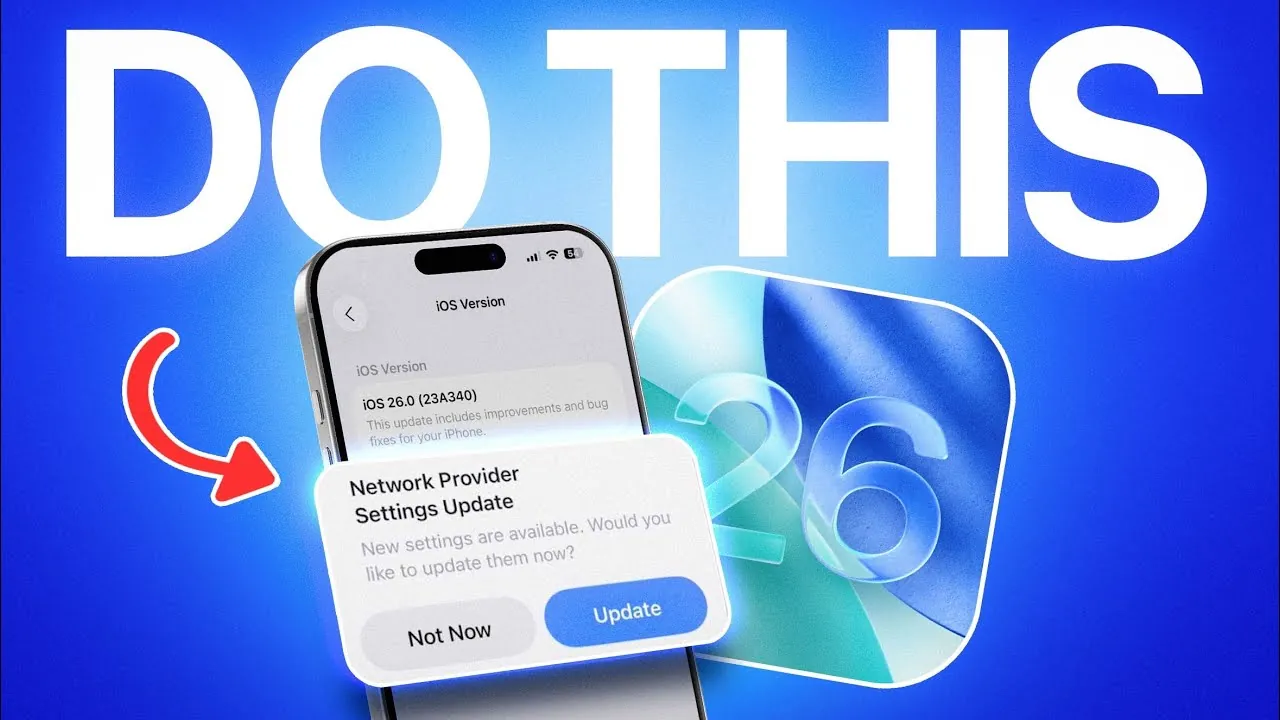
Apple has officially launched iOS 26, a significant update for iPhones, alongside updates for Apple Watch (watchOS 26), AirPods, HomePods, and Apple TV (tvOS 26). These updates bring a host of new features, performance enhancements, and deeper integration across Apple’s ecosystem. To fully use these improvements and ensure your devices operate seamlessly, it’s important to follow a series of key steps after installing the updates. The video below from iDeviceHelp gives us more details.
Verify Compatibility and Finalize the Update
Before exploring the features of iOS 26, confirm that your iPhone is compatible with the update. Navigate to “Settings” > “Software Update” to check your device’s eligibility. If you’ve been using beta versions of iOS, disable beta settings to install the stable release. This ensures you’re running the finalized, bug-free version of the software, which is optimized for performance and reliability.
Synchronize Your Apple Watch with watchOS 26
For Apple Watch users, updating to watchOS 26 is essential for maintaining compatibility with iOS 26. Open the Watch app on your iPhone and initiate the update process. Ensure that beta settings are turned off to access the stable release. This update not only improves synchronization between your iPhone and Apple Watch but also introduces performance enhancements and new features tailored to Apple’s ecosystem.
Update AirPods for Enhanced Functionality
Updating your AirPods ensures you can take advantage of the latest features introduced with iOS 26. To do this, pair your AirPods with your iPhone and make sure both devices are connected to a power source. The update process occurs automatically but may take some time. New features include charging reminders, sleep media pause, and camera controls, all designed to enhance usability and provide seamless integration with your iPhone.
Refresh HomePods and Apple TV for Ecosystem Integration
HomePods and Apple TV also receive updates tied to iOS 26, which improve their functionality and integration within Apple’s ecosystem. Use the Home app on your iPhone to update these devices. This step ensures smoother operation of features like media handoff, synchronized controls, and multi-device compatibility, allowing for a more cohesive user experience across all your Apple products.
Optimize Network Performance with Carrier Updates
After installing iOS 26, it’s important to check for carrier settings updates to optimize your network performance. Go to “Settings” > “General” > “About” to see if an update is available. Carrier updates can enhance your device’s ability to handle calls, improve data speeds, and ensure a more stable connection, particularly in areas with high network traffic.
Manually Update Third-Party Apps
Even if you have automatic updates enabled, manually refreshing the App Store is a good practice. Open the App Store and check for updates to ensure all third-party apps are running their latest versions. Updated apps are optimized for iOS 26, reducing the risk of crashes, overheating, or compatibility issues. This step ensures a smoother experience when using your favorite apps.
Enable Adaptive Power for Improved Battery Life
iOS 26 introduces a new feature called “Adaptive Power,” designed to extend battery life during periods of heavy usage. To enable this feature, go to “Settings” > “Battery” > “Power Mode.” Adaptive Power dynamically adjusts your device’s power consumption based on your usage patterns, helping your iPhone last longer throughout the day without compromising performance.
Explore the Redesigned Interface
One of the standout changes in iOS 26 is the refreshed user interface. With updated icons, a cleaner layout, and improved navigation, the new design enhances usability and reflects Apple’s focus on delivering a modern, intuitive experience. Spend some time exploring the interface to familiarize yourself with these visual and functional updates.
Steps to Maximize Your iOS 26 Experience
To ensure you get the most out of iOS 26 and its accompanying updates, follow these essential steps:
- Confirm your iPhone’s compatibility and install the stable version of iOS 26.
- Update your Apple Watch to watchOS 26 for seamless synchronization.
- Ensure your AirPods are updated to access new features and improved functionality.
- Refresh your HomePods and Apple TV to maintain ecosystem integration.
- Check for carrier updates to enhance network performance and stability.
- Manually update third-party apps to prevent compatibility issues.
- Enable Adaptive Power to extend battery life during heavy usage.
- Familiarize yourself with the redesigned interface for a smoother user experience.
By carefully following these steps, you can optimize the performance of your devices and enjoy the latest innovations Apple has introduced with iOS 26. These updates not only enhance functionality but also ensure a more cohesive and efficient experience across all your Apple products.
Find more information on iOS 26 update by browsing our extensive range of articles, guides, and tutorials.
- How to Prepare Your iPhone for the iOS 26 Update
- iOS 26 Final Release: How to Upgrade from Beta Without Issues
- Don’t Update to iOS 26 Without Doing These First!
- iOS 26 Release Date, Features, and Update Guide
- Everything You Need to Know About iOS 26 Release Candidate
Source & Image Credit: iDeviceHelp
Disclosure: Some of our articles include affiliate links. If you buy something through one of these links, Geeky Gadgets may earn an affiliate commission. Learn about our Disclosure Policy.
