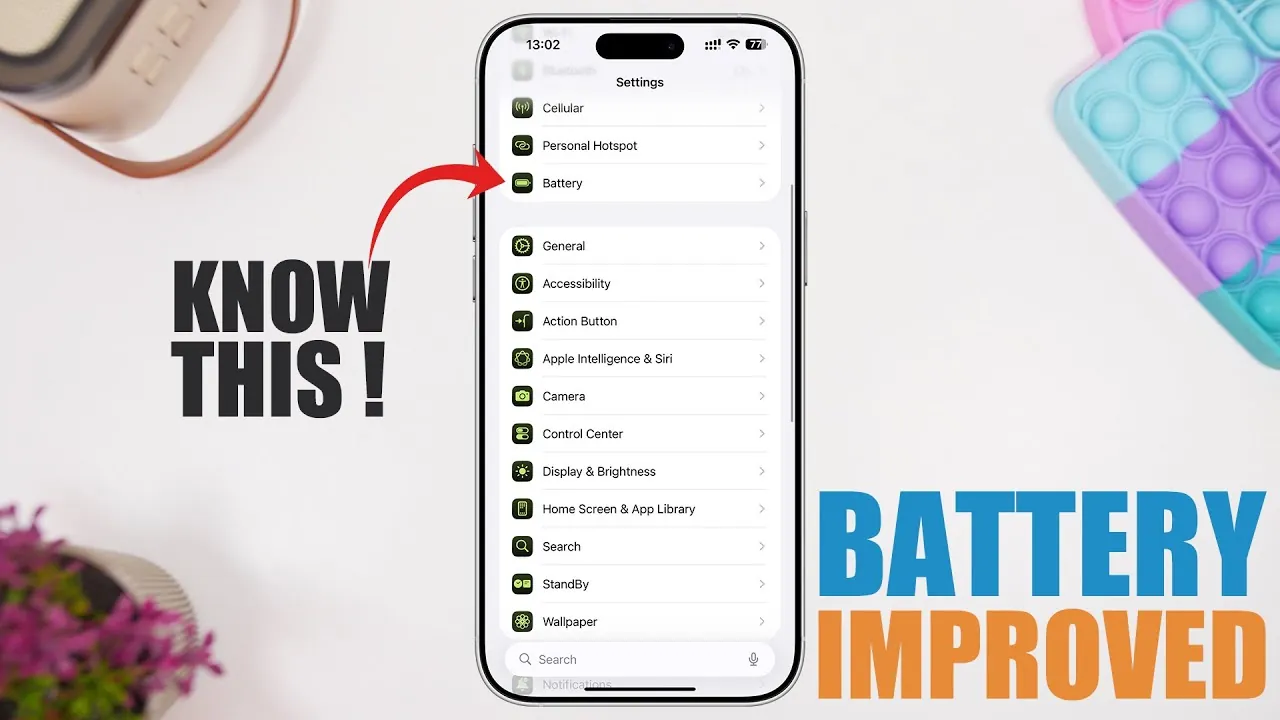
If your iPhone’s battery life feels shorter than expected, you’re not alone. With iOS 26, several features and settings can quietly drain power in the background, even when you’re not actively using your device. The good news is that by making a few strategic adjustments, you can significantly extend your iPhone’s battery life without sacrificing essential functionality. In the video below, iReviews outlines 10 actionable tips to help you optimize your device’s performance and enjoy longer-lasting power.
1. Disable Apple Intelligence Features
Apple’s intelligent features, such as Siri and personalized suggestions, are designed to enhance your experience but can consume battery power even when idle. If you don’t rely heavily on these features, turning them off can save energy.
– Open Settings > Siri & Search.
– Toggle off “Listen for ‘Hey Siri’” and “Press Side Button for Siri.”
By reducing background activity, you’ll not only conserve battery life but also streamline your device’s performance.
2. Turn Off the Always-On Display
The always-on display is a visually appealing feature that keeps parts of your screen active, even when your phone is locked. However, this functionality can lead to unnecessary battery drain. To disable it:
– Go to Settings > Display & Brightness.
– Toggle off “Always-On Display.”
For additional savings, consider switching to a static wallpaper instead of dynamic or live options, as these require more processing power and energy.
3. Reduce Vibration and Haptic Feedback
Vibrations and haptic feedback for notifications, calls, and typing may seem minor, but they can subtly impact battery life over time. Adjusting these settings can help conserve energy:
– Navigate to Settings > Sounds & Haptics.
– Turn off vibration for calls and alerts.
– Under Keyboard Feedback, toggle off “Haptic Feedback.”
These changes reduce the strain on your device’s motor, helping to extend battery life without compromising essential functionality.
4. Modify Mail Fetch Settings
Push notifications for email accounts can cause constant background activity, which drains your battery. Instead, you can switch to manual or less frequent fetching:
– Open Settings > Mail > Accounts > Fetch New Data.
– Select “Manually” or “Hourly” for each account.
This adjustment minimizes unnecessary background processes, allowing your device to focus on more critical tasks.
5. Shorten Auto-Lock Duration
Your iPhone’s screen is one of the biggest power consumers. Reducing the time it stays active when idle can lead to significant battery savings. To adjust this setting:
– Go to Settings > Display & Brightness > Auto-Lock.
– Choose a shorter duration, such as 30 seconds or 1 minute.
This ensures your screen turns off quickly when not in use, conserving energy throughout the day.
6. Disable Background App Refresh
Background app refresh allows apps to update their content even when you’re not actively using them. While convenient, this feature can drain your battery unnecessarily. To disable or limit it:
– Navigate to Settings > General > Background App Refresh.
– Select “Off” or limit it to “Wi-Fi only.”
This prevents apps from consuming power in the background, especially when you’re on mobile data.
7. Manage Notifications Effectively
Frequent notifications can wake your screen and trigger vibrations, both of which consume battery power. Streamlining your notifications can help reduce this drain:
– Open Settings > Notifications > Scheduled Summary.
– Add non-essential apps to the summary.
This approach minimizes interruptions while conserving energy, allowing you to focus on what matters most.
8. Optimize Cellular Data Settings
Using 5G in areas with poor coverage forces your phone to work harder to maintain a connection, which can quickly deplete your battery. To save power:
– Go to Settings > Cellular > Cellular Data Options > Voice & Data.
– Switch to “LTE” or “4G.”
This adjustment is particularly useful in areas with inconsistent 5G coverage, making sure your device isn’t overworking to stay connected.
9. Turn Off AirDrop When Not in Use
AirDrop is a convenient feature for sharing files, but leaving it enabled unnecessarily consumes battery power. To turn it off:
– Swipe down to open the Control Center.
– Press and hold the connectivity panel.
– Select “Receiving Off” under AirDrop.
This ensures AirDrop isn’t running in the background when you don’t need it, helping to conserve energy.
10. Disable Personal Hotspot
The personal hotspot feature allows other devices to use your iPhone’s internet connection, but it’s a major battery drain. To turn it off when not in use:
– Open Settings > Personal Hotspot.
– Toggle it off.
By disabling this feature, you prevent your phone from constantly broadcasting a Wi-Fi signal, which can significantly extend battery life.
Maximizing Your iPhone’s Battery Life
By implementing these 10 practical tips, you can take control of your iPhone’s battery life on iOS 26. Each adjustment targets specific features or settings that contribute to unnecessary power consumption. Together, these changes not only extend your battery life but also improve your device’s overall efficiency. With a few simple tweaks, you can enjoy a longer-lasting, more reliable iPhone experience every day.
Advance your skills in iPhone battery optimization by reading more of our detailed content.
- Maximize Your iPhone Battery Life with These Genius iOS 26 Hacks
- iOS 26 Settings You Should Change for Maximum Performance
- How to Stop iOS 18.5 Battery Drain
- How to Fix iOS 18.3.2 Battery Drain on Your iPhone
- Why iOS 26 Causes Battery Drain and How to Fix It
Source & Image Credit: iReviews
Disclosure: Some of our articles include affiliate links. If you buy something through one of these links, Geeky Gadgets may earn an affiliate commission. Learn about our Disclosure Policy.
